
How to Run 24/7 Live Streams on Several Faceless YouTube Channels
Run one cloud stream per channel, each with its own playlist and schedule, all from one account. How to set it up, connect client channels, stay inside YouTube's rules and what it costs.
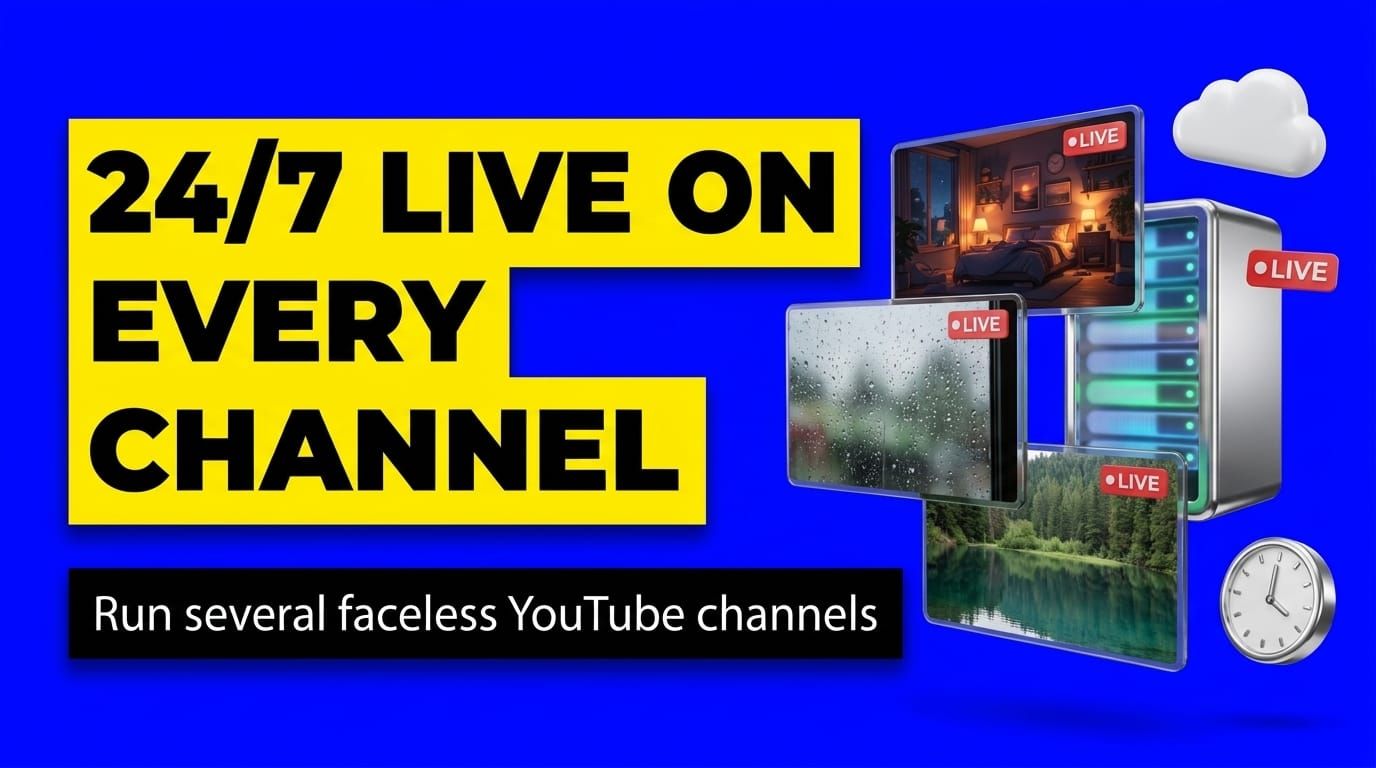
To keep several faceless YouTube channels live 24/7, run one cloud stream per channel. Each stream gets its own playlist and its own schedule, and it plays from a server, so no computer of yours stays on. With 24/7 live streaming on LiveReacting, one account holds every stream. You connect each channel with its own YouTube login, or a client's channel with an invite link.
Honestly, the setup is the easy part. The harder part is following YouTube's rules for networks of channels, so we cover them below with sources. Facts and prices in this post are current as of October 27, 2026.
Key takeaways:
- One channel, one stream: a 24/7 stream per channel, each with its own playlist and schedule.
- One account runs all of them. Add a stream when you add a channel.
- A client's channel connects by invite link, with no owner access and no password.
- YouTube's spam policy covers "coordinated networks of channels". Give each channel its own content.
- The price per stream goes down from two streams, and most from four.
The network on one page
| Part | Per channel | Shared by the whole network |
|---|---|---|
| Stream | One 24/7 stream (one LiveReacting project) | One LiveReacting account and plan |
| Content | Its own video or music library and playlist | Your file storage, with one folder per channel |
| Schedule | Its own: non-stop, nights only, or reruns at a gap you choose | None |
| YouTube connection | Its own login, or an invite link for a client's channel | None |
| Monitoring | Its own status and broadcast history | One list of all streams, in the Studio or from an AI agent |
YouTube allows up to 10 active live streams per channel, so one 24/7 stream per channel is far inside the limit. For the limits in detail, see how to run multiple live streams on YouTube.
Set up the first channel
The basic steps in LiveReacting:
- Upload your videos or music, or import them from Google Drive, Dropbox or a YouTube link.
- Build the playlist for this channel. Set the order, shuffle it or loop it.
- Connect the YouTube channel with a login.
- Click Go Live, or set the dates and times the stream should run.
- Switch your computer off. The stream plays from our servers.
Then add the next channel:
- Create a new project and name it after the channel.
- Put that channel's files in their own folder, so no playlist pulls in another channel's videos.
- Repeat the five steps above with that channel's playlist and login.
Need content for each channel first? The best faceless YouTube niches for 24/7 live streams lists formats that work as a stream. For one channel's production pipeline, from AI clips to a cloud folder to the playlist, see faceless YouTube channel automation.
A schedule per channel
Not every channel needs to run non-stop. Advanced Scheduling on the 24/7 plan runs a stream again daily, weekly or at any gap you choose, up to 50 runs within 30 days. A sleep channel can run every night, and a study channel during school hours. With Keep stream progress on, each run continues from the video where the last one stopped.
Connect your channels and your clients' channels
Your own channels. Connect each one with its own YouTube login in Stream Settings. Each stream then goes to its own channel.
A client's channel. You do not need owner access or the client's password. Send an invite link:
- In LiveReacting, go to Stream Settings, then Connect Accounts, then YouTube Channels.
- Click "Generate Invite Link" and send the link to the channel owner.
- The owner signs in to Google on a page that carries your logo and your name.
- They grant streaming access only. The channel appears in your account, and you can create streams on it.
The owner keeps control of the channel and can remove the access at any time in their Google Account. The Help Center guide shows each step.
On the YouTube side, check each channel. YouTube's live streaming help page says a channel needs "no live streaming restrictions in the past 90 days" and must be verified. Enable live streaming on every channel in the network, not only on the first one.
Give every channel its own content: YouTube's rules for channel networks
YouTube writes rules about networks of channels and about mass-produced content, and they apply to live streams too.
- The spam policy names networks. YouTube's Spam Policy "applies to all types of content on YouTube, including unlisted and private content, comments, links, posts and thumbnails, and coordinated networks of channels."
- Mass production is spam. The same page does not allow "using automated tools or AI to churn out high volumes of similar content with minimal changes". Its example: channels with "the exact same background music and repetitive AI generated imagery across many videos".
- Monetization rules cover live streams. YouTube's channel monetization policies say the word video "refers to Shorts, long-form videos, and live streaming". Content must "Not be mass-produced, generic, repetitive, or manipulative."
- One channel's problem can reach the others. The same page says a violation may suspend monetization "on all or any of your accounts". If a channel is terminated, YouTube's termination rules prohibit "using, possessing, or creating any other YouTube channels". The live streaming help page adds that a channel restricted from live streaming may not use another channel to stream.
What this means for a 24/7 network:
- Give each channel its own library. Do not run the same playlist on five channels.
- Vary each playlist. A long, varied playlist repeats less often than one clip on loop.
- Stream only what you made or are licensed to stream, on every channel.
- Do not fill channels with near-identical AI clips over the same music. That is YouTube's own spam example.
Following these points does not make a channel eligible for monetization. YouTube reviews each channel on its own. For the background, see YouTube's AI content crackdown and 24/7 streams.
What keeps many 24/7 streams running
With ten channels, you can't watch every stream yourself. That's why every stream on your account gets these by default:
- Multi-cloud failover. If the server behind a stream stops answering, the stream starts again on another server by itself.
- Several data centers in Europe and the US.
- Video files in two storage services, with automatic switch-over.
- Auto-reconnect. If YouTube drops the connection, LiveReacting reconnects.
- Broken files skipped. A corrupted file in a playlist is skipped, not played.
Need to change something while a stream is live? Add videos, change the order or the music, then click Sync with Live. The stream keeps running.
Run the network from code or an AI agent
The API and the MCP server come with every paid plan. An AI agent such as Claude, Codex, Cursor or ChatGPT (through our ChatGPT plugin) can then do the routine work across channels:
- List your projects and read each stream's status, with the state of each destination.
- Check that each YouTube login still works before you rely on it.
- Import new files, replace a playlist and push the change to a running stream.
- Schedule streams and read past broadcasts with their peak viewers.
You ask in plain words, for example: "Check every 24/7 stream and tell me which ones are not live." For a full build from code, see how to automate a 24/7 live stream with the API and MCP. For the rest of the stack, from scripts to thumbnails, see YouTube automation tools.
What a network of 24/7 streams costs
The 24/7 plan is priced per stream that runs at the same time. Two streams take 4% off the total, three take 6%, and from four streams 23% comes off. Prices below are per stream per month, at 1080p and 30 FPS. Yearly billing is paid once a year.
| Streams (channels) | Month to month, per stream | Billed yearly, per stream | Billed yearly, first year with the new-customer offer, per stream |
|---|---|---|---|
| 1 | $39.99 | $33.00 | $23.99 |
| 2 | $38.39 | $31.68 | $23.04 |
| 3 | $37.59 | $31.02 | $22.55 |
| 4 to 20 | $30.79 | $25.41 | $18.48 |
The new-customer offer comes on top of the volume discount. After the first year, the standard yearly price applies. On monthly billing, one new stream is $21.99 a month for the first 5 months, then $39.99. From four streams, the monthly offer is $16.94 a stream for the first 5 months, then $30.79. You can buy up to 20 streams at checkout; above 20 it is a custom plan. See LiveReacting plans and pricing.
A weekly check for a 24/7 network
- See that every stream is live, in the Studio or by asking your agent.
- Add new videos to each playlist, so viewers do not see the same loop.
- Open each channel in YouTube Studio and look for policy notices.
- Check that each client's channel is still connected.
FAQ
I run 5 YouTube channels. How do I keep them all live 24/7?
Run one cloud stream per channel. Each stream gets its own playlist and schedule and plays from a server, so no computer stays on. In LiveReacting that is five streams on the 24/7 plan, in one account, with each channel connected by its own login.
Do I need a computer or OBS running for each channel?
No. LiveReacting plays each stream from its own servers, so your computer can be off. With OBS, a computer has to stay on and online for every stream.
Can I stream the same video on all my channels?
You can: one LiveReacting project can stream to two or more YouTube channels, each connected by login. For a network of faceless channels, give each channel its own content instead. The same content on every channel can look like the repetitive, mass-produced content that YouTube's spam and monetization policies describe.
Can I run a 24/7 stream on a client's channel without their password?
Yes. Send the client an invite link from LiveReacting. They sign in to Google on a page with your logo and name and grant streaming access only. They keep control of the channel and can remove the access at any time.
How much does it cost to run 24/7 streams on 10 channels?
On LiveReacting, 10 streams are $25.41 a stream billed yearly ($254.10 a month in total), or $30.79 a stream month to month ($307.92 a month in total). New customers pay $18.48 a stream for the first year billed yearly ($184.75 a month in total), then the standard price.
Conclusion
To sum up: one stream, one playlist and one schedule per channel, all from one account. Give each channel its own content. You can start with one channel on 24/7 live streaming and add a stream each time you add a channel.
Transform Your Live Streams with LiveReacting
Join 10,000+ streamers who are boosting engagement and viewership by adding pre-recorded videos, games, polls, and countdowns to their streams.
Try LiveReacting for free today and take your streams to the next level!