
How to Get Your Kick Stream Key (and Reset It)
Your Kick stream key is in the Creator Dashboard under Channel, then Stream URL and Key. How to copy it, the server URL that goes with it, and how to reset it.
Your Kick stream key is in the Creator Dashboard, under Channel → Stream URL and Key.
The key is only half of what your encoder needs. Kick also publishes a fixed server URL that every custom-RTMP setup has to use, and a title-and-category step that will stop your broadcast starting if you skip it. All of it is below, checked against Kick's own help centre on August 15, 2026.
Where to find your Kick stream key
The stream key is your channel's credential. Anyone holding it can broadcast to your channel without your password, so treat it exactly like one.
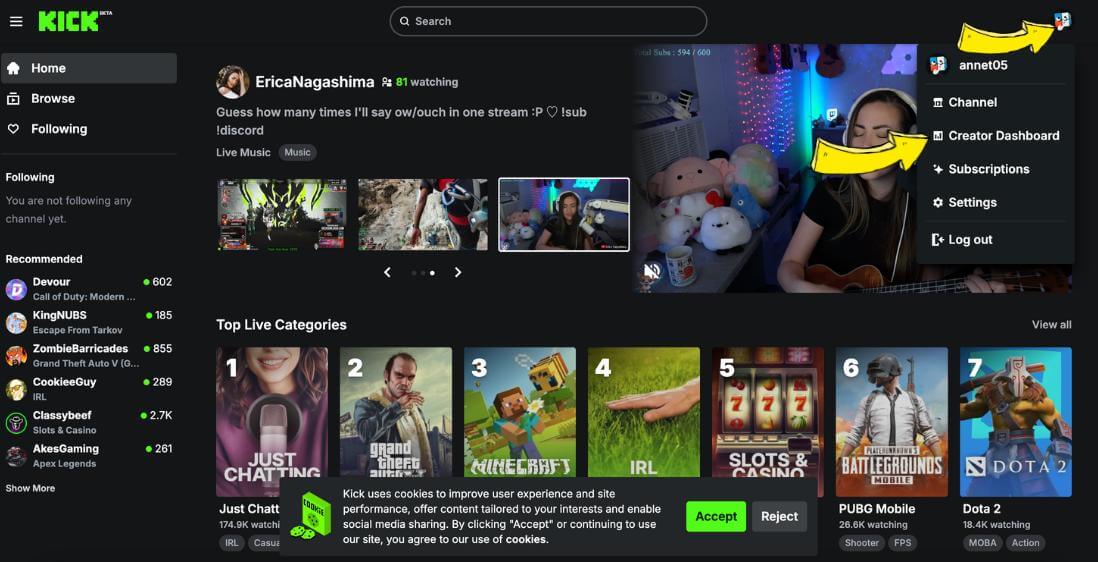
- After logging into Kick, navigate to your profile section. This is typically located by your profile picture or a username icon. Click on it to reveal a drop-down menu, and select "Creator Dashboard."
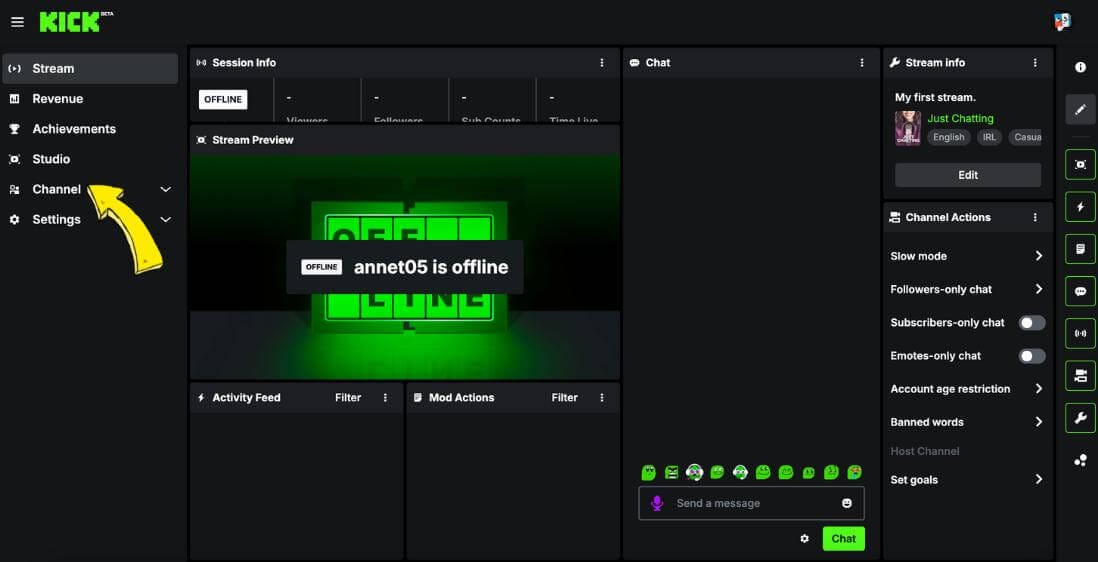
- Within the left side menu, look for the option labeled "Channel".
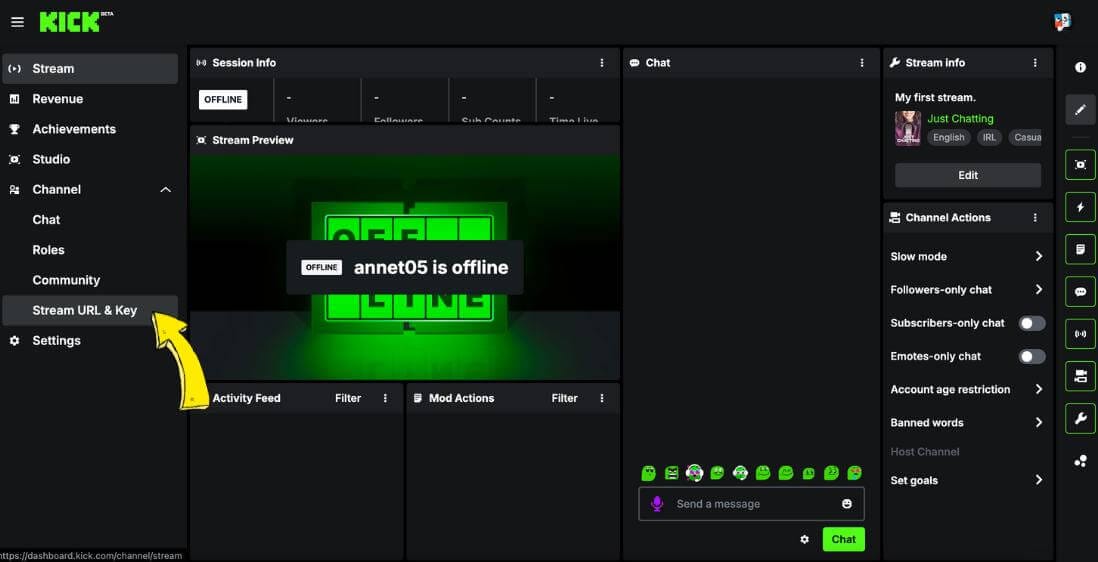
- Under "Channel", choose Stream URL and Key.
- You've now reached your Kick Stream Key and URL. Click to reveal the key, then copy it. Use the copy control rather than selecting the text by hand, because one clipped character produces an authorization error that looks exactly like a broken account.
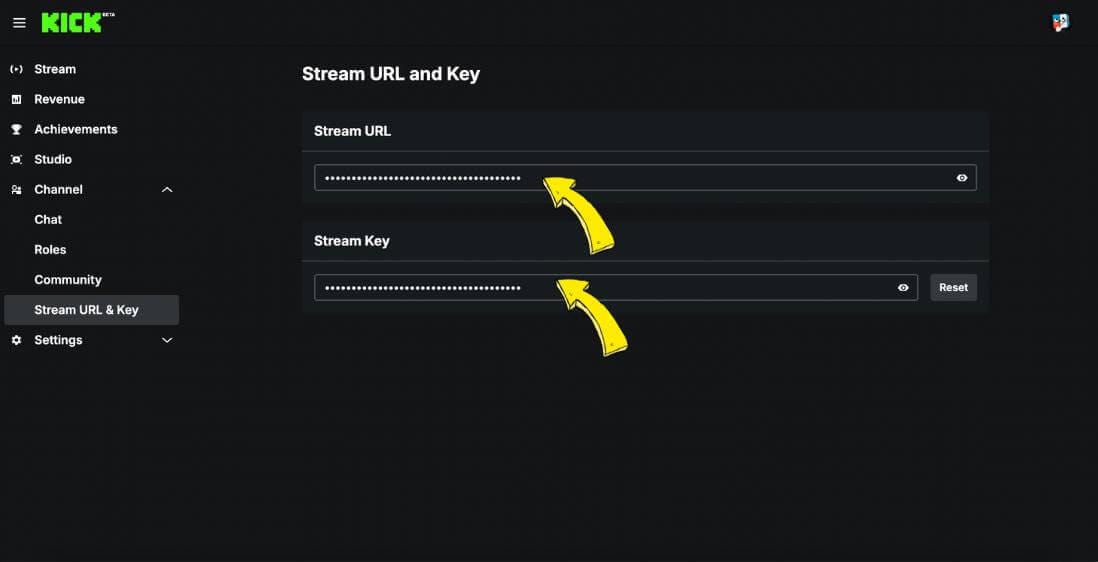
Kick publishes two direct links to the same screen if you'd rather skip the menus: dashboard.kick.com/channel/stream and kick.com/settings/stream.
The server URL that goes with it
The key says which channel. The server URL says which Kick server. Your encoder needs both, in separate fields.
Kick documents one URL for custom RTMP setups, and words it as a requirement rather than a suggestion:
rtmps://fa723fc1b171.global-contribute.live-video.net:443/appIn OBS, open File → Settings → Stream, set the service to Custom..., paste that address into Server and the key into Stream Key, then click Apply. Streamlabs Desktop skips the key entirely: its Stream settings tab has a Connect button for Kick that authorizes through your browser instead.
One quirk worth knowing if you use LiveU Studio, straight from Kick's help centre: you have to add :443/app to the stream URL yourself, giving the same address shown above.
What Kick accepts from your encoder
If the key and server are right and the stream still fails, the cause is usually one of Kick's hard limits. These are Kick's own published figures.
| Setting | Kick's limit |
|---|---|
| Maximum resolution | 1920x1080 |
| Maximum bitrate | 8,000 kbps |
| Maximum frame rate | 60 fps |
| Video codec | H.264 / x264 only, no H.265 |
| Rate control | CBR only. Kick does not support VBR |
| Audio | Stereo, 48 kHz maximum |
Mac users have one extra step: Kick's guidance is to select the x264 encoder, because that is what exposes the CBR option.
Set your title and category before you go live
This one is not obvious and it breaks broadcasts. Kick's warning: "If you do not set your stream title and category, your livestream may not start correctly."
Go to your Streamer Dashboard, click Edit Stream Info, set the title and category, and save. Do it before you press Start Streaming, not after.
How to reset your Kick stream key
Reset it from the same place you found it. Kick's instruction is to visit your Streamer Dashboard and click the "Reset" button.
Kick adds the obvious consequence, which is worth stating because people forget the second half: "If you reset your stream key, you must update your streaming software with the new key."
That means every encoder, every hardware device and every cloud service that had the old key saved. Anything still holding the old one stops connecting the moment you reset.
Keeping your Kick stream key safe
The threat is simple. Someone with your key can broadcast to your channel, and your viewers will see whatever they send. That risks your channel's standing, your audience's trust, and any brand deals attached to it.
What actually helps:
- Turn on multi-factor authentication for your Kick account.
- Never show the Stream URL and Key screen on stream, and blur it in screenshots and screen shares.
- Don't paste the key into chats, tickets or shared documents.
- Reset the key the moment it is exposed, when someone with access leaves, or when you retire a device that had it saved.
Rotating a healthy key on a schedule does not buy you anything. It just means more encoders to update. Reset on exposure, not on a calendar. Our guide to protecting live streams from unauthorized access covers the wider account hardening.
Getting your Kick stream key on mobile
Depends which app you use.
Kick's own KICK - Go Live app broadcasts directly from your phone, with front and back camera plus screen sharing, and never asks for a key. Third-party apps do need one. Kick's mobile guide walks through Streamlabs Mobile and names PRISM Live Studio, Larix Broadcaster and Moblin as common alternatives, and each of those wants the same custom RTMP pair: the server URL above and your stream key.
Get the key on a computer and copy it across. It's the same key either way.
One catch Kick flags for mobile: the title and category still have to be set on the Kick website first. Kick states it cannot be done inside the Streamlabs mobile app.
Can you go live with a pre-recorded video on Kick?
Yes, and it's a common reason to want the key in the first place.
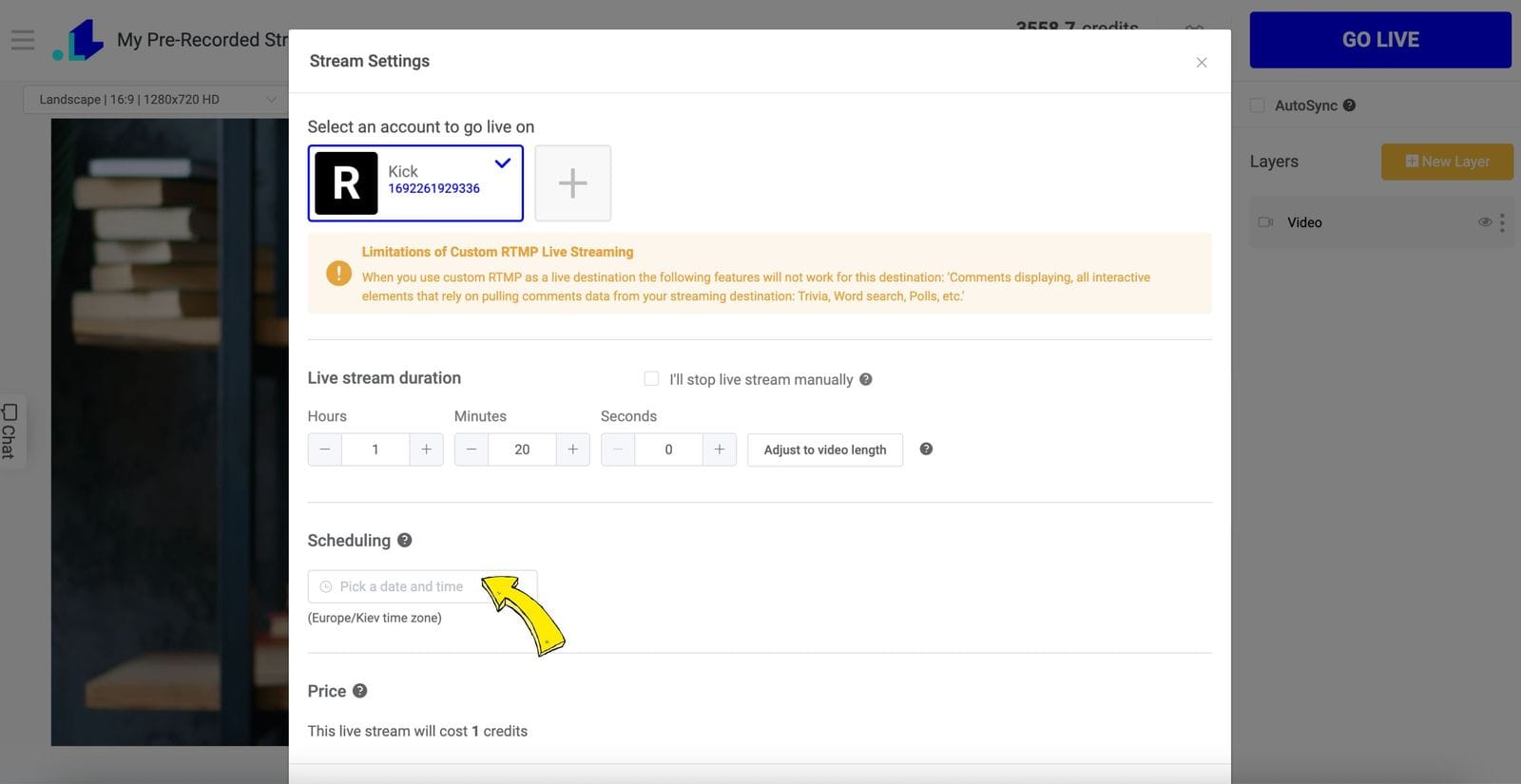
Kick isn't a native one-click destination in most cloud tools, so you connect it as a custom RTMP target: paste the server URL and your stream key once, upload your video, and go live. LiveReacting does exactly that, and the difference is what happens next. The broadcast runs from our servers, so your machine can be closed, your upload speed stops mattering, and the encoding is handled for you.
From there you can build a playlist, schedule it, reorder it while it's still running, and mix a live camera into pre-recorded footage. Our step-by-step walkthrough covers streaming a pre-recorded video on Kick.
Stream keys on the other platforms
Same idea everywhere, different menus. We have separate walkthroughs for the YouTube stream key, the Twitch stream key and the X (Twitter) stream key.
If you're sending the same broadcast to more than one of them, each destination needs its own key and its own server URL. There is no shared key. Our guide to multistreaming without the OBS multi-RTMP plugin covers running them together.
FAQ
Where is the Kick stream key? Creator Dashboard → Channel → Stream URL and Key. Kick also links straight there from dashboard.kick.com/channel/stream and kick.com/settings/stream.
What is Kick's stream URL? Kick publishes a single address for custom RTMP setups: rtmps://fa723fc1b171.global-contribute.live-video.net:443/app. It goes in your encoder's Server field, not the key field.
How do I reset my Kick stream key? Open your Streamer Dashboard and click the Reset button on the same screen where the key lives. Then update every encoder and service holding the old key, or they will stop connecting.
Why won't my Kick stream start even though the key is right? Most often the stream title and category haven't been set. Kick states that without them your livestream may not start correctly. After that, check your settings against Kick's limits: 1080p, 8,000 kbps, 60 fps, H.264 and CBR.
Do I need a stream key to go live on Kick from my phone? Not with Kick's own KICK - Go Live app. Third-party mobile encoders like Streamlabs Mobile do, and they use the same key you copy on a computer.
What happens if someone gets my Kick stream key? They can broadcast to your channel without your password. Reset it immediately from the Streamer Dashboard, then update your own software with the new key.
Start streaming
Copy the key from Channel → Stream URL and Key, pair it with Kick's server URL, set your title and category, and go live.
Or hand the running to a server instead of your desktop. Connect Kick to LiveReacting, upload a video, and let the stream run without a machine of your own left switched on.
Sources verified (2026-08-15)
All Kick quotes and figures above come from Kick's own help centre, checked on 2026-08-15:
- How to stream on KICK.com (Kick help centre, updated May 22, 2026) — the Creator Dashboard → Channel → Stream URL and Key path, the OBS custom-service setup, the resolution/bitrate/fps/codec/CBR limits, the title-and-category warning, the reset button, the LiveU
:443/appnote - Streaming on KICK from your mobile phone (Kick help centre, updated May 22, 2026) — the two direct stream-key URLs, the required custom RTMP server address, the KICK - Go Live app, the third-party mobile apps, the title-and-category limitation on mobile
Transform Your Live Streams with LiveReacting
Join 10,000+ streamers who are boosting engagement and viewership by adding pre-recorded videos, games, polls, and countdowns to their streams.
Try LiveReacting for free today and take your streams to the next level!