
How to Save Your Twitch Streams Before Twitch Deletes Them
Twitch deletes your past broadcasts after seven days, and support cannot get them back. How to turn storage on, and the setting the mobile app hides.
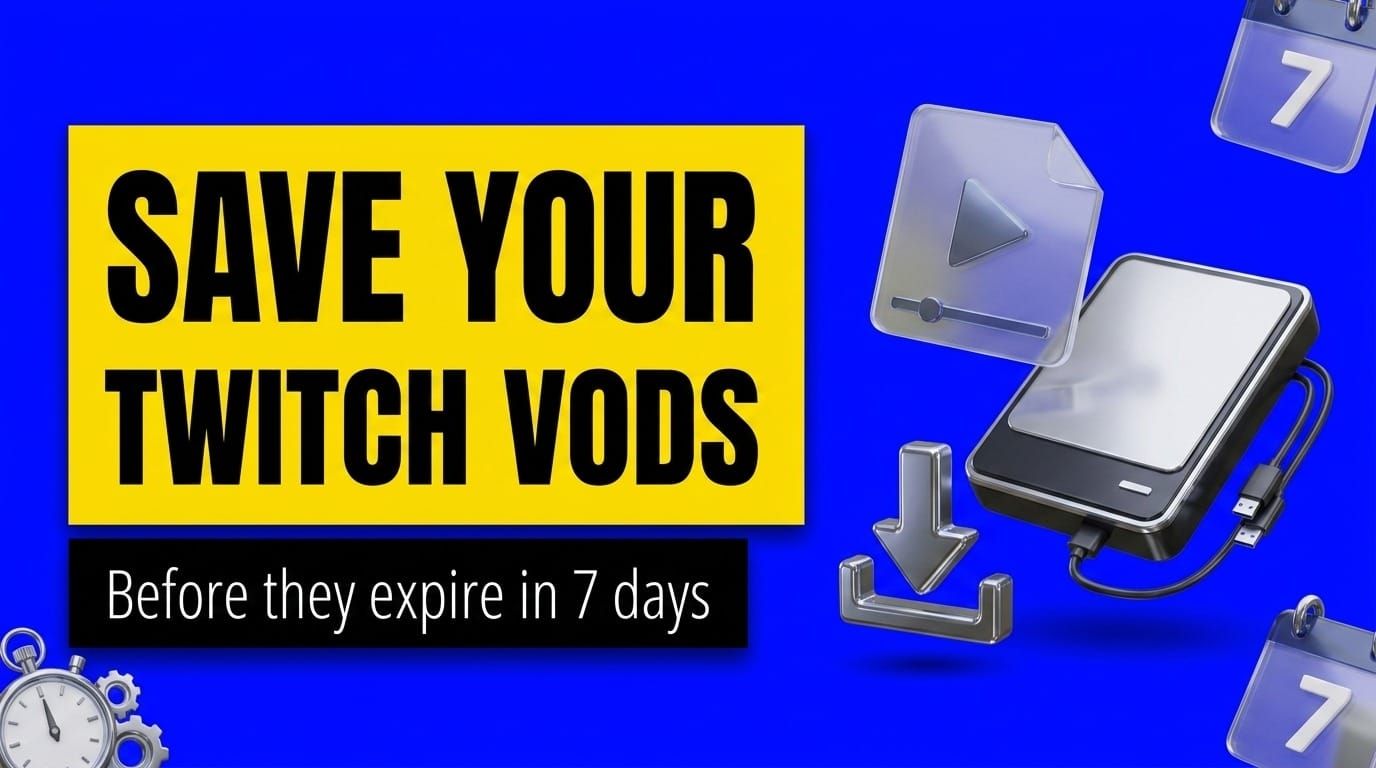
Twitch deletes your past broadcasts. For most streamers that happens after seven days, and once it does, nobody can get them back.
The clock is shorter than people expect, the setting that saves them has to be on before you go live, and there is one place you cannot turn it on at all. Here is the whole thing, from Twitch's own documentation.
How long Twitch keeps your streams
| Account type | Past broadcasts kept for |
|---|---|
| Partners, Prime and Turbo | 60 days |
| Affiliates | 14 days |
| Everyone else | 7 days |
Twitch's wording is blunt: "If you want to save your past broadcasts beyond the 7 or 60 day limits, download or export them before the 7 or 60 day window."
There is a wrinkle if you stream in 2K or Dual Format. The higher-quality copy does not get the full window:
The vertical version of your VOD will expire 7 days after your stream, after which the horizontal version will be available for the remainder of your existing retention period.
The same applies to 2K, where the 2K copy expires at seven days and the 1080p version serves out the rest. If you are not a Partner or Affiliate, both versions expire together at seven days, so the higher-quality copy is the one you lose first and the one worth downloading first.
Highlights and Uploads work differently. Twitch stores those indefinitely, with a catch covered further down.
Turn on Store Past Broadcasts, before you stream
Nothing is saved unless this setting is on when you go live. Twitch is explicit that turning it on later does not reach backwards:
If the Store Past Broadcasts toggle is turned off, your past broadcasts won't be saved, and you won't be able to create Highlights or Clips from them.
Go to the Creator Dashboard, open Settings, then Stream, and switch Store Past Broadcasts on.
The part that catches people out: this setting is web-only. In Twitch's words, it "can only be enabled through the Creator Dashboard on web. This setting is not available in the Twitch mobile app. If you stream from your phone, you must enable this setting on web first, otherwise your mobile broadcasts will not be saved."
So a phone-only streamer can broadcast for months and save nothing, without ever seeing a setting that would have told them.
One more thing the toggle does not guarantee. Twitch warns that "if your stream configurations are not set up properly or your network is unstable, streams might not save even if the Store Past Broadcasts toggle is on." Run Twitch Inspector once after your next stream to confirm the recording actually happened, and check your encoder settings if it did not.
Twitch Support cannot get a lost stream back
This is worth stating on its own, because people ask support and assume there is a backup. There is not.
If your broadcast was not saved, either because Store Past Broadcasts was not enabled, your stream had incompatible configurations, or the VOD has passed its retention period, the content no longer exists on Twitch's servers and cannot be recovered by Twitch Support.
There is no grace period and no archive behind the archive. The seven days are the whole safety net.
Download a VOD
Everything lives in the Video Producer: Creator Dashboard, then Content, then Video Producer. It also shows your storage usage and your copyright strike status.
To save one:
- Find the video in the list. Filter by type with the dropdown above it if you have a lot.
- Click the three vertical dots next to the video.
- Click Download.
Long videos can take a while before the download even starts, so begin the ones that matter well before the deadline rather than on day seven.
Two limits to plan around. Twitch does not offer bulk download, so it is one video at a time. And if the Audio Recognition system muted part of your stream, the download is muted too: "downloading it will not provide an unmuted version of the video." Whatever was muted on Twitch is gone from your copy as well.
Export straight to YouTube instead
If you would rather not shuttle files around, Twitch can push a VOD to YouTube for you.
Connect the two accounts on your Connections page, then use Export from the same three-dot menu. The video uploads to YouTube without ever touching your hard drive.
Twitch adds one tip that saves a failed upload: verify your YouTube account first, otherwise you are capped at 15-minute uploads, which no stream fits inside.
The Highlights trap
Turning a VOD into a Highlight keeps it forever, so this looks like the obvious way to beat the clock. It is, up to a point.
There is a 100-hour storage limit across all Highlights and Uploads combined, and Twitch counts unpublished ones too. Unpublishing does not help: "Unpublishing Highlights or Uploads will not free up storage space. You must delete Highlights or Uploads to free storage space."
Past broadcasts themselves do not count toward that limit. Only Highlights and Uploads do. So the pattern that fills the quota is exactly the one people reach for first, saving whole streams as Highlights, and Twitch calls it out: "If you were previously storing full VODs as Highlights, please note that these are stored as Highlights and will count towards your limit."
Highlights are for the moments worth keeping on the channel. Downloads and YouTube exports are for keeping everything.
A related detail: Uploads are limited to Affiliates and Partners, and Twitch supports H.264 files only.
What to do with the streams once you have them
A saved VOD sitting on a drive earns nothing. The obvious second life is re-airing it.
LiveReacting takes a downloaded VOD and streams it back as live, on Twitch or anywhere else. Upload the file, connect the channel, go live. The encoding runs on our servers, so the replay does not need your computer on, and viewers get a live chat to sit in rather than a video to scrub through.
Two things that makes practical:
- Fill the hours you are not streaming. Build a playlist from your best past broadcasts and let it run overnight or between sessions. Chat stays open, so the channel is somewhere to be rather than an offline screen, and a chat overlay keeps it visible on screen.
- Reach a different time zone. Your Tuesday afternoon stream can air again when your European viewers are awake, without you being there twice. Worth pairing with the best time to stream on Twitch, which is measured rather than guessed.
- Send it to more than one place. The same replay can go to YouTube at the same time, within the multistreaming rules.
If you want that running continuously rather than occasionally, that is a 24/7 channel, and the same playlist logic applies. Running pre-recorded gameplay on Twitch works the same way.
FAQ
How long does Twitch keep VODs? Seven days for most streamers, 14 days for Affiliates, and 60 days for Partners, Prime and Turbo users.
Are Twitch VODs saved automatically? Only if Store Past Broadcasts is switched on before you go live. Turning it on afterwards does not recover earlier streams, and Twitch Support cannot restore them.
Why are my Twitch streams not saving? Either the setting is off, or you turned it on in the mobile app, where it does not exist. It has to be enabled in the Creator Dashboard on web. An unstable connection or a bad encoder configuration can also stop a stream saving even with the toggle on.
Can I download all my Twitch VODs at once? No. Twitch has no bulk download, so it is one video at a time from the three-dot menu in the Video Producer.
Do Highlights expire? No, but they share a 100-hour storage limit with Uploads, and unpublished ones still count. Past broadcasts do not count toward that limit.
Can I get back a stream that already expired? No. Once the retention window passes, Twitch says the content no longer exists on its servers.
Does downloading a muted VOD restore the audio? No. If Audio Recognition muted a section, the downloaded copy is muted in the same place.
Do this now
Open the Creator Dashboard on web, go to Settings, then Stream, and check that Store Past Broadcasts is on. That takes thirty seconds and it is the difference between having your streams and not.
Then work out which past broadcasts are worth keeping, and download them before the window closes. After that, put them back on air instead of leaving them on a drive.
Sources
Every retention figure, limit and quote above comes from Twitch's own help pages, read on September 7, 2026. Twitch does not date its help articles, so re-check before relying on them.
- Twitch, "On-Demand Content on Twitch": the retention periods by account type, the 2K and Dual Format expiry rule, the Store Past Broadcasts requirement and its web-only limitation, the Video Producer paths, the download and export steps, the muted-audio note, the 100-hour Highlights and Uploads limit, and the statement that Twitch Support cannot recover an unsaved broadcast.
- Twitch, "Joining the Affiliate Program": extended VOD storage as an Affiliate benefit.
Transform Your Live Streams with LiveReacting
Join 10,000+ streamers who are boosting engagement and viewership by adding pre-recorded videos, games, polls, and countdowns to their streams.
Try LiveReacting for free today and take your streams to the next level!