
How to Multistream on Twitch and YouTube (2026 Rules)
Twitch dropped exclusivity in 2023. Here's how to multistream on Twitch and YouTube in 2026: current rules, quality parity, revenue splits, and step-by-step setup.
Twitch now allows simulcasting. Since October 2023, Partners and Affiliates can stream to Twitch, YouTube, Facebook, Kick, and any other platform simultaneously. No exclusivity clause. No restrictions on which platforms you choose.
There are rules, though. Twitch requires quality parity, recently reversed its combined chat ban, and the revenue split situation makes multistreaming more important than ever. Here is what you need to know.
What Changed: Twitch Drops Exclusivity
At TwitchCon Las Vegas on October 20, 2023, CEO Dan Clancy announced that Twitch would remove all simulcasting restrictions for Partners and Affiliates. Before this, Partners were locked into Twitch-only live streaming. Affiliates had a softer version of the same rule.
Here is a quick timeline:
| Date | What Happened |
|---|---|
| Pre-2023 | Partners contractually exclusive to Twitch for live content |
| Aug 2023 | Twitch loosened rules slightly (allowed simulcasting to mobile-only platforms like TikTok and Instagram) |
| Oct 20, 2023 | Full simulcasting allowed to all platforms including YouTube and Facebook |
| 2024 | Quality parity and chat rules enforced |
| Feb 2026 | Combined chat ban reversed after Gigguk received a warning; revenue split label controversy erupts |
Current Twitch Multistreaming Rules (2026)
Twitch allows simulcasting but has three active guidelines. Break them and you risk warnings or suspension.
1. Quality Parity
Your Twitch stream quality must be at least as good as your stream on other platforms. If you are streaming 4K on YouTube, you cannot send 720p to Twitch. The resolution, bitrate, and frame rate on Twitch must match or exceed what you send elsewhere.
In practice, most multistreaming tools send the same feed to all destinations. This rule mostly prevents creators from deliberately giving Twitch a worse experience. Check Twitch bitrate recommendations to make sure your settings are correct before going live.
2. No Links to Other Platforms
You cannot post links to your YouTube, Kick, or other streams in Twitch chat or on your Twitch stream overlay. Twitch does not want you directing its viewers elsewhere during a broadcast.
This means: no "Watch me on YouTube too!" with a clickable link in Twitch chat. You can mention that you are multistreaming. You just cannot link out.
3. Combined Chat (Enforcement Suspended)
Originally, Twitch banned displaying merged chat overlays that combined messages from Twitch and other platforms on your stream. Streamers like Gigguk received enforcement warnings for showing combined chat.
After community backlash, Twitch CEO Dan Clancy addressed it directly on a Patch Notes stream: "We are updating our enforcement guidelines to make sure we are not issuing enforcement actions for integrating combined chat on the video from your stream."
Current status (as of March 2026): Twitch will no longer issue penalties for displaying combined chat. However, note that the formal simulcasting guidelines document has not yet been updated to explicitly permit it — the written rule technically still prohibits merged chat. Only enforcement has been suspended. In practice, you are safe to use unified chat overlays.
One caveat that remains in effect: you are still responsible for Community Guidelines violations that appear from third-party platform chats on your Twitch stream. If someone sends a ban-worthy message on YouTube chat and it appears on your Twitch stream, that can still be actioned. Moderate all chat sources, not just Twitch.
See our Twitch chat overlay tutorial for setup instructions.
The Revenue Split Problem
Multistreaming is not just about reach. It is also about money.
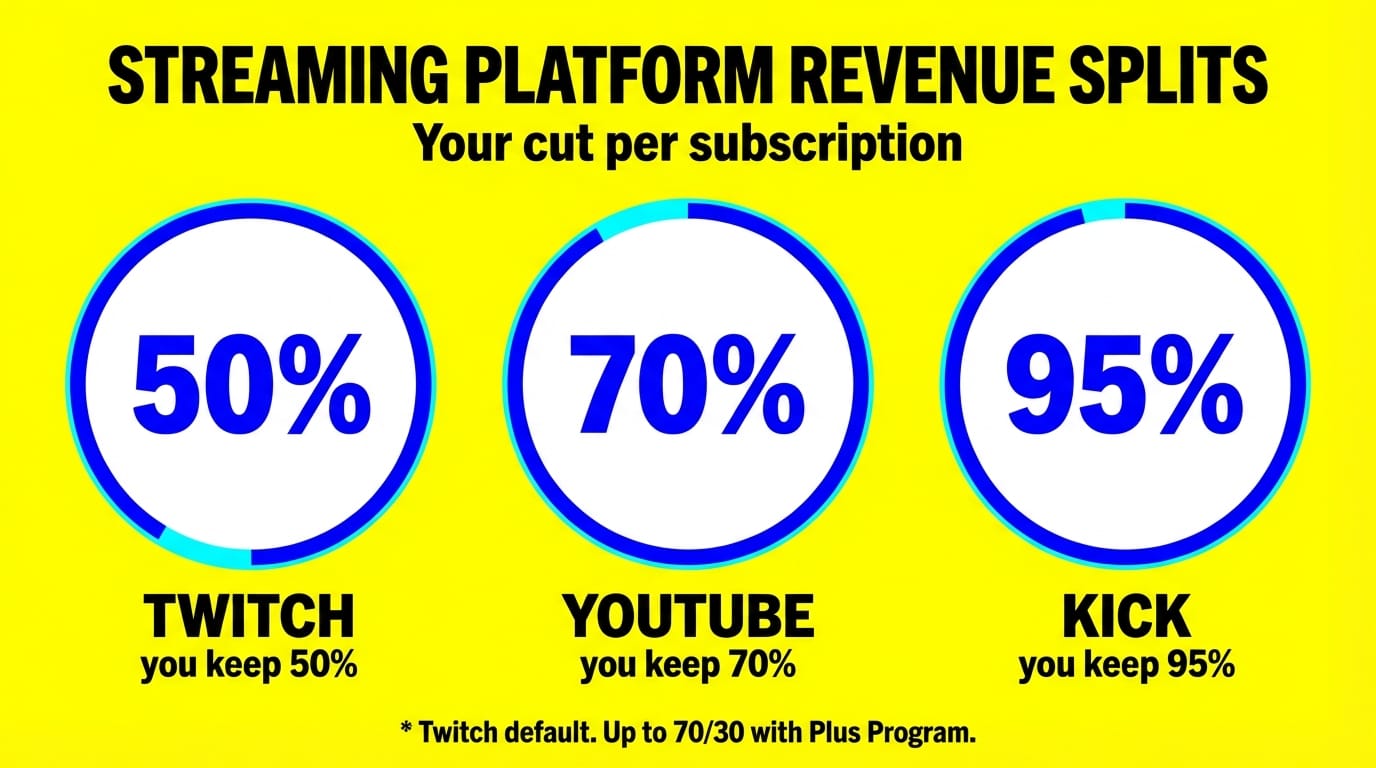
Twitch's standard revenue split is 50/50 on subscriptions. The platform keeps half. The Plus Program offers two tiers above that: Level 1 is 60/40 (100 Plus Points for three consecutive months) and Level 2 is 70/30 (300 Plus Points for three consecutive months). Points come from recurring paid subs (+1 for Tier 1, +2 for Tier 2, +6 for Tier 3) and reset monthly.
| Platform | Standard Sub Split | Better Split Available? |
|---|---|---|
| Twitch | 50/50 | 60/40 (Level 1, 100+ Points) or 70/30 (Level 2, 300+ Points) for 3 months |
| YouTube | 70/30 | Standard for all channel members |
| Kick | 95/5 | Standard for all creators |
In February 2026, Twitch caused panic when a backend reclassification labeled "Level 2 Plus" appeared in creator dashboards. Streamers like Kalei and StableRonaldo publicly claimed their 70/30 split was being removed. Twitch clarified it was an administrative label change, not a payout change -- no existing contracts were altered.
But the damage was done. Trust between Twitch and creators has been fragile since 2022. More streamers are diversifying their income by streaming to multiple platforms at once.
How to Set Up Twitch Multistreaming
You have two options: use OBS with plugins, or use a cloud-based multistreaming tool.
Option A: OBS + Multi-RTMP Plugin
- Install OBS Studio
- Install the Multi-RTMP plugin
- Add your Twitch stream key as the primary output
- Add YouTube, Facebook, or other RTMP destinations as additional outputs
- Start streaming. OBS sends your feed to all destinations.
Downsides: Your computer encodes the stream multiple times (once per destination). This eats CPU and upload bandwidth. If your PC is not powerful or your internet is slow, quality drops. If your PC crashes, all streams go down.
For a full walkthrough on this approach, see how to multistream without complex OBS setup.
Option B: Cloud-Based Multistreaming
Cloud tools handle encoding on their servers. You send one stream (or upload pre-recorded content), and the service distributes it to all platforms.
LiveReacting is a cloud-based streaming platform. Upload video, go live in 5 minutes, and your stream runs from the cloud even if you close your laptop. It multistreams to YouTube, Facebook, Twitch, Instagram, TikTok, LinkedIn, and any RTMP destination.
Key advantages for multistreaming:
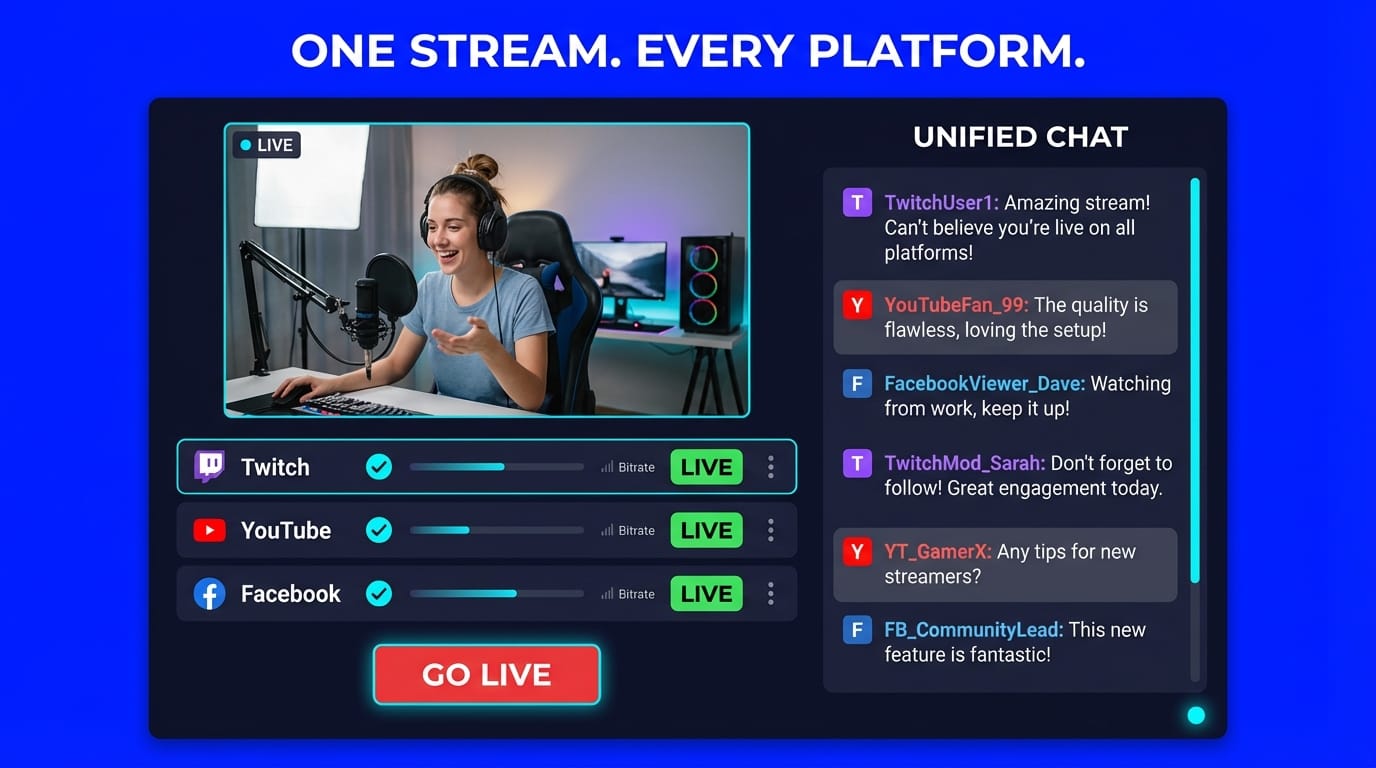
- Unified chat from all platforms in one interface. Comments from Twitch, YouTube, and Facebook appear in a single feed. This is exactly what Twitch now allows on your stream overlay.
- Interactive elements (trivia, polls, giveaways) process comments from ALL platforms simultaneously. A viewer on YouTube and a viewer on Twitch can both play the same trivia game.
- No local hardware needed. Cloud servers handle encoding and distribution. Zero CPU load on your end.
- Pre-recorded content can be streamed as live across all platforms. Record once, broadcast everywhere.
Multistreaming Tool Comparison
| Feature | OBS + Multi-RTMP | LiveReacting | Restream |
|---|---|---|---|
| Destinations | Unlimited (manual RTMP) | 3-20 (plan-based) | 2-8 (plan-based) |
| Encoding | Local (your CPU) | Cloud | Cloud |
| Unified chat | Needs third-party tool | Built-in | Built-in |
| Interactive games | No | Trivia, polls, giveaways, AI host | No |
| Pre-recorded streaming | No | Yes | Limited |
| Works without OBS | No | Yes (browser-based) | Yes |
| Price | Free | From $19.99/mo | From $16/mo |
Step-by-Step: Multistream to Twitch + YouTube with LiveReacting
- Sign up and create a new project in the LiveReacting studio
- Connect your Twitch channel and YouTube channel as destinations
- Add your content: upload video, add a live camera, or build a scene with overlays
- Add interactive elements if you want (polls, trivia, giveaways)
- Click "Go Live." LiveReacting sends your stream to both platforms from its cloud servers.
- Monitor unified chat in the studio. Respond to Twitch and YouTube viewers in one place.
LiveReacting's Small plan ($19.99/mo) supports 3 multistream destinations. The Medium plan ($39.99/mo) supports 6. If you are streaming to Twitch, YouTube, and Facebook, the Small plan covers it.
Tips for Multistreaming on Twitch
Match your quality settings. Send the same resolution and bitrate to all platforms. Most cloud tools do this automatically. If you use OBS, set each output to the same encoding preset.
Do not link to other streams in Twitch chat. Mention you are multistreaming verbally, but keep links out of chat and overlays.
Use unified chat on your stream. Twitch now allows this. Showing combined chat makes all viewers feel included, regardless of platform. LiveReacting's aggregated chat makes this easy.
Engage across platforms equally. If you only acknowledge Twitch chat, YouTube viewers will leave. Read from both. Interactive elements like live polls that work cross-platform help keep everyone involved.
Consider your revenue strategy. YouTube gives 70/30 by default. Twitch starts at 50/50. If most of your income comes from subs, growing your YouTube membership base may earn you more per subscriber. Multistreaming lets you build both audiences simultaneously. See how top creators approach this in our Twitch income breakdown.
FAQ
Can Twitch Affiliates multistream?
Yes. Since October 2023, both Twitch Affiliates and Partners can simulcast to any platform. There is no exclusivity clause for either tier.
Will I get banned for showing YouTube chat on my Twitch stream?
No, Twitch stopped issuing penalties for combined chat in February 2026. After Gigguk received a warning for displaying merged chat, CEO Dan Clancy confirmed on a Patch Notes stream that enforcement was suspended. One important caveat: the formal Twitch simulcasting guidelines document had not been updated to explicitly permit this as of March 2026. The written rule technically still prohibits merged chat overlays, but enforcement has stopped. Also, you remain responsible for any Community Guidelines violations that appear from other platforms' chats on your Twitch stream.
Does multistreaming hurt my Twitch algorithm?
There is no evidence that Twitch penalizes multistreaming creators in discovery or recommendations. The platform officially supports it. However, splitting your audience across platforms means lower concurrent viewers on each individual platform compared to streaming on one.
Can I multistream pre-recorded content to Twitch?
Yes. You can stream pre-recorded video on Twitch using a cloud tool like LiveReacting. Upload your video, set Twitch and any other platforms as destinations, and go live. The quality parity rule still applies.
What is the best multistreaming tool for Twitch?
For basic simulcasting without interactivity, Restream and OBS with Multi-RTMP work. For multistreaming with unified chat, interactive games, and pre-recorded video support, LiveReacting is the most complete option. It handles encoding in the cloud, so your hardware does not matter.
Start Multistreaming Today
Twitch exclusivity is gone. The revenue split favors diversification. Combined chat enforcement has been suspended.
LiveReacting makes it simple. Connect your platforms, upload your content, and go live from the cloud. Plans start at $19.99/month with 3 multistream destinations included.
Transform Your Live Streams with LiveReacting
Join 10,000+ streamers who are boosting engagement and viewership by adding pre-recorded videos, games, polls, and countdowns to their streams.
Try LiveReacting for free today and take your streams to the next level!