
Creative Communities That Shape Better Games: A Live Streaming Playbook for Indie Studios
Creative communities can turn a promising game idea into a conversation with people who build, test, and share new work. For indie studios and streamers, the useful choice is a community model that matches a clear job: discovery, practical feedback, or an ongoing supply of player-made material. That focus protects limited time and helps feedback become actionable rather than merely abundant.
A live stream keeps that conversation going between updates. Players come back to watch, react, and tell you what to build next.
Match each community to one job
Creative work also benefits from separating development planning from personal income research. A resource on best legitimate high paying survey sites can sit in that separate research folder, while a studio's community plan stays focused on play, feedback, and content creation. It does not replace the need to choose a platform built for the work at hand.
Here is how each job maps to a platform and a stream format:
| Job | Where the community lives | Stream format that fits |
|---|---|---|
| Discovery | Nexus Mods, Mod DB | Mod showcase night |
| Feedback | itch.io | Playtest stream |
| Player-made content | Steam Workshop, Roblox | Creator tour or map challenge |
| Always-on reach | Your Steam store page | 24/7 gameplay broadcast |
Mod libraries for discovery and conversation
1. Nexus Mods
Nexus Mods suits teams and creators interested in visible modification discovery and conversation around existing games. The platform lets players and creators discover, download, and share modifications across thousands of games. Its forums, Discord access, wiki, and creator reward systems give participants places to discuss work and resolve recurring questions.
2. Mod DB
Mod DB provides a public-facing home for modifications, developers, players, and ideas. It has expanded into indie gaming and works alongside mod.io, which creates a useful contrast. Mod DB centers public discovery and discussion, while mod.io supplies tools studios can use inside their own games. That distinction helps teams decide where conversation should happen and where implementation should begin.
Stream idea: mod showcase night. Pick 3 to 5 community mods for your game and play each one live for about 15 minutes. Credit the modder on screen and post a link to their mod page in chat. Let viewers choose the next mod with a live poll on YouTube or Twitch. Ask each modder to share the stream with their own followers.
Integrated spaces for feedback and reach
3. Steam Workshop
Steam Workshop fits games that use Steam's integrated channel for community content. Its tools support submitting, finding, rating, subscribing to, and downloading player-created items; developers can integrate UGC through the ISteamUGC API. Each game determines the exact Workshop experience its players see, so this route suits projects with a clear integration plan.
Stream idea: Workshop map challenge. Play the top-rated Workshop item of the week live. Invite its creator to join as a guest and talk through how they built it.
4. itch.io
itch.io gives small teams a structured space for devlogs and limited playtests. Developers can share progress, collect comments, control access for testers, host discussions, moderate participation, and gather feedback while a game is still in development. The format also creates a practical record of reactions across successive versions.
Stream idea: playtest stream. Go live the day a new build goes up. Read the newest itch.io comments on screen and fix one small thing during the stream. Save the recording and post it as your next devlog. If your players are split between platforms, multistream to Twitch and YouTube at the same time.
5. Roblox
Roblox is built around community-made content and quick updates based on what players say in real time. Its creator guidance notes that YouTube exposure can bring attention to experiences played by popular creators. So if you stream, focus your coverage on one specific experience and use audience reactions as prompts for later discussion.
Your Steam store page as a 24/7 stream
Most people who open a Steam store page watch the trailer and leave. A live broadcast puts real gameplay at the top of the page instead. Our guide on 24/7 streaming for Steam game visibility explains why it helps wishlists.
Steam's own broadcasting FAQ allows this kind of stream:
- Pre-recorded footage is allowed.
- A stream can run as long as you want. Some studios have run streams for several days.
- Steam does not re-broadcast anything for you. You have to keep sending the video, from your own computer or from an external scheduling service.
The last point is the catch for a small team. Nobody wants a PC running OBS for a week.
Some LiveReacting customers solve it this way. They upload a gameplay recording, put it in a looping playlist, and send it to their Steam store page around the clock from the cloud. Their computers stay off. The setup is the same as for any 24/7 live stream channel:
- Upload your gameplay video, or a playlist of clips.
- On Steam's broadcast upload page, create an RTMP token and set your game's App ID.
- Paste the upload server and token into LiveReacting as a custom RTMP destination.
- In Steamworks, create a Live-Stream/Broadcast event, add the streaming account, and publish it.
- Go live and switch your computer off.
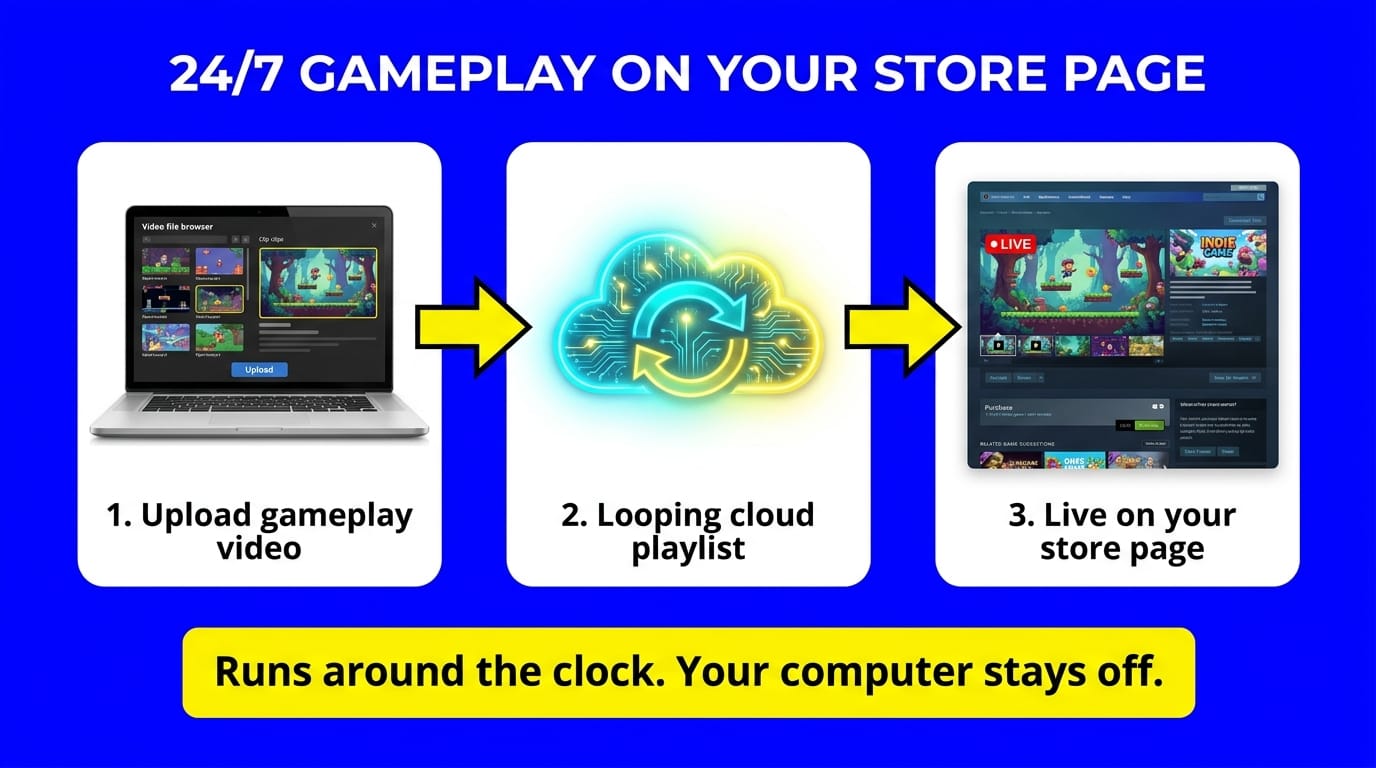
The full walkthrough with screenshots is in how to stream a pre-recorded video on Steam.
Before you go live, check Steam's rules from its setup guide:
- The streaming account must be non-limited (it has spent at least $5 on Steam) and must own the game.
- Set the broadcast to Public. Friends-only streams do not show on the store page.
- The stream shows on the store page during the event window, or when the account is on your game's broadcast whitelist.
- If you replay footage from an earlier live stream, label it as not live. Steam suggests a "Re-Broadcast" banner, and a text overlay on the stream does the job.
Keys and giveaways for your community
A giveaway gives viewers a reason to stay until the end of a stream. For your own game, request keys in Steamworks. A live stream giveaway can then pick a random winner from the chat on YouTube, a Facebook Page or Twitch.
If you give away other games, for example on a "games like ours" stream, you need to buy them. Players can buy digital games through official platform stores or a digital marketplace. Across platforms and regions, Eneba is one option for game keys or gift cards, and its product pages can show clear region and platform information. Verified merchants provide another straightforward point of reference when comparing listings.
Digital marketplaces like Eneba offer deals on digital products, while platform and region information helps you select the right prize. Check both before you promise a key to chat. A key locked to the wrong region is a bad prize. Our live giveaway setup guide covers the rest.
Choosing a community with purpose
Start with the feedback your project needs and the place where you can actually use it. Pick a mod library for broad discovery, or a controlled playtest for early reactions. Integrated UGC tools fit studios that plan creator content inside the game itself. Engine support, distribution plans, audience fit, and moderation rules should guide the final choice.
Each option serves a distinct role, so the strongest community plan links a platform to a specific creative goal instead of treating every channel alike. The process also benefits when teams document what feedback changed and why.
Then add a stream on top: a playtest stream for feedback, a showcase night for discovery, and a pre-recorded broadcast on your Steam page that keeps running while you build.
Transform Your Live Streams with LiveReacting
Join 10,000+ streamers who are boosting engagement and viewership by adding pre-recorded videos, games, polls, and countdowns to their streams.
Try LiveReacting for free today and take your streams to the next level!