
How to Start a Live Stream From ChatGPT
Install the LiveReacting plugin in ChatGPT once. Then type @LiveReacting and ask for a 24/7 or scheduled live stream on YouTube. Your computer can be off.
LiveReacting is now a plugin in ChatGPT. Open it in ChatGPT, click Install plugin, then type @LiveReacting in any chat and say what you want, for example: "Loop the videos from my LiveReacting library as a 24/7 live stream on my YouTube channel."
ChatGPT builds the playlist in your LiveReacting account and starts or schedules the stream. Our servers do the streaming, so you can close ChatGPT and turn your computer off.
Every paid plan includes the plugin. More example requests are on the LiveReacting for ChatGPT page.
Current as of November 1, 2026.
What you need
- A LiveReacting account on a paid plan.
- Your channels connected in LiveReacting Studio. You do this once. YouTube, Facebook, Twitch, LinkedIn, X and custom RTMP all work.
- Videos in your LiveReacting library, or a link to them. A Google Drive or Dropbox link works, so does a direct link to the file or a video from your own YouTube channel.
How to connect LiveReacting to ChatGPT
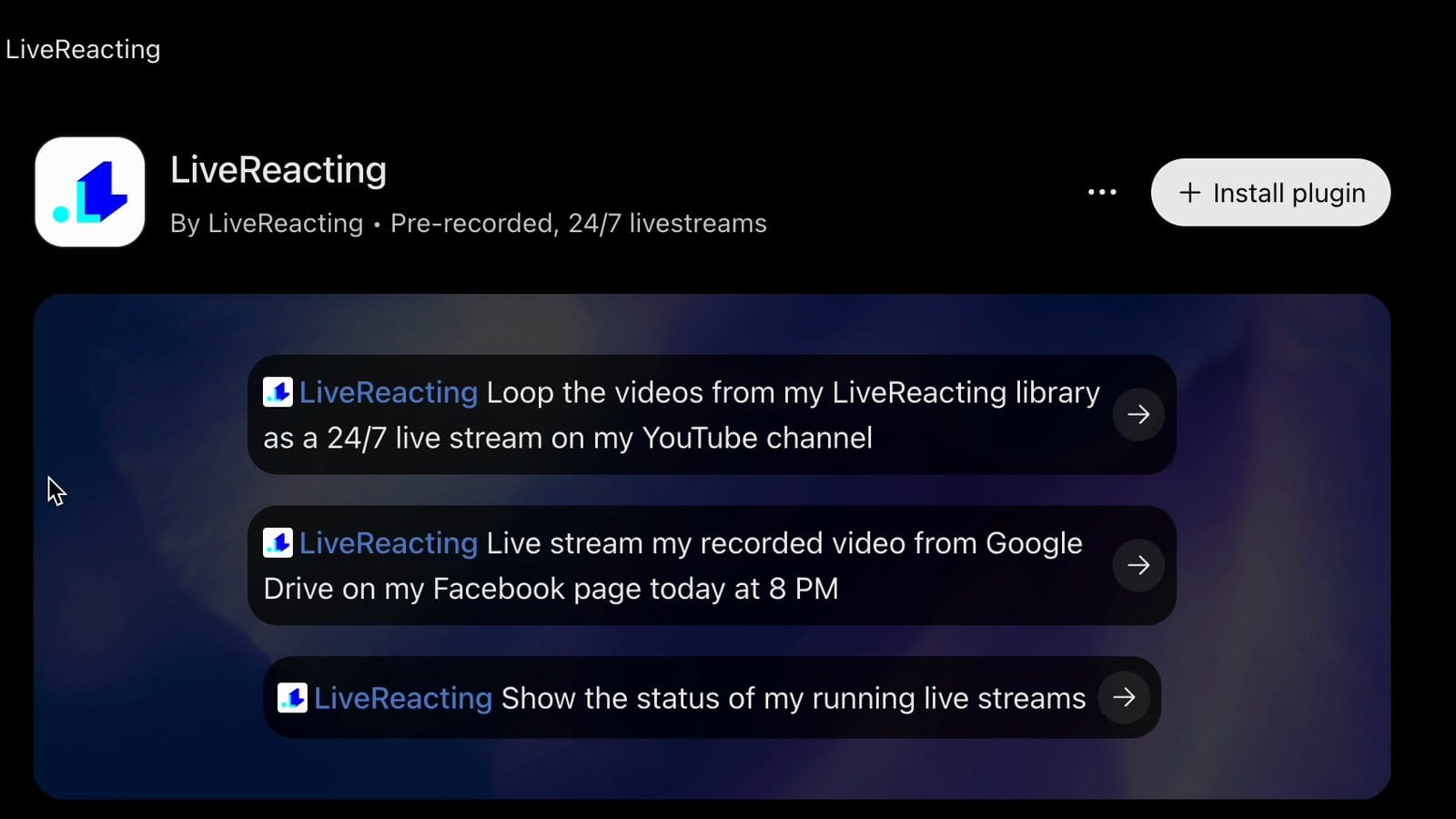
- In ChatGPT, click Plugins in the sidebar and search for LiveReacting. Or open the LiveReacting plugin page directly.
- Click Install plugin. The LiveReacting sign-in page opens.
- Sign in to LiveReacting. No account yet? Click Create a new account on the same page.
- On the "Connect ChatGPT to LiveReacting" page, check that it shows the right account and click Allow.
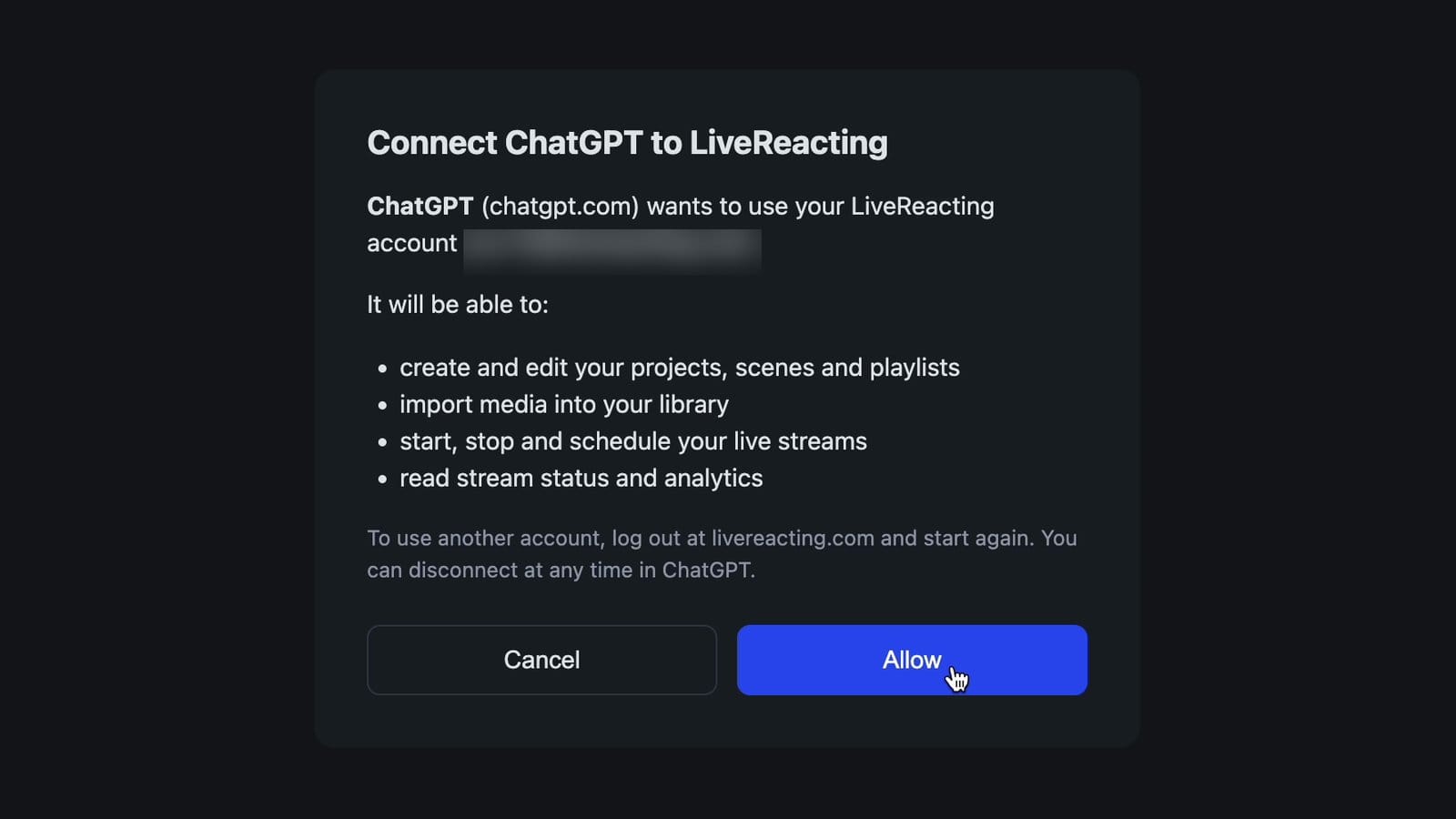
That page lists what ChatGPT can do in your account: edit projects, scenes and playlists, import media, start, stop and schedule streams, and read stream status and analytics. It never gets your YouTube or Facebook login. ChatGPT picks from the channels you already connected.
How to start a YouTube live stream from ChatGPT
Here we build a 24/7 nature sounds channel that loops a playlist on YouTube. Facebook, Twitch and your other channels work the same way. In any chat, type @LiveReacting, then your request.
1. Build the stream. Ask: "Create a project called Nature Sounds Live 24/7 that loops the nature videos from my library on my YouTube channel." ChatGPT finds your channel and the videos, creates the project and builds a playlist that loops. Nothing goes live yet.
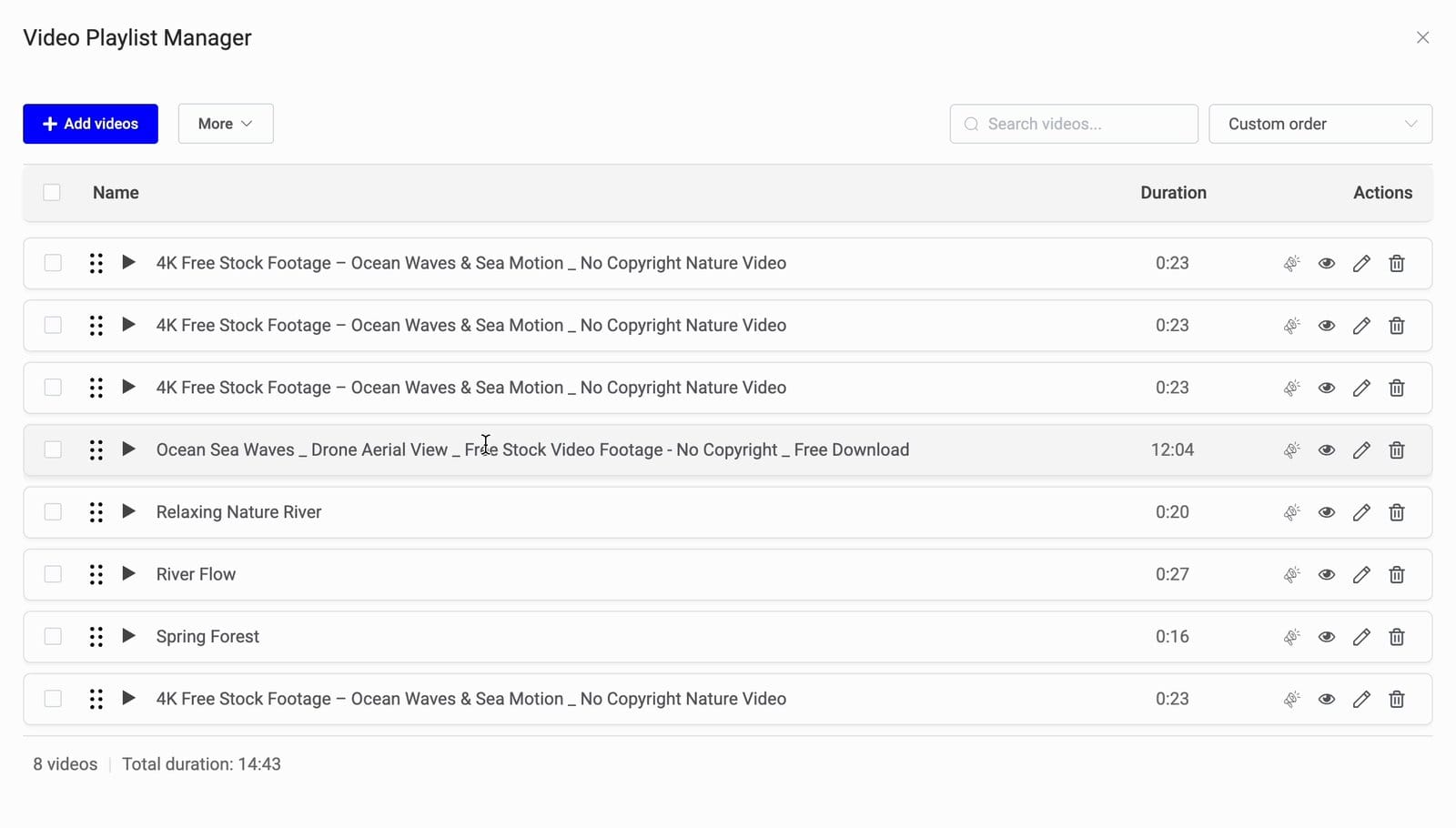
The project shows up in LiveReacting Studio like any other, so you can open it there and change anything by hand.
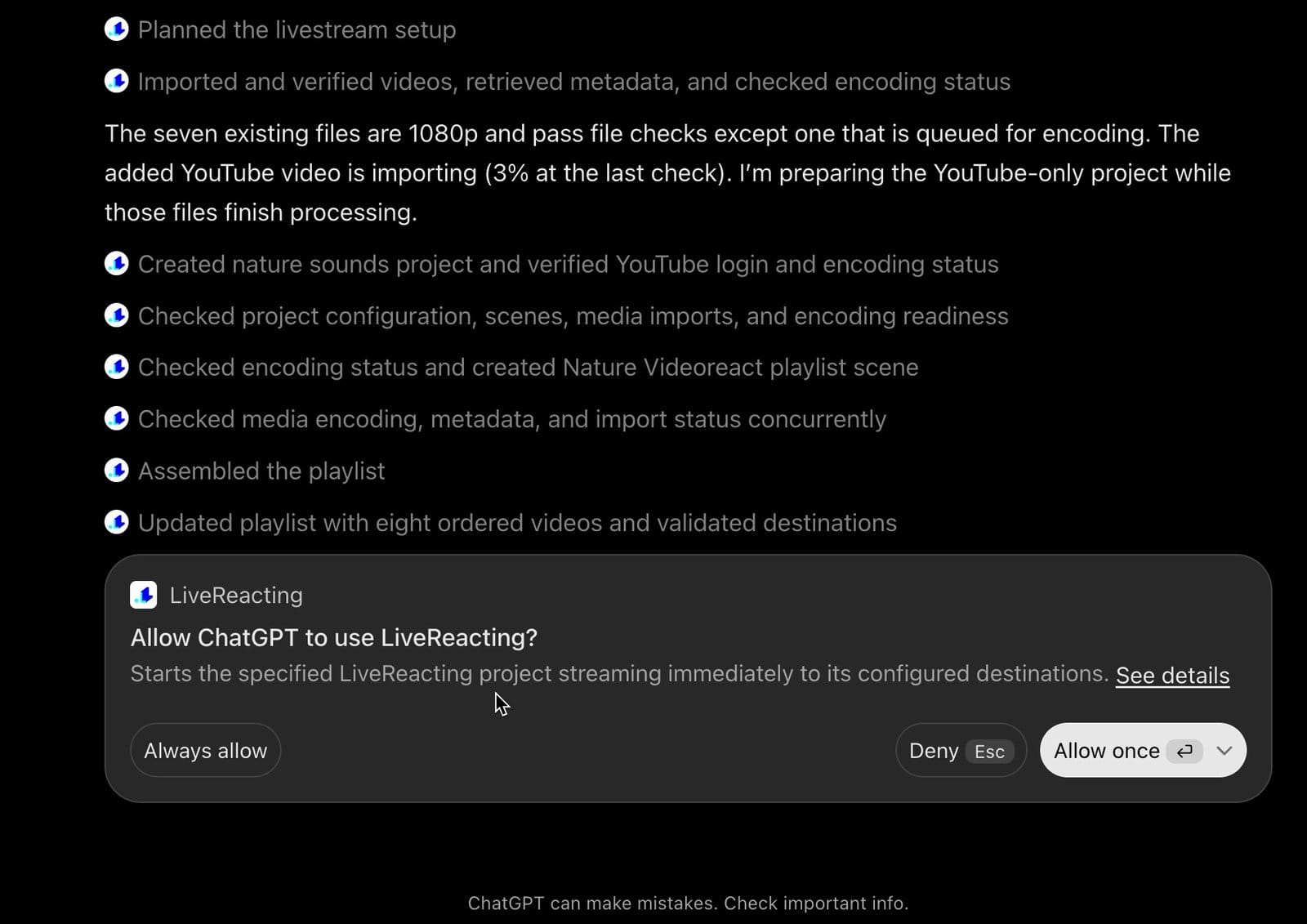
2. Go live. Ask: "Start Nature Sounds Live 24/7 now and tell me when it's live." Before it starts anything, ChatGPT asks "Allow ChatGPT to use LiveReacting?". Click Allow once, or Always allow to skip this question next time.
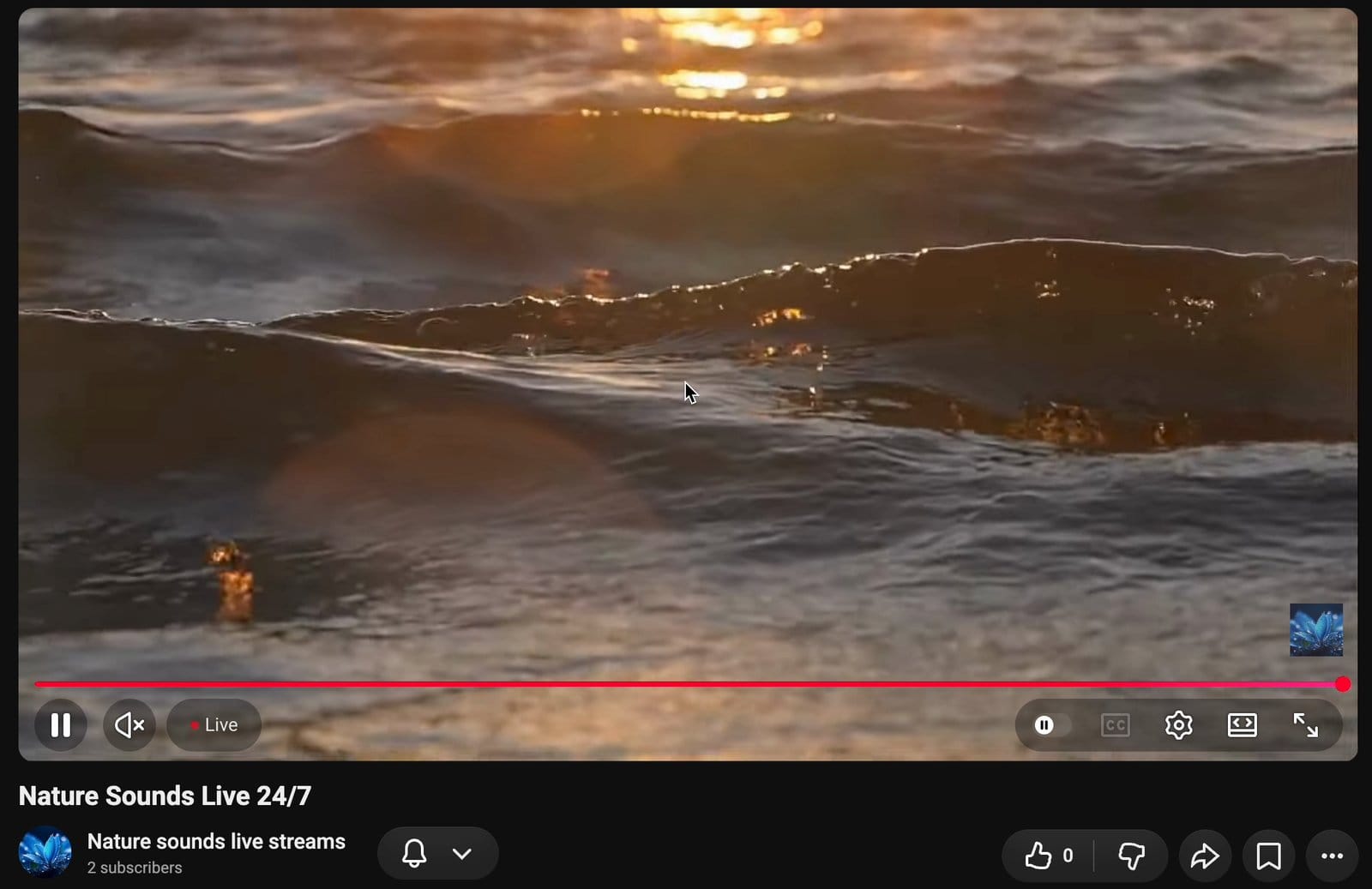
Once the stream is live, ChatGPT replies with a link to it on YouTube.
3. Or schedule it. Ask: "Schedule Nature Sounds Live 24/7 to go live tomorrow at 10:00 UTC." ChatGPT confirms the start time. For more ways to plan streams, see live stream scheduling and playlists.
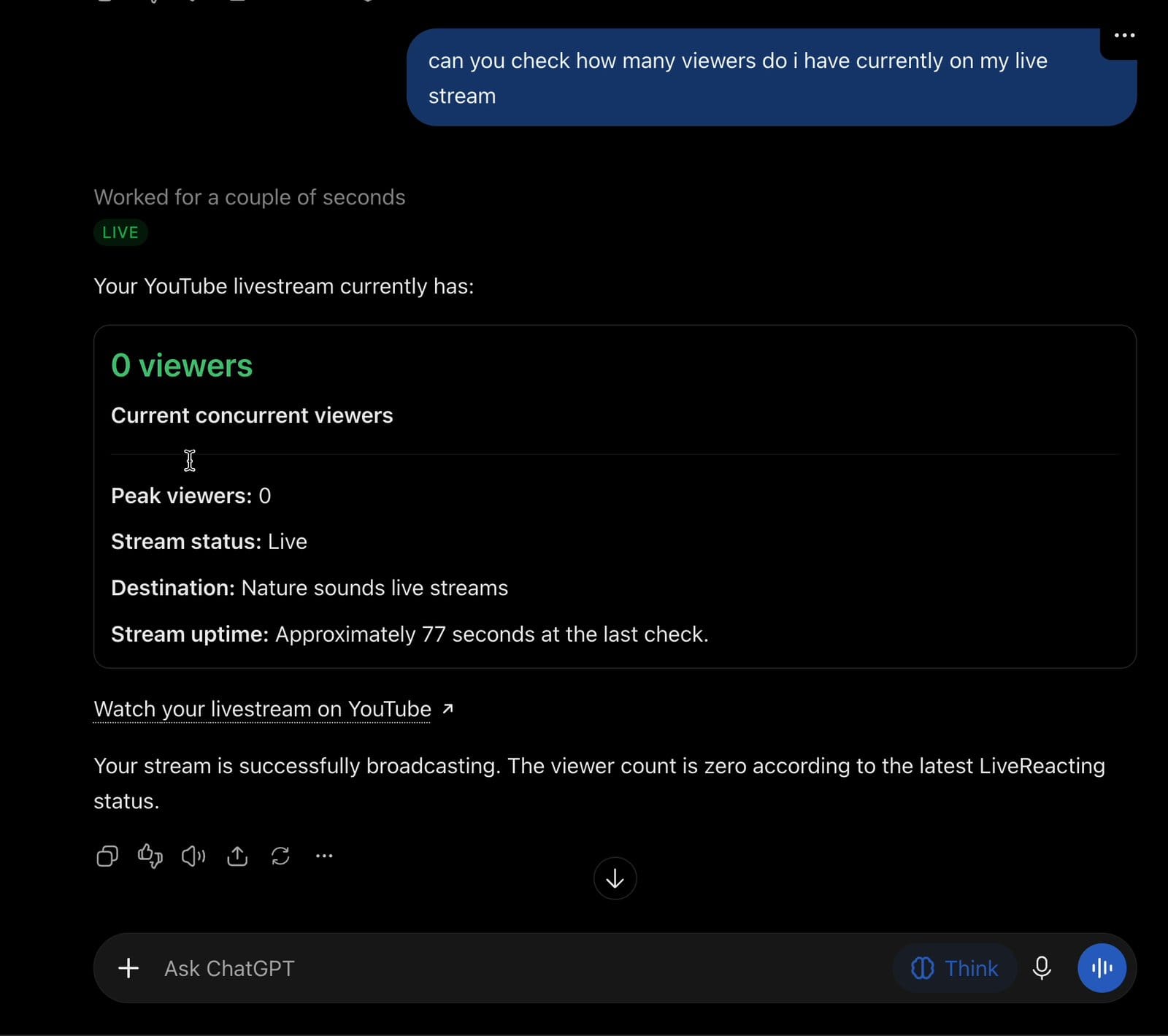
4. Check on it. Ask: "Show the status of my running live streams", or just "How many viewers do I have right now?". ChatGPT tells you if the stream is live on each channel and warns you when a channel connection has expired.
5. Change it while it's live. Ask: "Add River Flow to the playlist." ChatGPT reads the playlist, adds the video and sends the change to the running stream. The stream keeps running.
6. Stop it. Ask: "Stop the stream."
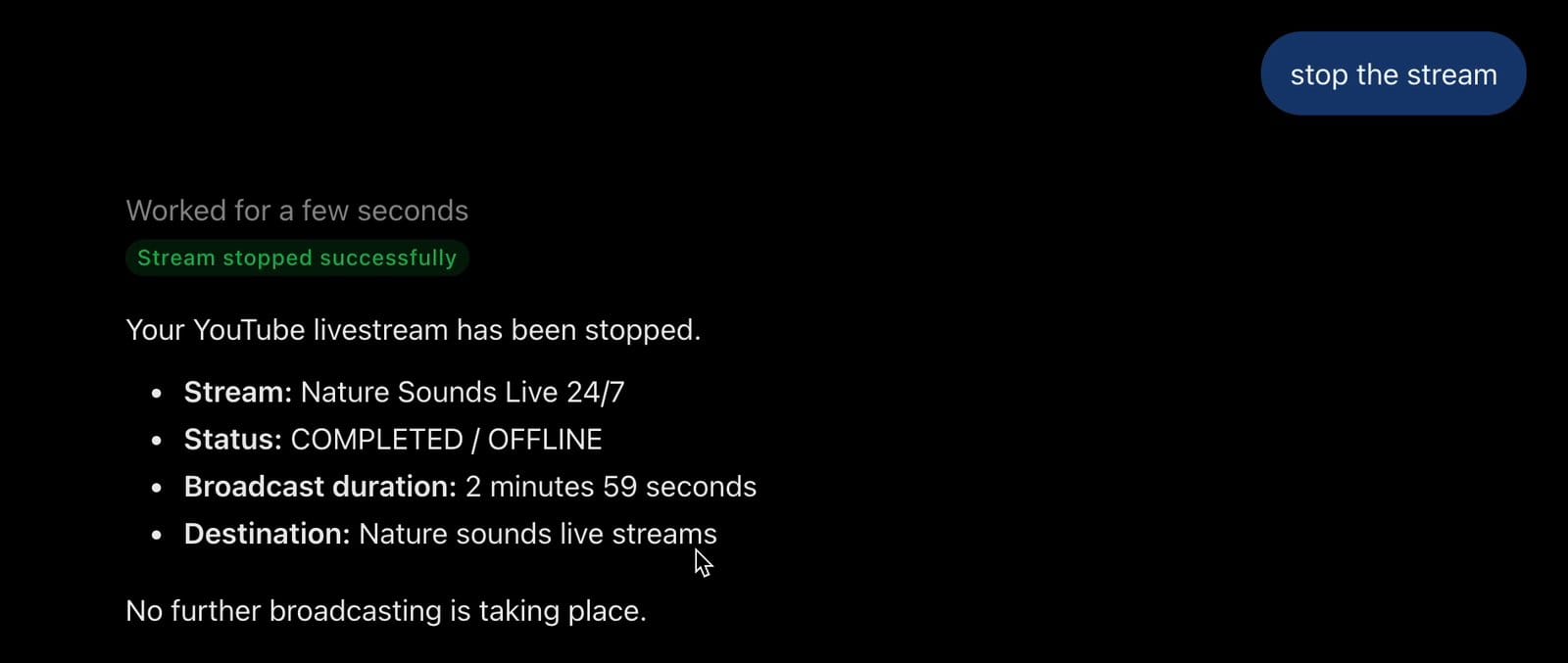
One thing to know: if a start or stop request times out, ask for the status before you ask again. A second start request can start a second attempt.
To build the same stream by hand, see how to create a 24/7 YouTube live channel in Studio.
Add a video from Google Drive, Dropbox or a link
Ask: "Import this video into my LiveReacting library" and paste a Google Drive, Dropbox or YouTube link, or a direct link to a video file. ChatGPT starts the import and tells you when the video is ready. If the video needs encoding first, ChatGPT can start that too.
You can also do it in one go: "Live stream my recorded video from Google Drive on my Facebook page today at 8 PM." That's a pre-recorded live stream: one recorded video that goes live at the time you pick.
Two limits:
- Your account runs one import at a time.
- YouTube links work one video at a time. For a whole YouTube playlist or channel, import it in Studio.
What the plugin can't do
- Take a file you attach in the chat. Add videos from your computer in LiveReacting Studio, then ask ChatGPT to use them. Or give it a link.
- Build overlays. The plugin builds video and audio playlists. Text, image and interactive overlays are built in LiveReacting Studio. You can still start, stop, schedule and check those streams from ChatGPT.
- Connect a new channel. You connect channels in LiveReacting Studio, once.
- Run a 24/7 stream to Facebook alone. Facebook ends a live stream after 8 hours. Add YouTube or another platform to the same stream and it keeps running there.
Which plan you need
Every paid plan includes the LiveReacting plugin in ChatGPT. On the Free plan you can install it, but each request stops with a message that your account needs a paid plan. Once you upgrade, it works without reconnecting. Compare plans on the pricing page.
The same plans include our MCP server for AI agents and the LiveReacting API. So you can run the same streams from Claude, Codex, Cursor or your own code.
FAQ
Can ChatGPT start a YouTube live stream?
Yes, once you install the LiveReacting plugin. Ask ChatGPT to build or start a stream on your YouTube channel. ChatGPT sends the request, and LiveReacting runs the stream.
Does my computer need to stay on?
No. Our servers run the stream. You can close ChatGPT and turn your computer off.
Can I stream a video that is on my computer?
Yes. Add the video to your library in LiveReacting Studio, then ask ChatGPT to use it. In the chat, ChatGPT takes new videos from a link, not from a file you attach. A Google Drive or Dropbox link works, so does a direct link to the file or a video on your own YouTube channel.
Is the LiveReacting plugin in ChatGPT included in my plan?
Yes, every paid LiveReacting plan includes it. On the Free plan you can install the plugin, but requests do not work.
Can I use overlays, polls or trivia?
Build them in LiveReacting Studio. Then start, stop, schedule and check that stream from ChatGPT.
How do I disconnect or switch accounts?
Disconnect the plugin in your ChatGPT settings. To use another LiveReacting account, disconnect, log out at livereacting.com, and connect the plugin again.
Can I control LiveReacting from Claude or other AI agents?
Yes. The LiveReacting MCP server works with Claude, Codex, Cursor and other AI tools that support MCP. The setup for each one is on livereacting.com/mcp.
Try it
Open the LiveReacting plugin page in ChatGPT and click Install plugin. Then type @LiveReacting and ask for your first stream. Example requests and answers to other questions are on the LiveReacting for ChatGPT page.
Related guides
Transform Your Live Streams with LiveReacting
Join 10,000+ streamers who are boosting engagement and viewership by adding pre-recorded videos, games, polls, and countdowns to their streams.
Try LiveReacting for free today and take your streams to the next level!