
How to Add an Image Slideshow to Your Live Stream (Step-by-Step)
Add a rotating image slideshow to your live stream in minutes. Display sponsor logos, photo galleries, product banners, and more with automatic transitions.

LiveReacting now has an Image Slideshow layer. Upload multiple images, set a timer, and they cycle automatically with smooth fade transitions during your broadcast. No manual switching. No extra software.
Use it for rotating sponsor logos, product banners, photo galleries, event schedules, or background visuals on 24/7 streams. Here's how to set it up.
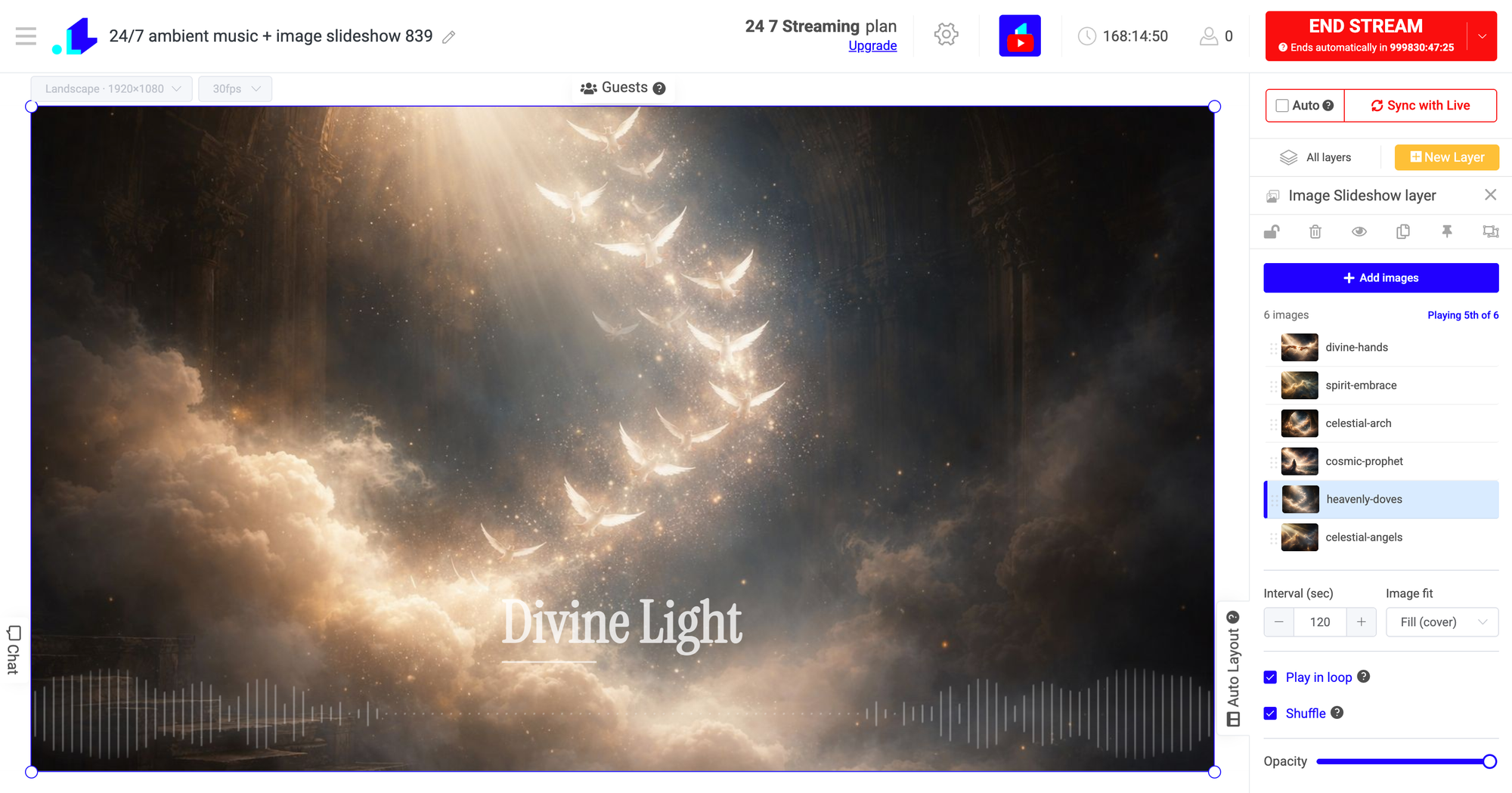
How to Set Up an Image Slideshow in LiveReacting
Step 1: Add the Layer
In the LiveReacting editor, click New Layer in the sidebar and select Image. Then choose Image Slideshow.
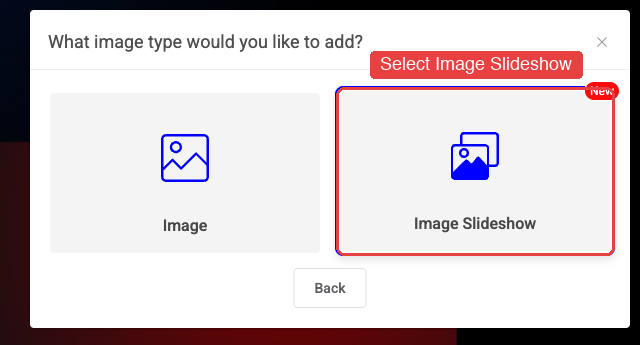
A slideshow layer appears on the canvas. Drag it to position and resize it like any other layer.
Step 2: Add Your Images
Click Add images at the top of the sidebar settings to open the file gallery. You can select multiple images at once.
Once added:
- Reorder images by dragging the handles on the left
- Remove images using the X icon on the right
- Navigate to a specific image by clicking it in the list
The editor shows a "Playing X of Y" indicator so you always know which image is active.
Step 3: Configure the Settings
| Setting | What It Does | Default |
|---|---|---|
| Interval | How long each image stays on screen (5 to 3,600 seconds) | 30 seconds |
| Image Fit | Fit: shows the full image (may leave empty space). Fill: fills the entire area (may crop edges) | Fit |
| Play in Loop | Restarts from the first image after the last one | On |
| Shuffle | Randomizes the display order. Generates a new random order each loop | Off |
| Next Scene | Switches to a chosen scene after the slideshow ends. Disables loop when set | Off |
| Opacity | Controls transparency (1-10 scale, 10 = fully visible) | 10 |
Step 4: Go Live
That's it. Start your stream and the slideshow runs automatically. Images transition with a 1-second fade effect. If any image fails to load, it gets skipped automatically.
The slideshow stays synchronized between the editor and the live stream. If you close and reopen the editor mid-broadcast, it catches up to the correct image based on elapsed time.
Use Case Ideas
Rotating sponsor logos. Upload 5-10 sponsor logos. Set the interval to 30-60 seconds. Place the slideshow in a corner of your stream. Sponsors get screen time without you doing anything manually.
Product banners for e-commerce streams. Cycle through product images during a live shopping broadcast. Each banner shows the product name, price, and a call to action.
Photo gallery for events. Running a memorial, celebration, or recap stream? Upload a photo collection and let it play through during the broadcast. Pair it with music for an ambient 24/7 channel.
Event schedule cards. Create image cards for each session or speaker. Set the interval to match the actual schedule. The slideshow acts as an automated info display.
Background visuals for 24/7 streams. Instead of a static background, upload multiple background images and set them to shuffle with a long interval (300-600 seconds). Adds visual variety without any effort. Combine with an audio playlist and audio visualizer for a complete ambient stream.
Quick start: LiveReacting includes a pre-built "Ambient music + image slideshow" template that combines an audio playlist, image slideshow, and audio visualizer. Find it in the Templates section.
Tips
Audio matters more than timing. If your slideshow runs alongside a podcast or commentary, match the interval to natural breaks in the conversation (15-30 seconds works well).
Use Fill mode for full-screen slideshows. If images have different aspect ratios, Fill mode prevents black bars. Crop-safe your images by keeping important content centered.
Combine with other layers. The slideshow is a layer, not a scene. Stack it with scrolling text, countdown timers, logos, or webcam feeds. Place the slideshow behind other elements as a dynamic background.
Use "Next Scene" for automated shows. Set a slideshow of intro cards, then auto-switch to your main content scene when it finishes. No manual scene switching needed.
FAQ
How many images can I add to a slideshow?
There's no hard limit. Add as many as your broadcast needs. Each image loads individually, so larger collections don't affect stream performance.
What image formats are supported?
Standard web formats: JPG, PNG, and WebP. Keep files under 10 MB each for fastest loading.
Can I use the slideshow on a 24/7 stream?
Yes. Set Play in Loop to on and the slideshow cycles indefinitely. With Shuffle enabled, the order changes each loop so it never feels repetitive. LiveReacting's 24/7 streaming runs from the cloud, so the slideshow keeps going even when your computer is off.
Can I use the slideshow as a background behind my webcam?
Yes. Add the slideshow layer, then add your webcam layer on top. Resize and position the webcam. The slideshow cycles behind it as a dynamic background.
Does the slideshow work in Plugin Mode (OBS, VMix)?
Yes. The slideshow layer renders as part of the LiveReacting output. If you're using LiveReacting as a plugin in OBS, the slideshow appears in the browser source overlay.
Start Using the Image Slideshow
Add the Image Slideshow layer in LiveReacting's editor, upload your images, and go live. The slideshow handles the rest. For a ready-made setup, try the Ambient music + image slideshow template.
Transform Your Live Streams with LiveReacting
Join 10,000+ streamers who are boosting engagement and viewership by adding pre-recorded videos, games, polls, and countdowns to their streams.
Try LiveReacting for free today and take your streams to the next level!