
How to Launch 24/7 Live Streams on YouTube Without OBS (2026 Guide)
You can close your laptop. A 24/7 YouTube stream runs on cloud servers, not your machine. Six steps from playlist to live, with the screens.
You can close your laptop. A 24/7 YouTube live stream does not need a computer running at home, because the encoding and playback happen on someone else's servers and YouTube receives the stream from there.
That is the whole difference between cloud streaming and OBS. OBS is excellent software that assumes a person is sitting at the machine. A channel that runs while you sleep cannot make that assumption.
This guide covers the setup end to end: build a playlist, connect your channel, go live, then shut everything down and leave it running.
The six steps, start to finish
- Pick a cloud streaming service. The work has to happen somewhere. If it is not your machine, it is a server.
- Upload your videos. From your computer, Google Drive, Dropbox, or your existing YouTube channel.
- Build a playlist and turn on looping so it restarts by itself at the end.
- Connect your YouTube channel from the stream settings panel.
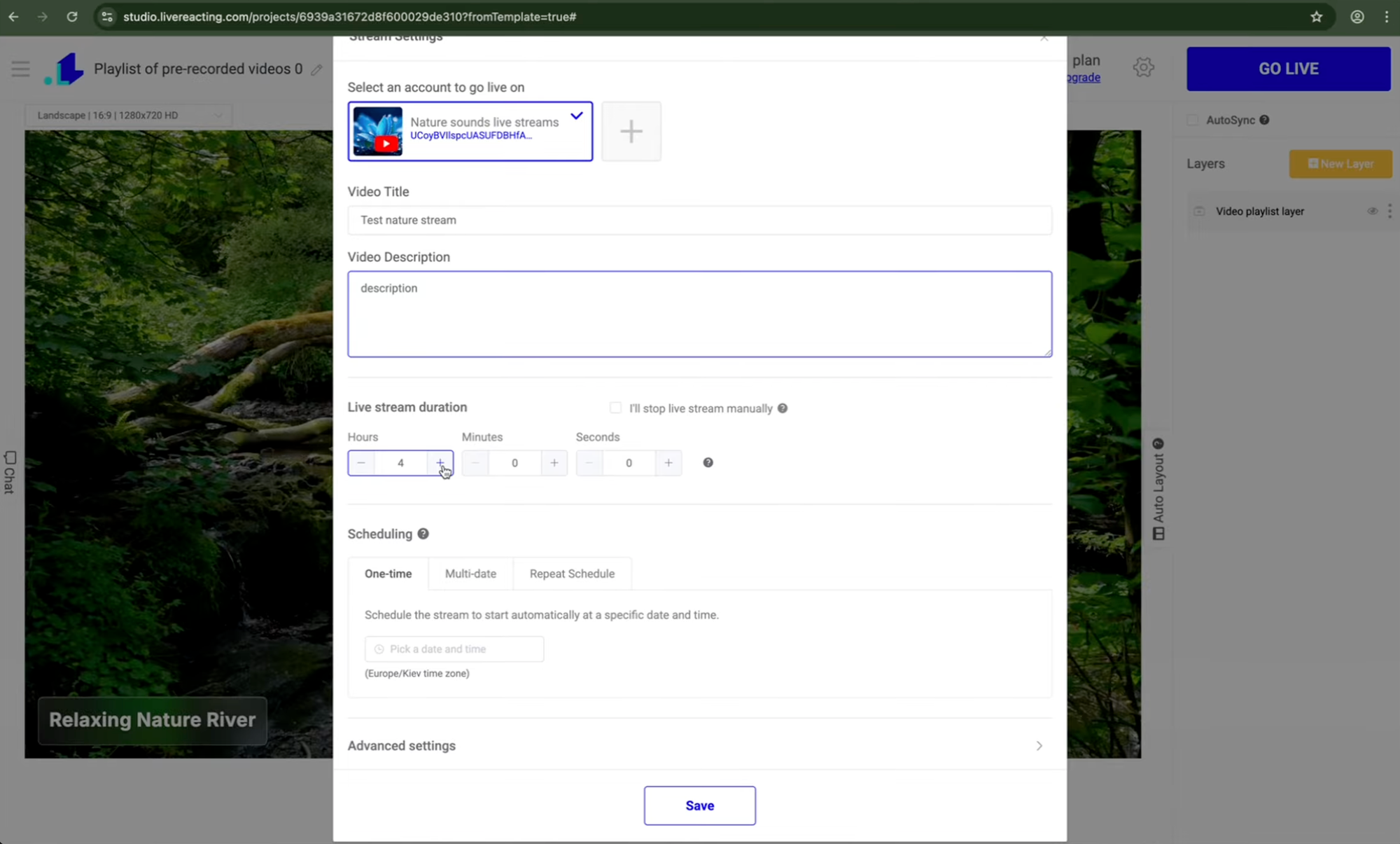
- Set the stream details and duration. Choose "I'll stop stream manually" for a channel that runs indefinitely.
- Click Go Live, then close the browser. The stream continues without you.
Each step is covered below, with the screens.
Why 24/7 Live Streaming Works for YouTube Growth
More Watch Time, More Chances to Get Recommended
YouTube's recommendations weigh viewer response, satisfaction, and how well content performs, and watch time is one of the signals that feeds into that. A 24/7 stream is always available, so it gives you more opportunities to accumulate watch hours than a channel that only publishes on a schedule. It's an opportunity, not a guaranteed ranking boost.
Global Audience Accessibility
Your viewers aren't all in the same time zone. When you stream 24/7, someone in Tokyo can tune in at 3 AM and a viewer in New York can check in at lunch. Your content is always there.
More Hours, More Monetization Opportunities
More streaming hours mean more ad impressions, more Super Chat opportunities, and more membership conversions, since the monetization window never closes. We have looked at what a 24/7 stream can actually earn separately, with the caveats that belong on any revenue estimate.
The OBS Problem: Why Traditional Software Falls Short
Many creators start their 24/7 streaming journey with OBS (Open Broadcaster Software). It's free and powerful, but it has real limitations for continuous broadcasting.
Your Computer Must Stay On Constantly
With OBS, your streaming computer needs to stay powered on and broadcasting every hour of every day. That creates real costs: more electricity use, more wear on a machine that's meant to idle sometimes, and a stream that goes down the moment your home internet has a hiccup, from a brief outage to a router reset.
Playlist Management Still Needs a Running Machine
OBS does have a built-in VLC Video Source that can play a list of files with shuffle and loop options. But it still runs on whatever computer OBS is installed on. If that machine goes to sleep, loses power, or crashes, the playlist stops with it, and there's no built-in playlist scheduler for planning content days or weeks ahead.
No Browser-Based Remote Management
OBS ships a WebSocket API that developers can use to build remote-control tools, but there's no built-in way to log in from a phone or another computer and swap a video, reorder a playlist, or update a graphic. Making a change means reaching the machine OBS is running on.
Limited Hands-Off Features
Out of the box, OBS has no built-in playlist scheduling and no multistreaming to multiple platforms at once. Automated scene switching and remote control both exist in the OBS ecosystem, but only through third-party plugins on top of a computer that still has to stay on.
Run a 24/7 YouTube Live Stream Without a Computer
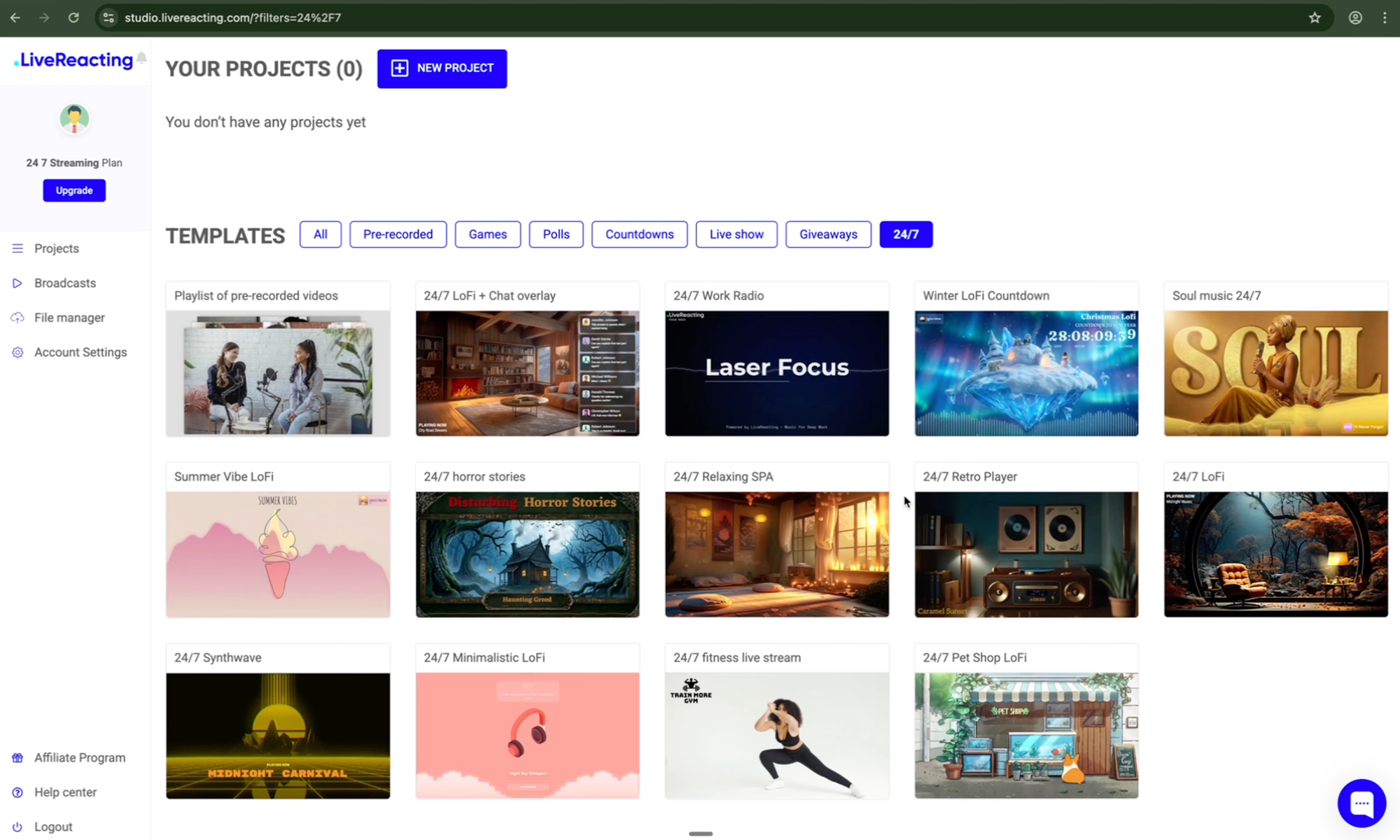
Cloud-based platforms like LiveReacting move the work off your computer entirely. Servers handle the encoding, playlist playback, and delivery to YouTube, while you control everything from a browser. Here's the setup, in three steps.
Step 1: Set Up Cloud Streaming in LiveReacting
- Create an account and open the LiveReacting Studio in your browser. Nothing to install. A free account is enough to test the workflow; running a channel continuously requires the 24/7 Streaming plan.
- Choose a template built for continuous broadcasting: Playlist of Pre-Recorded Videos for content channels, Audio Playlist with Video Background for music or ambient radio, or Single Video Loop for one repeating file.
- Connect your destination. Link your YouTube channel, Twitch, Facebook, or any custom RTMP destination from the same stream settings panel.
Step 2: Upload and Build Your LiveReacting Playlist
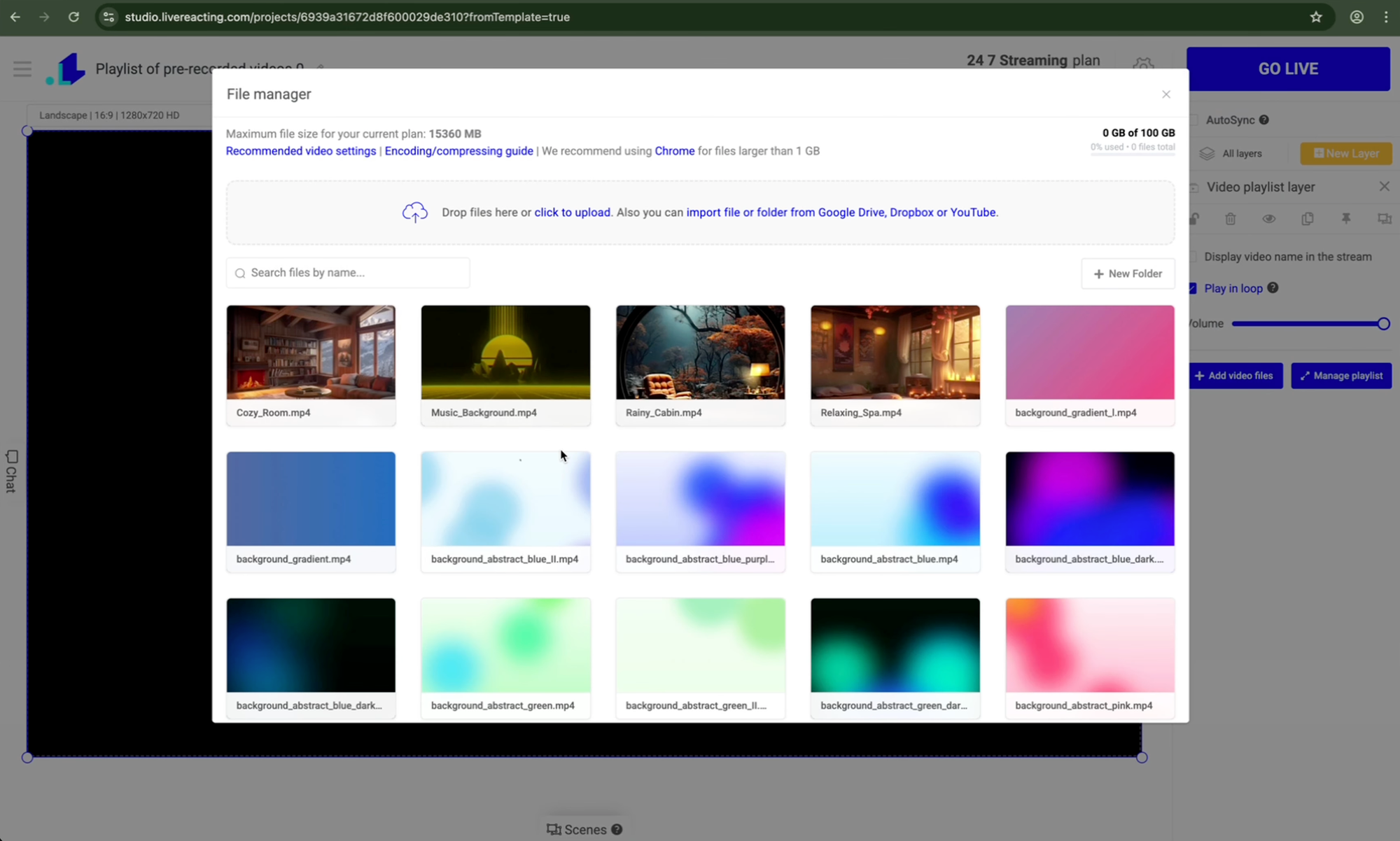
- Upload your files through the file manager, or import them from Google Drive, Dropbox, or straight from your existing YouTube channel.
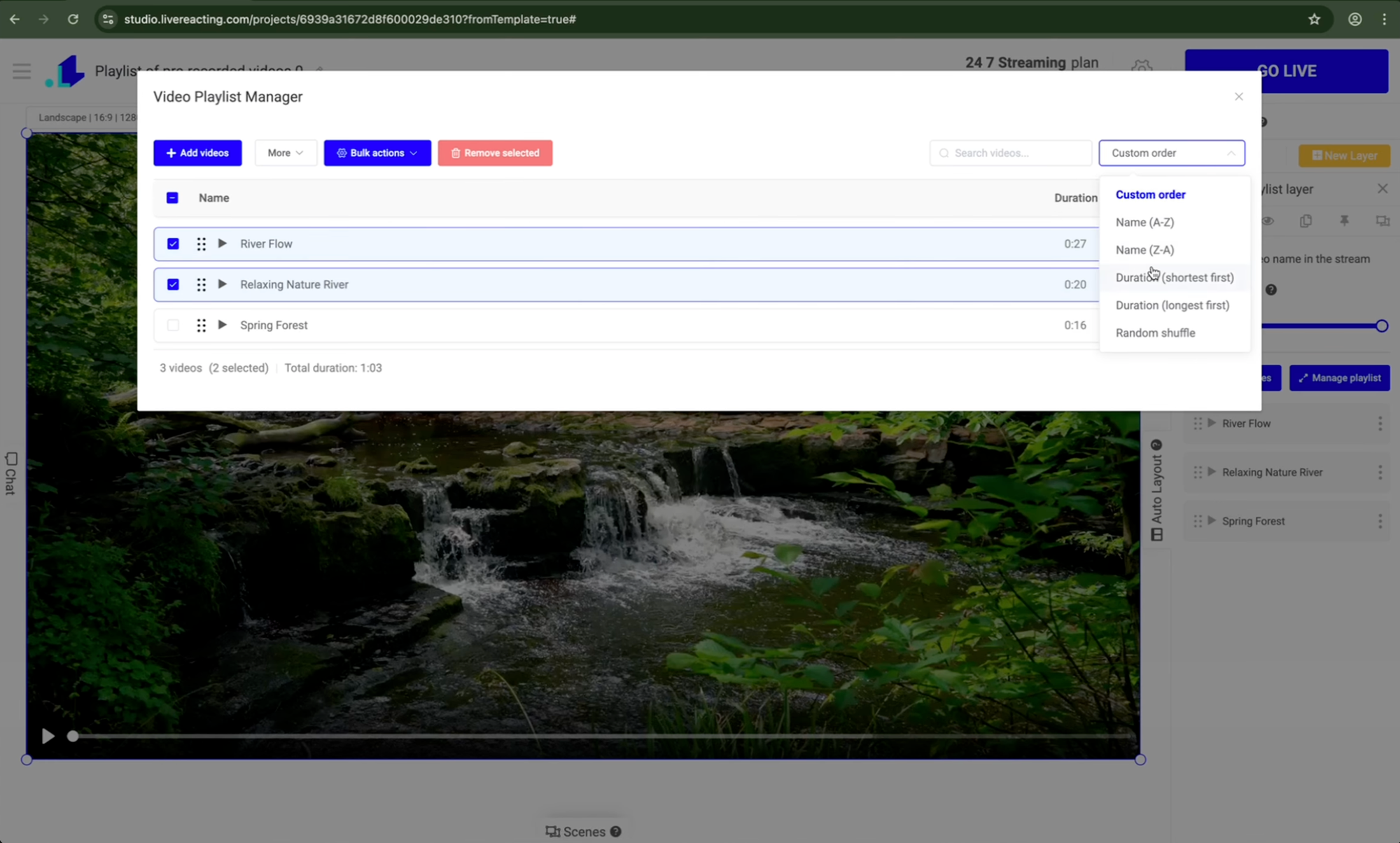
- Build the playlist. Drag and drop your videos into the order you want them to play, then use the playlist manager to reorder, rename, or drop in YouTube ad slots.
- Turn on looping so the playlist restarts automatically once it reaches the end, keeping the channel running without you touching it again.
Step 3: Go Live on YouTube From LiveReacting
- Set your stream details: title, description, resolution (1080p by default, upgradable to 4K), and visibility (public, unlisted, or private).
- Pick your duration. A timed broadcast under 12 hours can be archived as a normal video on your channel; choosing "I'll stop stream manually" runs the channel continuously until you end it.
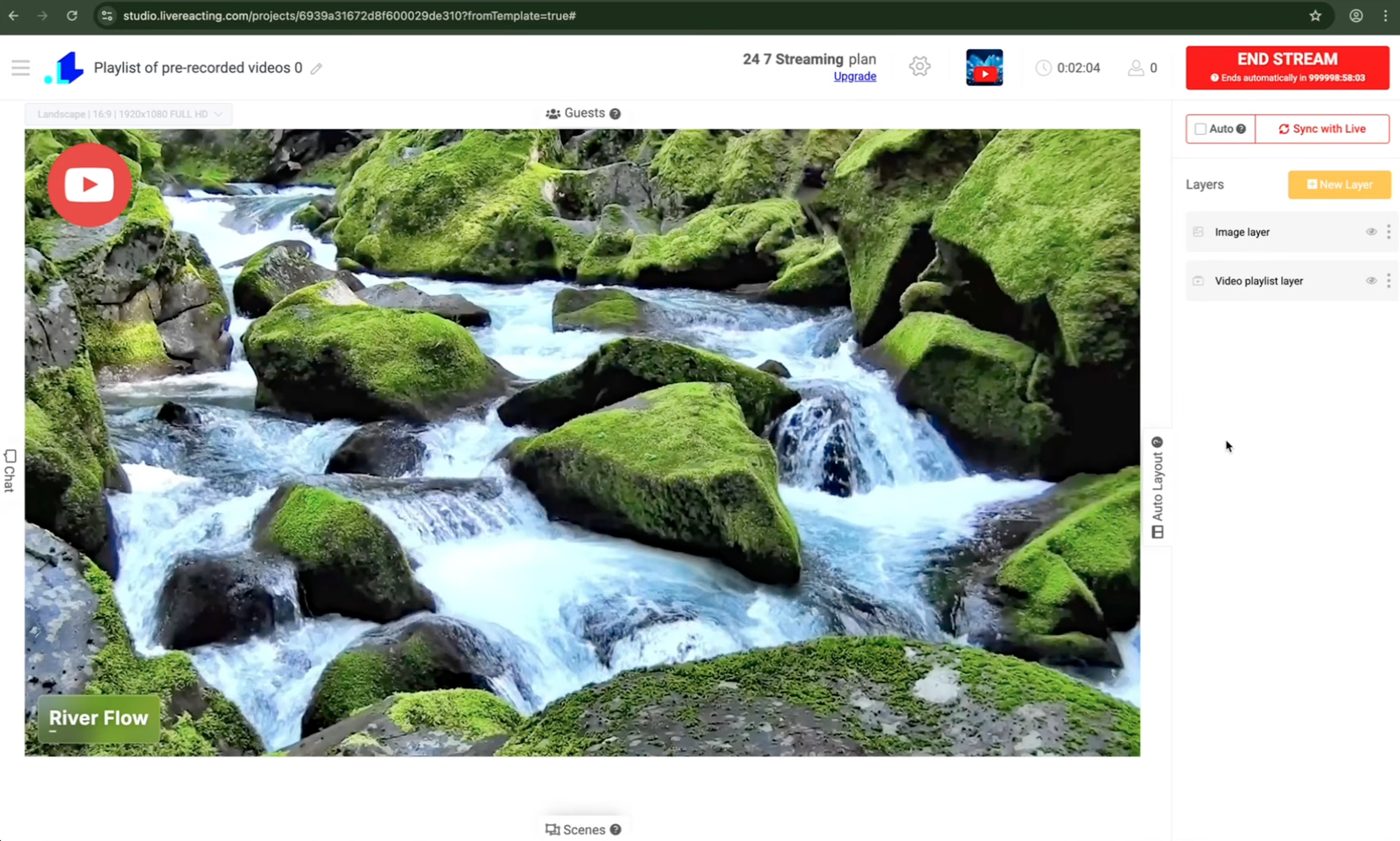
- Click Go Live. The broadcast starts on YouTube within seconds, running from LiveReacting's servers. Close your browser or shut down your computer. The stream keeps going because it's hosted on LiveReacting, not on your machine.
Update Your Stream Without Restarting It
A 24/7 channel still needs upkeep, and LiveReacting lets you make changes to a live broadcast without taking it offline:
- Open your active stream from the LiveReacting dashboard.
- Add, remove, or reorder videos, or update overlays and branding.
- Click "Sync with Live" to push the changes to the running stream.
Changes take effect within seconds, without interrupting playback for viewers. OBS has no built-in equivalent, since editing its output means reaching the machine it's running on.
Advanced 24/7 Streaming Strategies
Combine Live and Pre-Recorded Content
You're not limited to a pure playlist. LiveReacting can switch between pre-recorded video, live broadcasts when you want to interact directly, and guest appearances, so the channel stays fresh without losing 24/7 availability.
Schedule Blocks Instead of One Endless Stream
Advanced scheduling runs a stream on a repeating pattern, daily, weekly or on custom gaps, and it resumes where it left off. That matters more than it sounds: YouTube archives streams under 12 hours automatically, so a channel built from scheduled blocks leaves a library of videos behind, while one endless stream leaves nothing.
Multistream for Maximum Reach
LiveReacting's multistreaming sends the same broadcast to YouTube, Twitch, Facebook, and any custom RTMP destination (Instagram, TikTok, LinkedIn) at once, so one setup reaches every platform's audience.
Strategic Ad Placement
For YouTube partners, LiveReacting lets you insert YouTube ad cuepoints at specific points in the stream, so any ads that play land in natural breaks instead of interrupting content.
Content Rotation
Don't run the same playlist forever. Rotate in seasonal content and drop underperforming videos based on analytics. Since the playlist manager works remotely, you can do this from anywhere without stopping the stream.
Add Interactive Elements for Higher Engagement
Automated doesn't have to mean passive. Interactive overlays keep viewers commenting, which is a signal YouTube's recommendations do weigh:
- Live polls let viewers vote on what plays next.
- Countdown timers build anticipation for special segments.
- Chat display shows moderated viewer comments on stream.
- Giveaway systems run automated contests while you're offline.
Common 24/7 Streaming Use Cases
Common content types for 24/7 broadcasting:
- Music and audio: lofi hip hop, ambient soundscapes, study playlists, meditation and sleep sounds, genre radio.
- Gaming: gameplay compilations, speedrun marathons, highlight reels, esports replays.
- Educational: lecture series, tutorial compilations, documentaries, language learning.
- Lifestyle: yoga and workout routines, cooking shows, travel footage, nature and pet cams.
- News and information: headline updates, weather, market analysis, tech roundups.
Frequently Asked Questions
Can I really turn my computer off?
Yes. Once the stream is live it runs on LiveReacting's servers. Your computer is only involved when you set the stream up or change it, and shutting it down does not touch the broadcast.
Can I run multiple 24/7 streams simultaneously?
Yes, depending on your plan. You can run different themed channels on different platforms at once, like a lofi stream on YouTube and a gaming compilation on Twitch.
Will my stream quality suffer from running 24/7?
No. Encoding happens on LiveReacting's servers, so your configured resolution and bitrate don't degrade over time the way local hardware can.
How do I handle copyright claims on music channels?
Use content you're licensed for. YouTube's own Audio Library is the option YouTube documents as safe to use; if you use a licensing service like Epidemic Sound or Artlist, check that your specific subscription and territory cover live streaming. LiveReacting doesn't change copyright rules; the same YouTube policies apply as any other content.
Can I schedule my stream to stop and restart automatically?
Yes. You can set start and stop times or let the stream loop indefinitely. Some creators schedule streams to run during peak hours only, to concentrate ad revenue and let usage taper off overnight.
What happens if my internet goes down at home?
Nothing. The stream keeps running because it's hosted on LiveReacting's cloud servers, not your local connection. You only need internet to set up the stream or make changes, not to keep it live.
How much does cloud-based 24/7 streaming cost?
LiveReacting's 24/7 Streaming plan lists at $39.99/month, which includes unlimited stream duration, 1080p, and 100 GB of file storage. There's no separate hardware, electricity, or maintenance cost to budget for on top of it.
Start Your 24/7 YouTube Channel Today
OBS and traditional software create real limits for 24/7 streaming: a computer that has to stay on, a playlist tool tied to that same machine, and no way to make changes without reaching it directly. Cloud-based streaming removes all three.
Set up a playlist, connect your channel, and start a 24/7 stream that keeps running after you shut the laptop.
Transform Your Live Streams with LiveReacting
Join 10,000+ streamers who are boosting engagement and viewership by adding pre-recorded videos, games, polls, and countdowns to their streams.
Try LiveReacting for free today and take your streams to the next level!