
How to Automate a 24/7 Live Stream with the LiveReacting API
Use the LiveReacting API to automate your 24/7 YouTube live stream. Import videos, build scene chains, and add content to a running stream without touching the UI.
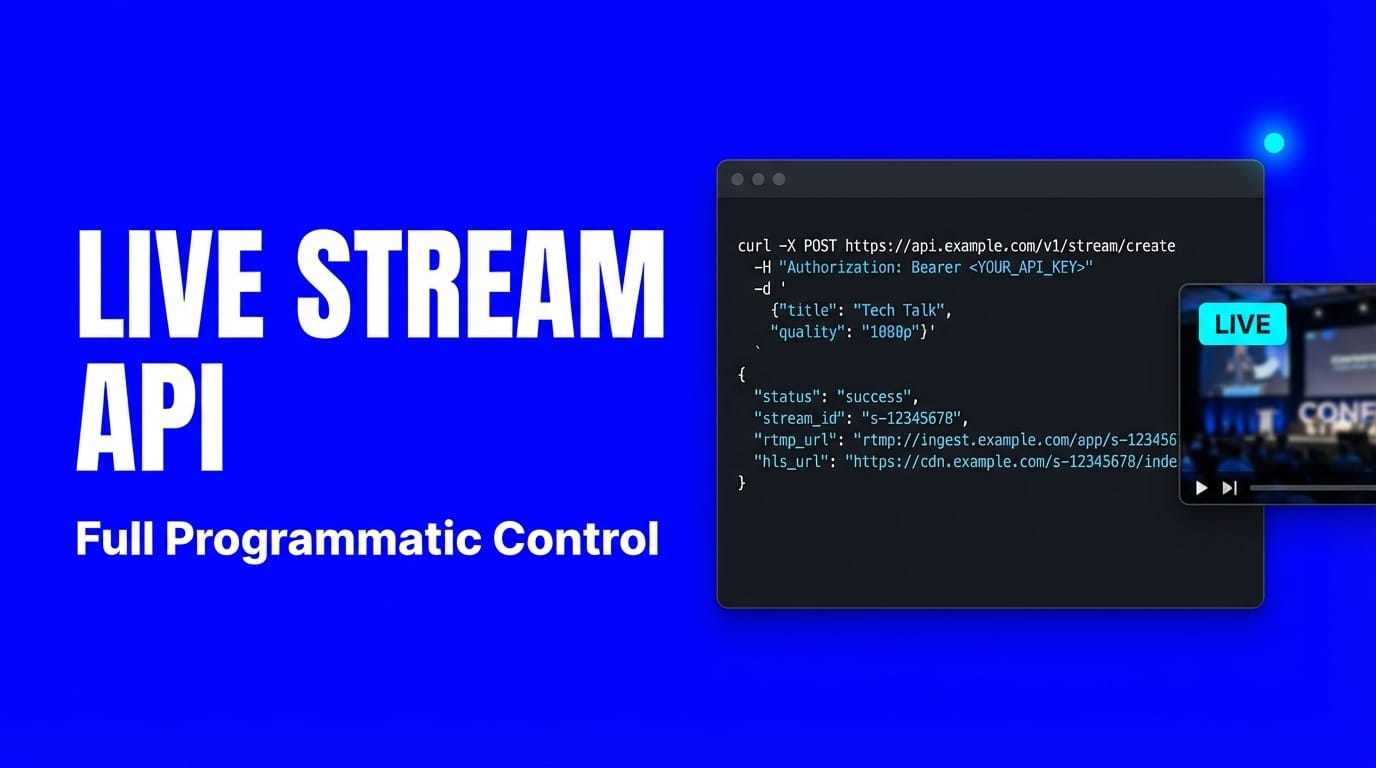
Running a 24/7 live stream means uploading new videos, building playlists, and making sure the stream never stops. When you're doing this daily, it doesn't scale. You either hire someone to manage it or you automate it.
LiveReacting now has an API that gives you full programmatic control over your streams. Import videos, create scene chains, add new content to a running broadcast, and go live — all without opening the dashboard. Whether you're building a custom script, connecting n8n or Make workflows, or using AI agents like OpenClaw, Claude or ChatGPT — the API handles the heavy lifting.
Access note: The API is currently available for whitelisted customers for an additional fee. To request access, email [email protected].
This guide walks through building a 24/7 YouTube channel that plays different video content each day, with new days added automatically via the API.
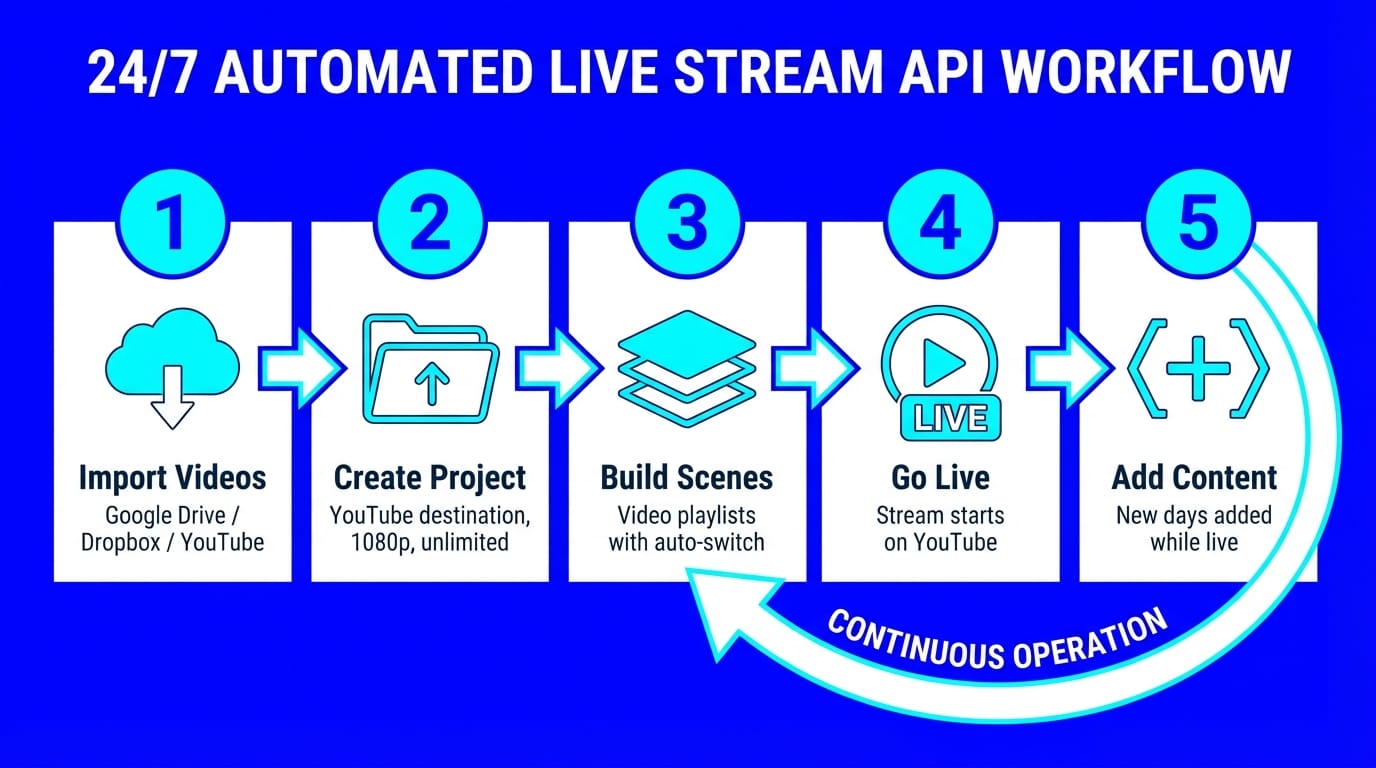
How 24/7 Streams Work in LiveReacting
Before touching the API, here's the data model:
Project
├── Scenes (one active at a time)
│   └── Layers (video playlists, audio, overlays)
│       └── Files (your videos)
├── Streaming Destinations (YouTube, Facebook, Twitch, RTMP)
└── Live Stream (the running broadcast)
Each scene represents a block of content — think of it as one day's playlist. Scenes contain layers, and the main layer type for 24/7 streams is a video playlist that holds your files.
The key feature: auto-scene switching. When Day 1's playlist finishes, the stream automatically transitions to Day 2. Day 2 finishes, it switches to Day 3. The chain keeps going — and you can add new days via the API while the stream is running.
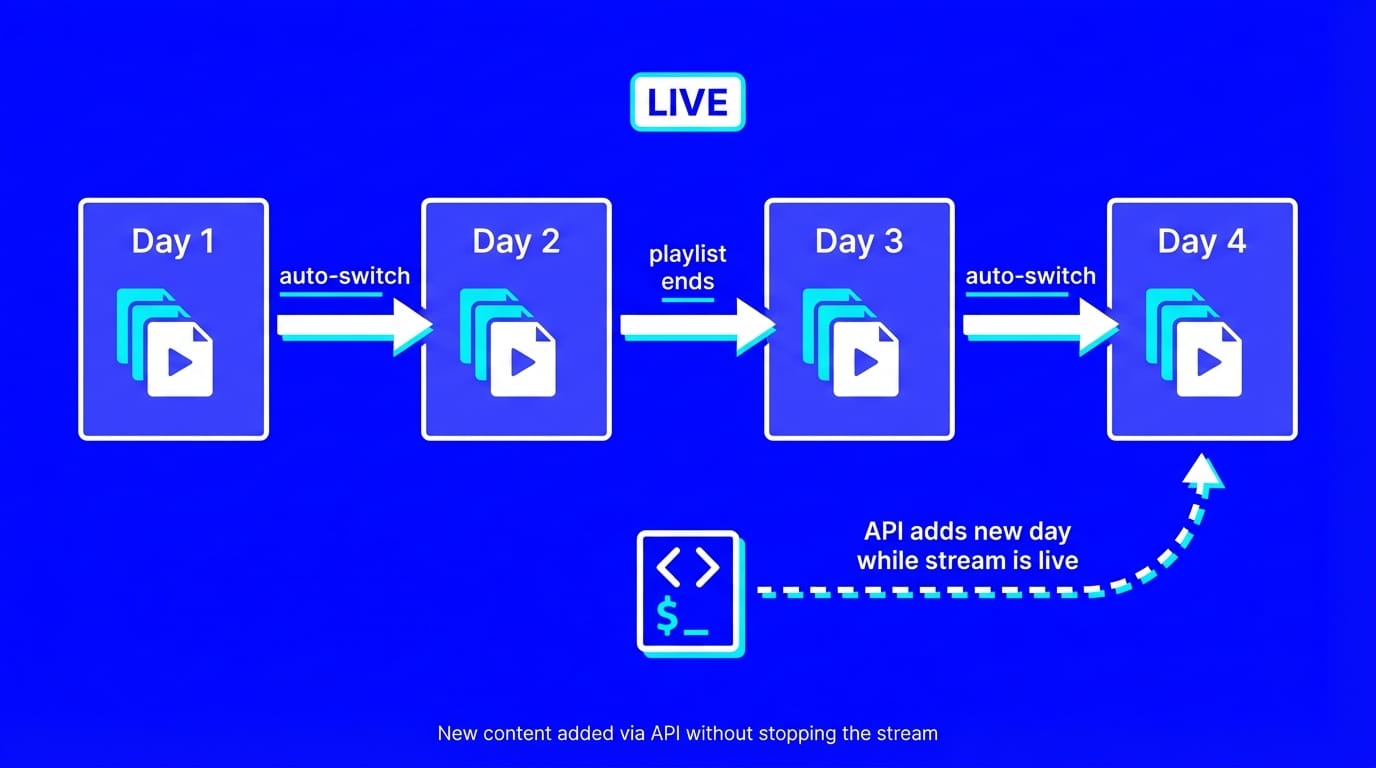
Changes you make via the API update the project (a draft). If auto-sync is enabled, those changes push to the live stream immediately. Otherwise, you sync manually.
Prerequisites
- A LiveReacting account with API access (contact [email protected] to request)
- An API key from studio.livereacting.com/developer
- A YouTube channel connected as a streaming destination in LiveReacting Studio
All requests use the base URL https://api.livereacting.com/v1/external with a Bearer token:
Authorization: Bearer lr_your_api_key_hereRate limit: 150 requests per minute.
Step 1: Import Your Videos
Upload content to your media library from Google Drive, Dropbox, or YouTube URLs.
curl -X POST https://api.livereacting.com/v1/external/files/import \
  -H "Authorization: Bearer lr_your_api_key" \
  -H "Content-Type: application/json" \
  -d '{
    "url": "https://drive.google.com/file/d/abc123/view",
    "type": "video"
  }'
The response returns a fileId. Check import progress with:
curl https://api.livereacting.com/v1/external/files/import/{fileId}/status \
  -H "Authorization: Bearer lr_your_api_key"
Import all the videos you need for your first few days. You can organize them into folders by creating a folder first (POST /files/folders) and passing folderId in the import request.
Step 2: Create a Project
First, get your YouTube destination ID:
curl https://api.livereacting.com/v1/external/destinations \
  -H "Authorization: Bearer lr_your_api_key"
Then create the project:
curl -X POST https://api.livereacting.com/v1/external/projects \
  -H "Authorization: Bearer lr_your_api_key" \
  -H "Content-Type: application/json" \
  -d '{
    "name": "24/7 Channel",
    "title": "My 24/7 Live Stream",
    "format": "16:9_1080p",
    "destinationIds": ["YOUR_YOUTUBE_DESTINATION_ID"],
    "duration": { "manual": true },
    "autoSynch": true
  }'
Key settings:
duration.manual: true— unlimited stream duration (no time limit)autoSynch: true— changes push to the live stream instantly, so you can add new content without stopping the broadcast
Save the returned project id.
Step 3: Build Day 1
Every new project comes with one empty scene. Get it:
curl https://api.livereacting.com/v1/external/projects/{projectId}/scenes \
  -H "Authorization: Bearer lr_your_api_key"
Rename it and add a video playlist layer with your Day 1 videos:
curl -X POST https://api.livereacting.com/v1/external/projects/{projectId}/layers \
  -H "Authorization: Bearer lr_your_api_key" \
  -H "Content-Type: application/json" \
  -d '{
    "sceneId": "DAY_1_SCENE_ID",
    "type": "videoPlaylist",
    "name": "Day 1 Playlist",
    "settings": {
      "volume": 10,
      "files": [
        { "fileId": "VIDEO_1_ID" },
        { "fileId": "VIDEO_2_ID" },
        { "fileId": "VIDEO_3_ID" }
      ]
    }
  }'
Save the layer id — you'll reference this scene when chaining Day 2.
Step 4: Add Day 2 (and Beyond) with Auto-Switch
This is where the API shines. The workflow endpoint create-scene-with-autoswitch does three things in a single call:
- Creates a new scene
- Creates a video playlist layer in that scene
- Wires the previous scene to auto-switch to this new scene when its playlist ends
curl -X POST https://api.livereacting.com/v1/external/projects/{projectId}/workflows/create-scene-with-autoswitch \
  -H "Authorization: Bearer lr_your_api_key" \
  -H "Content-Type: application/json" \
  -d '{
    "sceneName": "Day 2",
    "previousSceneId": "DAY_1_SCENE_ID",
    "layer": {
      "settings": {
        "files": [
          { "fileId": "VIDEO_4_ID" },
          { "fileId": "VIDEO_5_ID" }
        ]
      }
    }
  }'
The response confirms the wiring:
{
  "scene": { "id": "new_scene_id", "name": "Day 2" },
  "layer": { "id": "new_layer_id", "type": "videoPlaylist", ... },
  "autoSwitch": {
    "previousScene": {
      "sceneId": "DAY_1_SCENE_ID",
      "sceneName": "Day 1"
    }
  },
  "synced": true
}
When synced: true, the change is already live on the stream. Day 1's playlist will now auto-switch to Day 2 when it finishes.
Repeat this call for Day 3, Day 4, and so on — each time passing the previous scene's ID. You can add new days while the stream is running.
Step 5: Go Live
curl -X POST https://api.livereacting.com/v1/external/projects/{projectId}/live \
  -H "Authorization: Bearer lr_your_api_key"
The stream starts on YouTube. Day 1 plays, transitions to Day 2, and so on through the chain. If you're also streaming to Facebook or Twitch, those destinations work the same way.
You can also schedule streams for future dates:
curl -X POST https://api.livereacting.com/v1/external/projects/{projectId}/schedule \
  -H "Authorization: Bearer lr_your_api_key" \
  -H "Content-Type: application/json" \
  -d '{ "dates": ["2026-04-01T06:00:00Z"] }'
Managing Your Running Stream
Once live, the API gives you full control:
Monitor status and viewers:
curl https://api.livereacting.com/v1/external/projects/{projectId} \
  -H "Authorization: Bearer lr_your_api_key"
Returns liveStatus, viewers, peakViewers, elapsed/remaining duration, and per-destination stats.
Skip to a specific video:
curl -X POST https://api.livereacting.com/v1/external/projects/{projectId}/layers/{layerId}/play \
  -H "Authorization: Bearer lr_your_api_key" \
  -H "Content-Type: application/json" \
  -d '{ "index": 0, "switchScene": true }'
Update stream title/description while live (syncs to YouTube automatically):
curl -X PATCH https://api.livereacting.com/v1/external/projects/{projectId} \
  -H "Authorization: Bearer lr_your_api_key" \
  -H "Content-Type: application/json" \
  -d '{ "title": "Day 5 - New Episodes!" }'
Stop the stream:
curl -X DELETE https://api.livereacting.com/v1/external/projects/{projectId}/live \
  -H "Authorization: Bearer lr_your_api_key"
Automate It Further
The curl examples above map directly to HTTP requests in any automation tool:
- n8n / Make: Each API call becomes an HTTP Request node. Build a workflow that imports tomorrow's videos from Google Drive, creates a new scene with auto-switch, and updates the stream title — all on a daily schedule.
- AI agents: Feed the API documentation to Claude, ChatGPT, or any LLM agent. The agent can manage content rotation, respond to viewer analytics, and make real-time decisions about what plays next.
- Cron jobs: A simple Python or bash script running daily that calls the
create-scene-with-autoswitchendpoint with fresh content. Ten lines of code, fully automated.
What's Next
The LiveReacting API turns a manual daily task into a fully automated pipeline. Import content, build your scene chain, go live, and keep adding new days without ever stopping the stream.
Ready to automate your 24/7 stream?
- Sign up for LiveReacting
- Email [email protected] to request API access
- Get your API key at studio.livereacting.com/developer
Full API reference: https://developers.livereacting.com/
Transform Your Live Streams with LiveReacting
Join 10,000+ streamers who are boosting engagement and viewership by adding pre-recorded videos, games, polls, and countdowns to their streams.
Try LiveReacting for free today and take your streams to the next level!