
How to Launch 24/7 Live Streams on YouTube Without OBS (2026 Guide)
Learn how to create 24/7 live streams on YouTube without keeping your computer running. Step-by-step guide using cloud-based streaming that beats OBS for continuous broadcasts.
Introduction
Want to grow your YouTube channel while you sleep? In 2026, 24/7 live streaming has become the secret weapon for creators looking to maximize watch time, boost subscribers, and increase revenue without being glued to their computer screen.
Whether you're streaming lofi music, gaming content, meditation videos, or educational playlists, continuous streaming helps you reach global audiences around the clock. But here's the challenge: traditional streaming software like OBS wasn't built for 24/7 operation.
In this guide, you'll discover how to set up professional 24/7 live streams using cloud-based technology that eliminates the limitations of OBS. You'll learn exactly how to configure video playlists, manage your broadcasts remotely, and keep your streams running perfectly stable without your computer being powered on.
Why 24/7 Live Streaming Works for YouTube Growth
Before diving into the setup process, let's understand why thousands of creators are switching to continuous streaming strategies.
YouTube's Algorithm Loves Consistent Activity
YouTube's recommendation algorithm prioritizes two critical metrics: watch time and engagement consistency. A 24/7 live stream excels at both. When your content is always available, you accumulate watch hours continuously, signaling to YouTube that your channel deserves higher visibility in search results and recommendations.
Platform analytics show that channels using 24/7 streaming strategies see an average watch time increase of 200-300% compared to traditional upload schedules. This translates directly into faster channel growth and improved monetization potential.
Global Audience Accessibility
Your viewers aren't all in the same time zone. When you stream 24/7, you eliminate the problem of scheduling around international audiences. Whether someone in Tokyo wants to tune in at 3 AM or a viewer in New York checks in during lunch, your content is always there waiting for them.
Monetization Opportunities Multiply
More streaming hours mean more ad impressions, more opportunities for Super Chat donations, and increased channel membership conversions. Creators report that 24/7 streams generate 40-60% higher revenue per subscriber compared to standard video uploads, simply because the monetization window is always open.
The OBS Problem: Why Traditional Software Falls Short
Many creators start their 24/7 streaming journey with OBS (Open Broadcaster Software). It's free, powerful, and widely used. However, OBS has significant limitations when it comes to continuous broadcasting that make it impractical for long-term 24/7 operations.
Your Computer Must Stay On Constantly
This is the most obvious limitation. With OBS, your streaming computer needs to remain powered on and actively broadcasting every single hour of every single day. This creates several problems:
Electricity Costs: Running a gaming PC or workstation 24/7 can add $30-60 to your monthly electricity bill, depending on your hardware and local rates.
Hardware Wear: Continuous operation dramatically increases wear on your CPU, GPU, fans, and power supply. Components that might normally last 5-7 years could require replacement in 2-3 years with constant use.
Internet Dependency: Your stream's stability becomes completely dependent on your home internet connection. Your broadcast will immediately stop if there's a brief outage, router reset, or ISP issue.
Playlist Management Is Complex and Unreliable
OBS doesn't have built-in playlist functionality. The workaround involves using VLC Media Player alongside OBS, adding another layer of complexity. You need to:
- Create and manage playlists in VLC
- Capture VLC's window in OBS
- Ensure both programs remain stable together
- Manually restart if either crashes
This setup is prone to sync issues, unexpected crashes, and requires constant monitoring. It's simply not reliable enough for truly hands-off 24/7 operation.
No Remote Management
Once your OBS stream is running, you can't easily modify it without being physically at your computer. Want to swap out a video? Add a new element? Update your branding? You need to be home to make those changes.
Limited Advanced Features
OBS lacks professional features crucial for engaging 24/7 streams:
- No automated scene switching
- No built-in playlist scheduling
- No remote control capabilities
- Limited overlay customization
- No integrated chat display
- No multistreaming without additional plugins
The Cloud-Based Solution: How LiveReacting Transforms 24/7 Streaming
This is where cloud-based streaming platforms like LiveReacting fundamentally change the game. Instead of your computer doing all the work, enterprise-grade servers handle the encoding, streaming, and delivery—while you control everything from your browser.
Why Cloud Streaming Beats Local Software
Zero Hardware Requirements: Your stream runs on LiveReacting's servers, not your computer. You can upload your videos, configure your stream, and literally turn off your computer while the broadcast continues flawlessly.
Enterprise-Grade Stability: Cloud infrastructure offers 99.9% uptime with automatic failover systems. If one server experiences issues, your stream automatically switches to backup systems without viewers noticing.
Remote Management: Control your stream from any device with internet access. Update videos, change overlays, or modify settings from your phone while traveling.
Advanced Features Built-In: Get professional broadcasting capabilities without complex setups or multiple software tools.
Step-by-Step: Setting Up Your First 24/7 Stream with LiveReacting
Let me walk you through the exact process of creating a professional 24/7 video playlist stream. This tutorial matches the workflow shown in the video, with additional optimization tips.
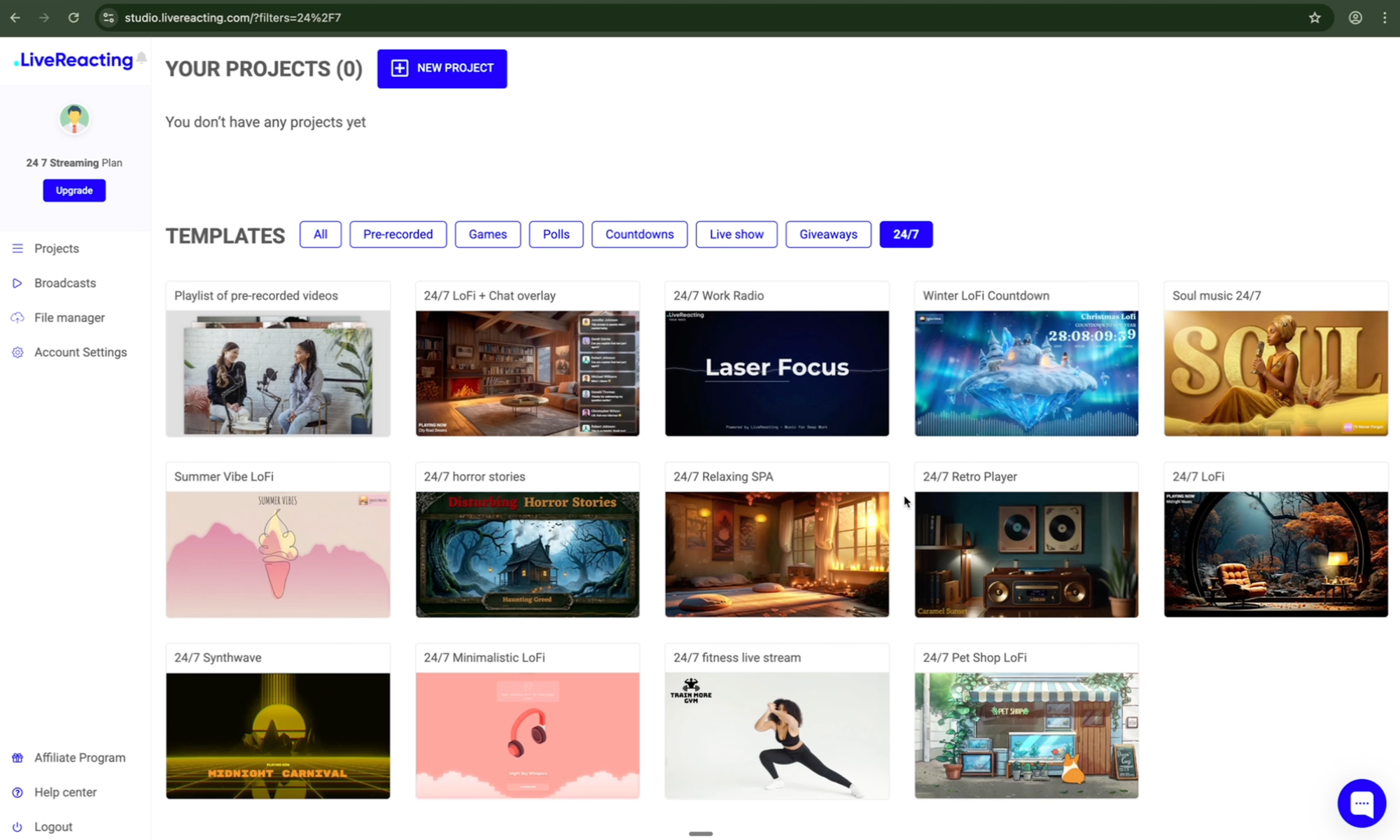
Step 1: Access the LiveReacting Studio
- Log in to your LiveReacting account
- Click "My Dashboard" to enter the streaming studio
- Select the "24/7" category from the template library
Step 2: Choose Your Stream Template
LiveReacting offers several pre-built templates designed for different 24/7 use cases, including:
- Playlist of Pre-Recorded Videos: Best for content channels, educational content, and entertainment
- Audio Playlist with Video Background: Perfect for music channels, ambient radio, meditation
- Single Video Loop: Ideal for continuous displays, promotional content, informational broadcasts
For this tutorial, we'll use the "Playlist of Pre-Recorded Videos" template as it's the most versatile option.
Step 3: Upload Your Video Content
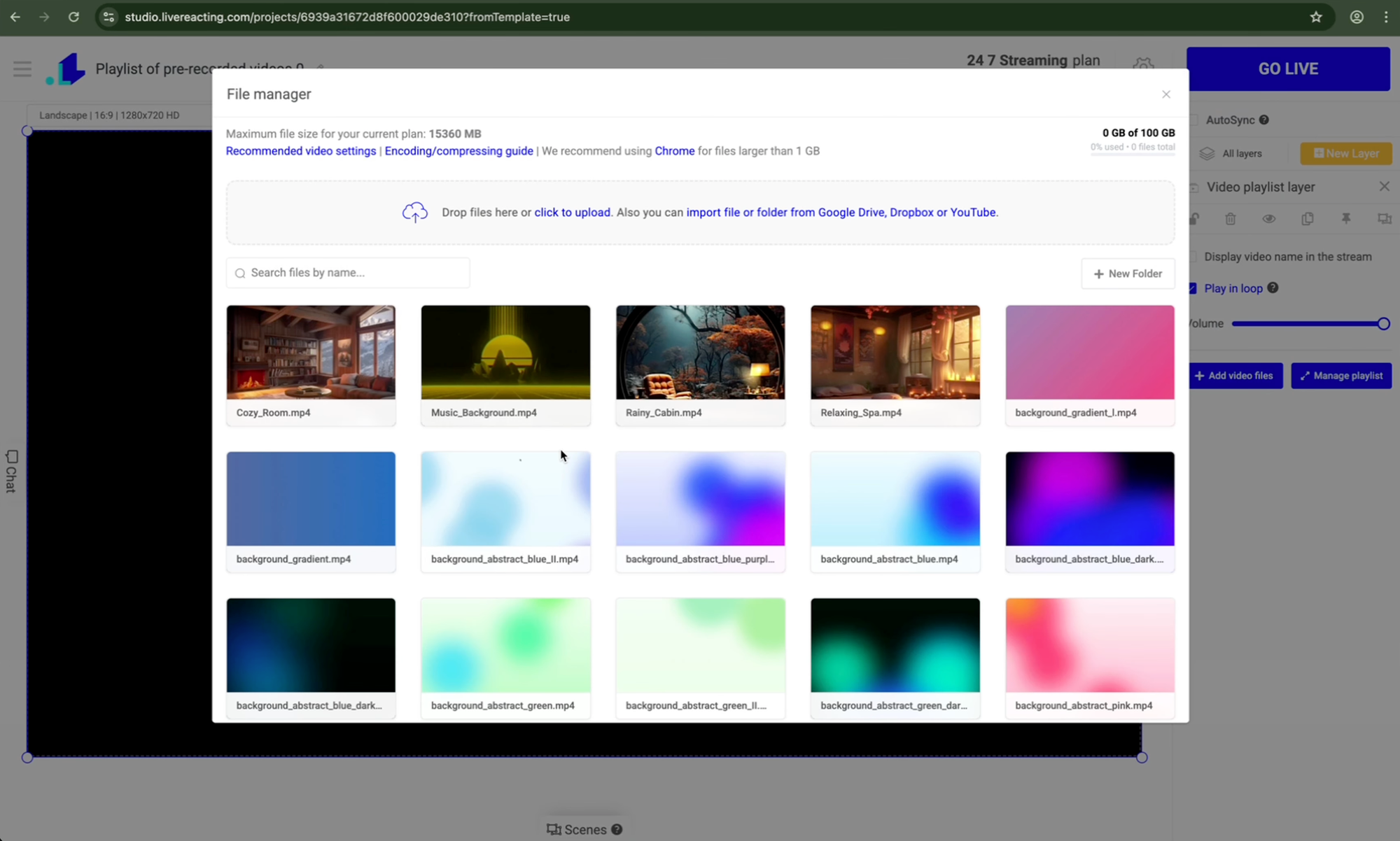
Click the File Manager icon to access your media library. You have three upload options:
Option 1: Direct Upload
- Support for .mp4, .mov, .avi, and other standard formats
- Maximum file size varies by plan (3-20 GB depending on subscription)
- Upload multiple videos at once
Option 2: Cloud Import
- Connect to Google Drive, Dropbox, or YouTube
- Import existing content without re-uploading
- Save bandwidth and time
Option 3: YouTube Integration
- Import videos directly from your YouTube channel
- Useful for repurposing existing content
- Maintains video quality
Pro Tip: Upload high-quality source files (1080p recommended). LiveReacting's encoding will optimize them for streaming while maintaining quality.
Step 4: Build Your Playlist
Once your videos are uploaded:
- Select the videos you want to include in your broadcast
- Click "Confirm Selection" to add them to your canvas
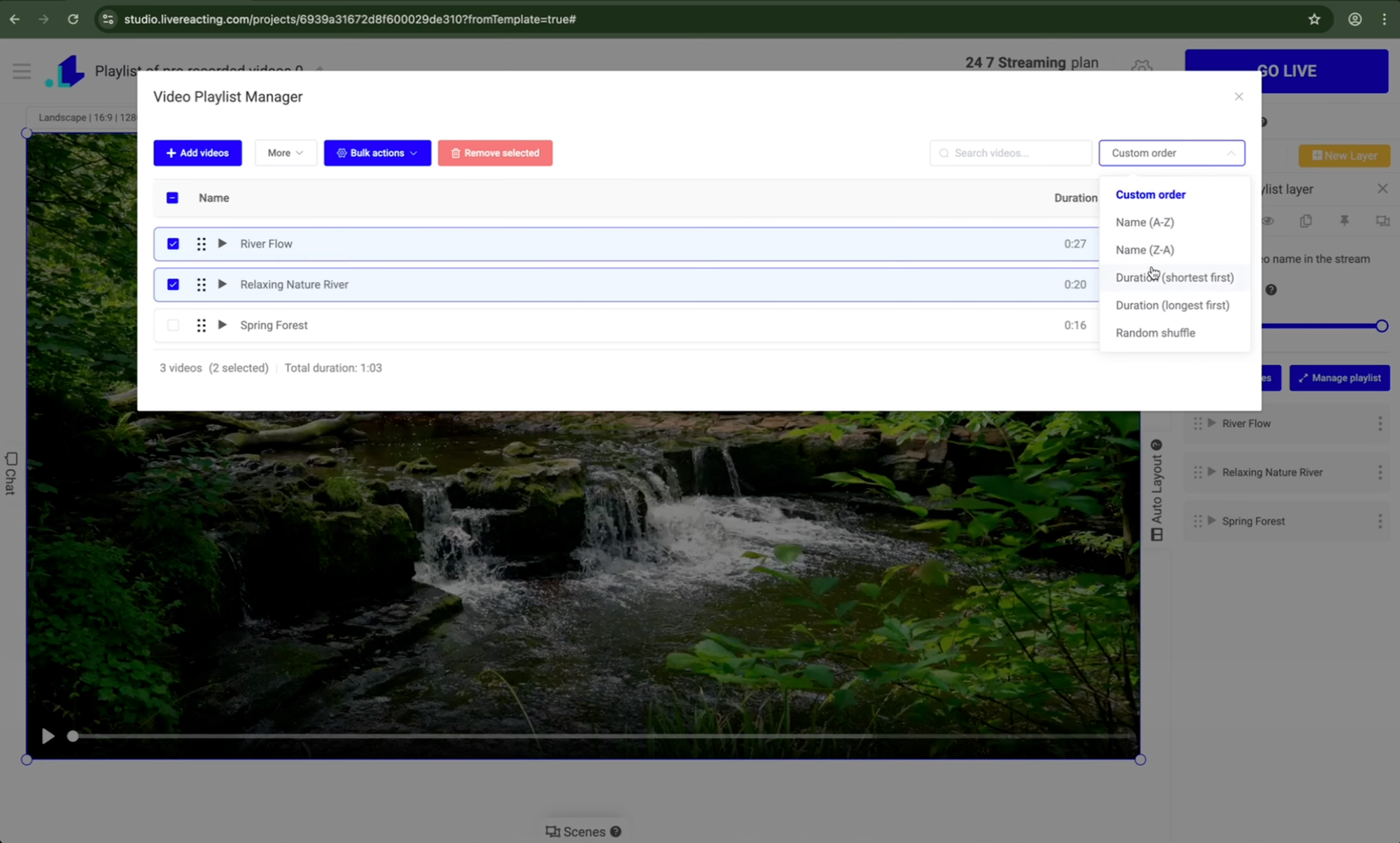
- Videos will appear in the playlist manager
The playlist manager is your control center for organizing content. Here you can:
- Reorder videos by dragging and dropping
- Rename videos for easier management
- Remove or add videos at any time
- Insert YouTube ad slots at strategic points (for monetization)
- Set video transitions between clips
Step 5: Configure Playlist Display Options
LiveReacting allows you to display the name of the currently playing video on screen. This is particularly useful for:
- Music playlists (showing song titles)
- Educational content (showing episode names)
- Gaming compilations (showing game titles)
Customize the text style, position, color, and animation to match your brand aesthetic.
Step 6: Connect Your YouTube Channel
- Open your stream settings
- Click "Connect YouTube Channel"
- Select which YouTube channel to stream to (if you manage multiple)
- Click "Connect" to authorize LiveReacting
Your YouTube account is now ready to receive the broadcast.
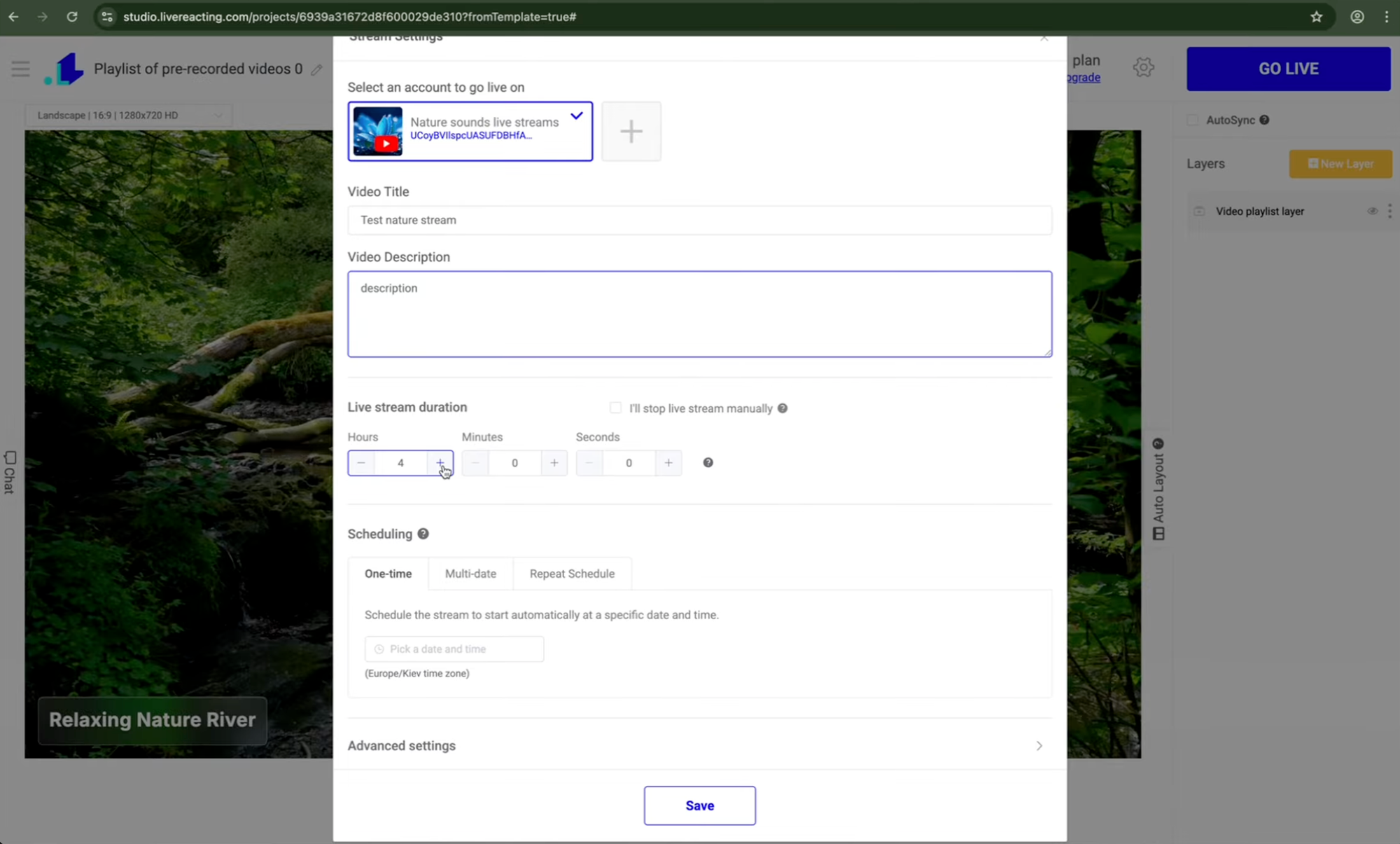
Step 7: Configure Stream Details
Basic Settings:
- Title: Make it descriptive and keyword-rich (e.g., "24/7 Lofi Hip Hop Radio - Beats to Study/Relax To")
- Description: Include your social links, donation info, and relevant keywords
- Category: Select the appropriate YouTube category for your content
Duration Options:
You have two choices here:
Option A: Timed Duration (Under 12 Hours) Choose this if you want the live replay saved as a regular video on your channel. YouTube automatically archives streams under 12 hours. This is useful if you're testing or running scheduled broadcasts.
Option B: Continuous Stream ("I'll stop live stream manually") Check this box for true 24/7 streaming. Your stream will run indefinitely until you manually end it. The replay won't be saved as a separate video, but your channel will show as "Live" continuously.
Scheduling: You can set your stream to start automatically at a specific date and time. This is perfect for:
- Launching your stream during peak hours
- Coordinating with promotional campaigns
- Setting recurring schedules
Step 8: Advanced Settings
Click "Advanced Settings" to access professional broadcast options:
Stream Quality:
- Set the resolution to 1080p for high-definition quality
- Audio bitrate: 320 kbps for crystal-clear sound
Visibility:
- Public: Visible to everyone in search/recommendations
- Unlisted: Only accessible via direct link (good for testing)
- Private: Only you can see it
Step 9: Go Live
Once everything is configured:
- Review your settings one final time
- Click "Go Live"
- Confirm the action
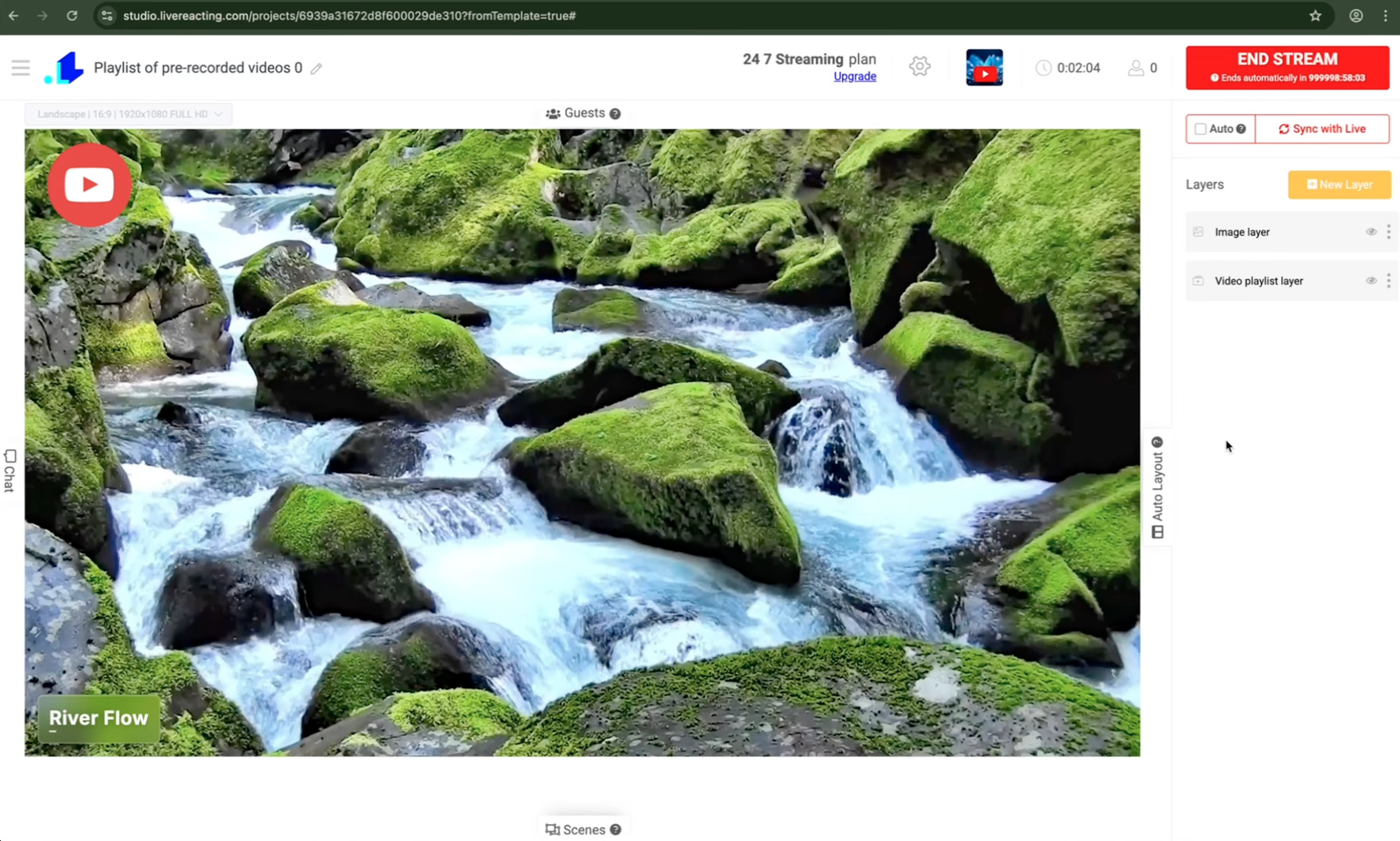
Within 10-20 seconds, your stream will be broadcasting live on your YouTube channel. The system is now running entirely on cloud servers, and you can close your browser or shut down your computer; your stream continues uninterrupted.
Step 10: Managing Your Live Stream
One of LiveReacting's most powerful features is the ability to modify your stream while it's already live.
To Make Changes While Broadcasting:
- Return to your LiveReacting dashboard
- Navigate to your active stream
- Make your desired changes (remove videos, add new ones, reorder playlist, update overlays)
- Click "Sync with Live" to push changes to your active stream
Changes take effect within seconds without interrupting the broadcast or causing buffering for viewers.
What You Can Change Live:
- Add or remove videos from the playlist
- Reorder the playback sequence
- Update branding elements (logos, overlays, text)
- Add new graphics or animations
- Adjust chat display settings
- and everything else
This flexibility is impossible with OBS and makes LiveReacting incredibly powerful for responsive content management.
Advanced 24/7 Streaming Strategies
Once you master the basics, consider these advanced techniques to maximize your stream's performance.
Combining Live and Pre-Recorded Content
You're not limited to just pre-recorded videos. LiveReacting allows you to seamlessly switch between:
- Pre-recorded video playlists (your autopilot content)
- Live broadcasts (when you want to interact directly)
- Guest appearances (bring in collaborators or interviewees)
This hybrid approach keeps content fresh while maintaining 24/7 availability.
Add Interactive Elements for Higher Engagement
Even though your stream is automated, you can still drive engagement with interactive overlays:
- Live polls: Let viewers vote on what content plays next
- Countdown timers: Build anticipation for special segments
- Chat display: Show viewer comments directly on stream (moderated)
- Giveaway systems: Run automated contests while offline
These interactive elements dramatically increase viewer retention and comment activity, which signals to YouTube's algorithm that your content is engaging.
Multistreaming for Maximum Reach
LiveReacting's multistreaming capability allows you to broadcast the same content simultaneously to:
- YouTube
- Twitch
- Custom RTMP destinations (Instagram, TikTok, LinkedIn, etc.)
This multiplies your audience reach without additional effort. One stream configuration reaches viewers across all major platforms.
Strategic Ad Placement
For YouTube partners, LiveReacting allows you to insert YouTube ad cuepoints at specific timestamps in your stream. This means:
- Ads play during natural breaks in content
- Never interrupt important moments
- Maximize revenue without hurting viewer experience
Content Rotation Strategies
Don't run the exact same playlist forever. Viewer retention improves when you periodically refresh content:
- Update 20-30% of videos weekly
- Rotate seasonal content
- Add trending topics
- Remove underperforming videos based on analytics
LiveReacting makes this easy with its remote management features—update your playlist from anywhere without stopping the stream.
Common 24/7 Streaming Use Cases
Here are proven content types that work exceptionally well for 24/7 broadcasting:
Music & Audio Content
- Lofi hip hop radio
- Ambient soundscapes
- Study music playlists
- Meditation and sleep sounds
- Genre-specific radio (synthwave, jazz, classical)
Gaming Content
- Gameplay compilations
- Speed run marathons
- Highlight reels
- Game reviews and analysis
- Esports tournament replays
Educational Content
- Lecture series
- Tutorial compilations
- Documentary playlists
- Language learning programs
- How-to guides
Lifestyle & Wellness
- Yoga and workout routines
- Cooking shows
- Travel vlogs
- Nature scenery
- Aquarium and pet cameras
News & Information
- Headline updates
- Weather broadcasts
- Market analysis
- Tech news roundups
- Industry updates
Frequently Asked Questions
Can I run multiple 24/7 streams simultaneously?
Yes, LiveReacting allows multiple concurrent streams depending on your subscription plan. You can run different themed channels on different platforms simultaneously (e.g., a lofi music stream on YouTube and a gaming compilation on Twitch).
Will my stream quality be affected by running 24/7?
No. Because encoding happens on LiveReacting's enterprise servers, quality remains consistently high regardless of duration. There's no degradation over time like you might experience with local hardware.
How do I handle copyright claims on music channels?
Use only copyright-free music or content you have licensing rights for. Services like Epidemic Sound, Artlist, and YouTube's Audio Library provide safe options. LiveReacting doesn't affect copyright—the same rules apply as any YouTube content.
Can I schedule my stream to stop and restart automatically?
Yes, you can schedule start and stop times, or set your stream to loop indefinitely. Many creators schedule streams to run during peak hours (e.g., 6 AM - 2 AM) to maximize ad revenue efficiency while letting servers cool during low-traffic periods.
What happens if my internet goes down at home?
Nothing! Your stream continues running because it's hosted on LiveReacting's cloud servers, not your local connection. You only need the internet to initially set up and make changes—not to keep the stream running.
How much does cloud-based 24/7 streaming cost?
LiveReacting offers plans starting at $19/month for the 24/7 streaming feature, which is far more cost-effective than running your own hardware 24/7 when you factor in electricity, hardware wear, and the value of your time monitoring it.
Conclusion: Start Your 24/7 YouTube Channel Today
The era of staying glued to your computer for live streaming is over. Cloud-based solutions like LiveReacting have democratized 24/7 broadcasting, making it accessible to creators of all sizes without technical complexity or massive hardware investments.
Here's what you've learned:
- OBS and traditional software create unsustainable limitations for 24/7 streaming
- Cloud-based streaming eliminates hardware dependency and provides professional stability
- Setting up a 24/7 playlist stream takes less than 15 minutes with the right tools
- Remote management allows you to control and update your broadcast from anywhere
- Strategic content rotation and interactive elements maximize engagement and growth
The YouTube creators seeing the fastest growth in 2026 are those who've embraced continuous streaming strategies. Your channel can operate as a 24/7 destination, accumulating watch time and building community even while you sleep.
Ready to transform your YouTube strategy? Start your free trial with LiveReacting and launch your first 24/7 stream today. Your future subscribers are waiting.
Transform Your Live Streams with LiveReacting
Join 10,000+ streamers who are boosting engagement and viewership by adding pre-recorded videos, games, polls, and countdowns to their streams.
Try LiveReacting for free today and take your streams to the next level!