
YouTube Live Features: Everything Creators Need to Know
Every YouTube live feature for 2025-2026 in one guide: dual-format streaming, side-by-side ads, AI highlights, minigames, React Live, rehearsal mode, and more.
YouTube called its recent updates "the largest upgrade to Live we've ever made." Live viewership continues to grow, and YouTube responded with a wave of new YouTube live features for creators.
These features were announced across multiple blog posts, events, and updates. No single guide covers them all. Here's every major feature, what it does, and how to use it.
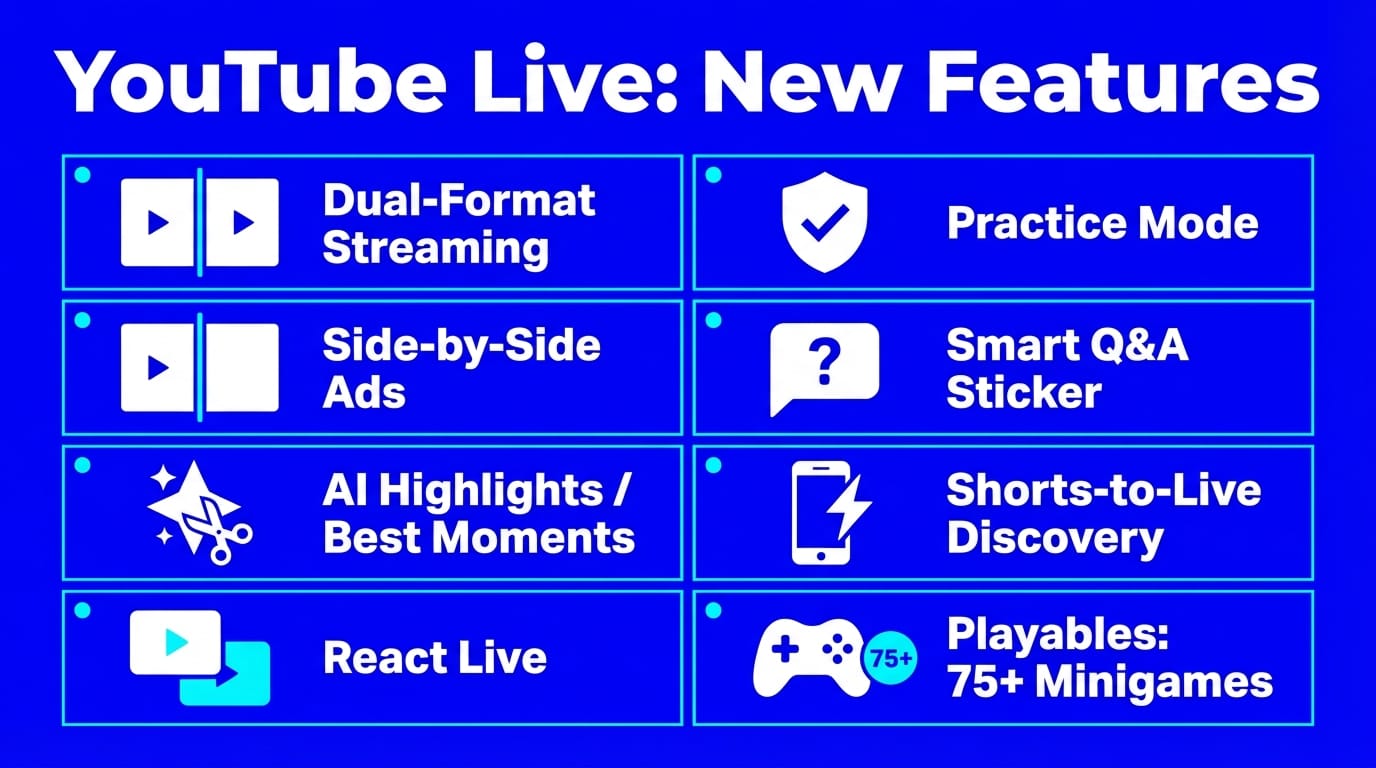
Dual-Format Streaming (Horizontal + Vertical)
You can now broadcast in horizontal and vertical formats simultaneously from one stream. YouTube handles the vertical crop automatically, and both formats share a single unified chat.
The payoff: Vertical live streams surface in the Shorts feed on mobile. Your live content reaches viewers who are just scrolling through Shorts, not actively searching for streams. Creators report that vertical viewers are more active in chat and more likely to interact.
How to use it:
- Start your stream from YouTube Studio or your encoder
- Enable dual-format streaming in your stream settings
- YouTube auto-reframes the vertical version with AI (speaker tracking, format-aware thumbnails)
- Both audiences chat in one room
You don't need to run two separate streams or manage two setups. One broadcast, two formats, one community.
Side-by-Side Ads
Traditional mid-roll ads pause your stream. Side-by-side ads don't.
The ad appears on the right half of the screen while your stream continues on the left. Stream audio mutes briefly while the ad plays, then restores when it finishes. Your content never stops.
Availability: Desktop and TV now. Mobile coming later.
Requirements:
- Normal latency streams (not ultra-low latency)
- "Let YouTube Decide" mid-roll setting enabled
- YouTube Partner Program membership
This is YouTube's answer to the problem of creators avoiding ad breaks during key moments. You earn ad revenue without pulling viewers out of your content. If you run 24/7 streams, this is especially useful since there's no natural break to insert traditional ads. You can also manage custom ad slot timing for even more control.
AI-Powered Highlights ("Best Moments")
YouTube's AI watches your entire stream and picks the most compelling moments. It then generates ready-to-share Shorts clips, saved as drafts in your YouTube Studio.
What the AI detects:
- Speech highlights and key quotes
- Audience engagement spikes
- Reactions and high-energy moments
- Chat activity surges
How it works:
- Stream as normal
- After the stream ends, YouTube's AI processes the recording
- Check your Shorts drafts for auto-generated clips
- Review, edit if needed, and publish
You don't need third-party clipping tools anymore. The AI bridges your live content and Shorts, extending the life of every broadcast without manual editing.
React Live
React Live lets you start a vertical livestream on mobile and react to another creator's stream or live event in real time. It works similarly to TikTok's duet feature, but for live content.
How it works:
- Find a live stream you want to react to
- Start your own vertical stream from mobile
- Your reaction appears alongside the original content
- Both audiences see the shared experience
Who benefits: Commentary creators, esports analysts, music reaction channels, and anyone who builds content around live events. Any creator can use it, regardless of channel size.
YouTube announced the broader expansion of this feature at its Made on YouTube event in September 2025, building on an earlier pilot.
Practice Mode (Rehearsal Mode)
YouTube's Practice Mode (also called Rehearsal Mode by creators) lets you test everything before going public. Audio, video, scenes, overlays, and guests — all in a private stream that nobody sees.
What you can test:
- Microphone and camera quality
- Lighting and framing
- Scene transitions and overlays
- Guest connections and audio routing
- Stream key configuration
Once everything looks good, press one button to go live publicly.
Silent streams, echo, bad exposure, and stream key mix-ups are common mistakes for new creators. Practice Mode catches them all before they matter. If you've never gone live on YouTube before, this makes the first time much less stressful.
Smart Q&A Sticker
YouTube's AI generates question suggestions for your livestream. Instead of coming up with Q&A prompts yourself, the platform recommends questions based on your content and audience.
How it works:
- Start a mobile livestream
- Add the Smart Q&A Sticker
- YouTube suggests pre-filled questions
- Use them as-is or customize them
- Viewers see the questions and respond in chat
Availability: English only, mobile livestreams.
This is a quick way to spark audience interaction without spending time writing questions. Good for creators who want engagement but don't want to plan an entire Q&A segment from scratch.
Shorts-to-Live Discovery
Vertical live streams now appear directly in the YouTube Shorts feed. Viewers scrolling through Shorts can stumble into your live broadcast without searching for it.
This makes going live on YouTube Shorts one of the fastest ways to reach new audiences. Your profile picture also gets a glowing "live" indicator when you're broadcasting, visible across the platform.
How to get the most out of this:
- Stream in vertical (9:16) format to appear in the Shorts feed
- Post a teaser Short before going live to prime your audience
- When you go live, a "Watch Live" button appears on your in-progress stream for viewers scrolling through the Shorts feed, letting them tap directly into your broadcast
Public-to-Members-Only Switching
Start your stream publicly. Then, mid-broadcast, switch it to channel members only. No need to end the stream and start a new one.
How it works:
- Go live as a public stream
- Open the Live Control Room
- Select which membership tiers get access
- Set a countdown timer (default: 5 minutes)
- Non-members see a prompt to subscribe
Use cases:
- Public Q&A followed by members-only bonus content
- Free preview of a workshop, then paid-only access
- Behind-the-scenes segments after a public performance
Requirements: YouTube Partner Program with active channel memberships. Currently not available for vertical streams.
Analytics note: Public and members-only segments generate separate performance metrics in YouTube Analytics, so you can track each part independently.
Playables: 75+ Built-In Minigames
YouTube integrated its Playables library directly into livestreaming. You can play from 75+ games while streaming and interacting with your chat.
Popular titles include:
- Angry Birds Showdown
- Cut the Rope
- Trivia Crack
- Words of Wonders
- Tomb of the Mask
How it works: Select a game from the Playables library, play it on stream, and chat with your audience simultaneously. You monetize the stream like any other broadcast.
Playables Builder (new): YouTube also introduced a tool that lets creators build custom games using Google's Gemini AI. Describe what you want in text, image, or video, and the AI generates a playable game you can share with your audience. As of early 2026, this is in closed beta and limited to select creators in the US, Canada, UK, and Australia.
For audience-participation features where viewers play through chat comments, LiveReacting lets you add trivia, polls, and giveaways to any stream in minutes. Upload a video, go live in 5 minutes, and run interactive overlays without any local software.
YouTube Live Features: Quick Reference
| Feature | What It Does | Availability |
|---|---|---|
| Dual-Format Streaming | Broadcast horizontal + vertical simultaneously | Rolling out |
| Side-by-Side Ads | Ads play beside your stream, not over it | Desktop/TV now, mobile later |
| AI Highlights | Auto-generates Shorts from stream highlights | Rolling out |
| React Live | React to other streams from mobile | Available |
| Practice Mode | Private practice before going public | Rolling out |
| Smart Q&A Sticker | AI-suggested questions for audience engagement | English, mobile only |
| Shorts-to-Live Discovery | Live streams appear in Shorts feed | Available (vertical streams) |
| Members-Only Switching | Switch from public to paid mid-stream | Available (YPP required) |
| Playables | 75+ built-in minigames for streams | Rolling out |
| Playables Builder | Create custom games with AI | Limited availability |
FAQ
Do I need special equipment for dual-format streaming?
No. YouTube handles the vertical crop automatically using AI. You stream in horizontal as usual, and YouTube creates the vertical version. No extra cameras, software, or encoders needed.
Can I use side-by-side ads on 24/7 streams?
Yes, as long as you stream in normal latency and have the "Let YouTube Decide" mid-roll setting enabled. This makes side-by-side ads a strong fit for 24/7 automated streams that run continuously without a host present.
Are AI highlights available for all creators?
The feature is rolling out gradually. Check your YouTube Studio for auto-generated Shorts drafts after your streams end. Not all creators have access yet.
Can I use Playables and third-party interactive tools together?
YouTube's Playables are games you play on stream. Third-party tools like LiveReacting add audience-participation features — trivia, polls, giveaways — where viewers play through chat comments. They serve different purposes and can complement each other.
How do I get my live stream into the Shorts feed?
Stream in vertical (9:16) format. YouTube will automatically surface your stream to viewers scrolling the Shorts feed on mobile. Note that scheduled streams and premieres do not appear in the Shorts feed — you only get feed placement once you are actually live. For best results, post a teaser Short before going live to prime your audience.
Make the Most of These YouTube Live Features
These YouTube live features make streaming more discoverable, more interactive, and easier to monetize. Shorts feed placement, AI-powered clipping, and non-intrusive ads address three of the biggest pain points creators faced.
To get started with live streaming, you can stream pre-recorded videos as live using cloud-based tools. Upload your video, set a schedule, and go live in minutes, no local software required. For ideas on what to stream, check out our YouTube live stream ideas guide.
Transform Your Live Streams with LiveReacting
Join 10,000+ streamers who are boosting engagement and viewership by adding pre-recorded videos, games, polls, and countdowns to their streams.
Try LiveReacting for free today and take your streams to the next level!