
How to Loop a Video on YouTube Live 24/7 (Complete Tutorial)
Loop a video on YouTube Live 24/7: export an MP4 (H.264, AAC), upload it, tick Loop, connect your channel and go live. Your computer can stay off.
To loop a video on YouTube Live 24/7, use a cloud streaming tool such as LiveReacting. Prepare the file, upload it, turn on Loop, connect your channel and go live. The stream plays from our servers, so it keeps running when your computer is off. That is what our 24/7 live stream channel plan is for.
This guide covers single video loops, playlist loops, overlays, and how to stay inside YouTube's monetization policy.
Key takeaways:
- Video looping means the video starts again by itself when it ends, so one live stream stays on air.
- Export an MP4 with H.264 video and AAC audio at 1080p and it is ready to stream as soon as it uploads.
- Tick Loop, then tick I'll stop live stream manually, so the stream does not end with the video.
- If the server running your stream stops answering, the stream starts again on another server by itself.
What is video looping?
Video looping means a video starts again from the beginning by itself when it ends. No one presses play. On YouTube Live, a looped video or playlist keeps one live stream on air for as long as you want, so your channel shows something live at every hour.
Loop a video on YouTube Live in four steps
- Prepare the file. Export an MP4 with H.264 video and AAC audio, at 1080p or lower, 30 fps (unless your plan has 60 fps), and about 8 Mbps or less. A file like this is ready to stream as soon as it uploads. If a file needs converting, Studio flags it and shows an Encode video button. We convert it on our servers, free.
- Upload. In LiveReacting Studio, click NEW PROJECT, then New Layer > Video > Video File. Click to upload, or, on a paid plan, import the file from Google Drive, Dropbox or YouTube.
- Enable loop. Tick Loop in the video layer settings. For a playlist, tick Play in loop.
- Connect the channel and go live. Click the gear icon to open Stream Settings, click + and sign in to YouTube, then add the title and description. Under Live stream duration, tick I'll stop live stream manually. Click GO LIVE. You can switch the computer off.
Have only a short clip? It restarts with no pause, but viewers see it repeat often. Put several clips in a playlist, or edit a longer block of an hour or more, so viewers see less repetition. A longer loop is no exemption from YouTube's monetization policy.
You can paste a YouTube stream key instead of signing in. Then LiveReacting cannot show comments from that destination, so comment-driven polls and trivia do not work there.
These are the same basic steps Upstream and Gyre document. The difference shows when something breaks. Your stream runs on servers with more than one cloud provider, in several data centers in Europe and the US. If the server behind your stream stops answering, the stream starts again on another server by itself. Your files are kept in two storage services with automatic switch-over, a dropped platform connection reconnects, and a corrupted file is skipped, not played. You can also run every step from code: the API and an MCP server for AI agents come with every paid plan. Upstream offers an API and MCP too.
Set up the loop in LiveReacting
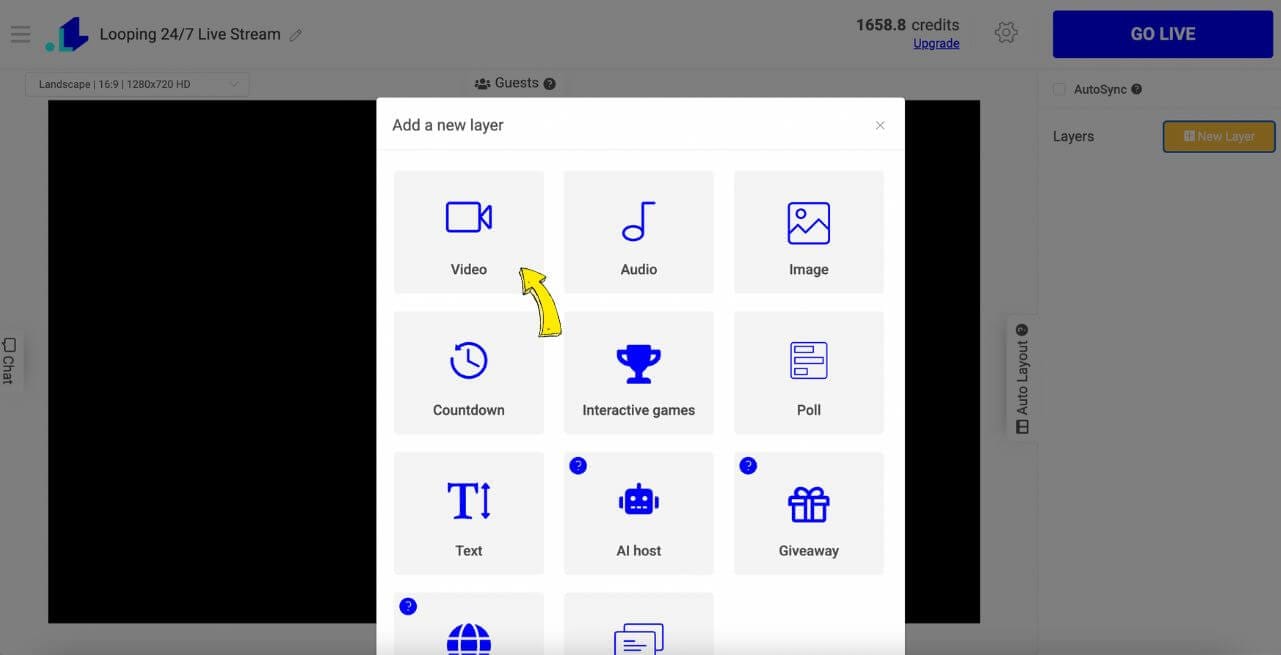
Log in to LiveReacting Studio and click NEW PROJECT. In the editor, click New Layer and pick Video, then Video File.
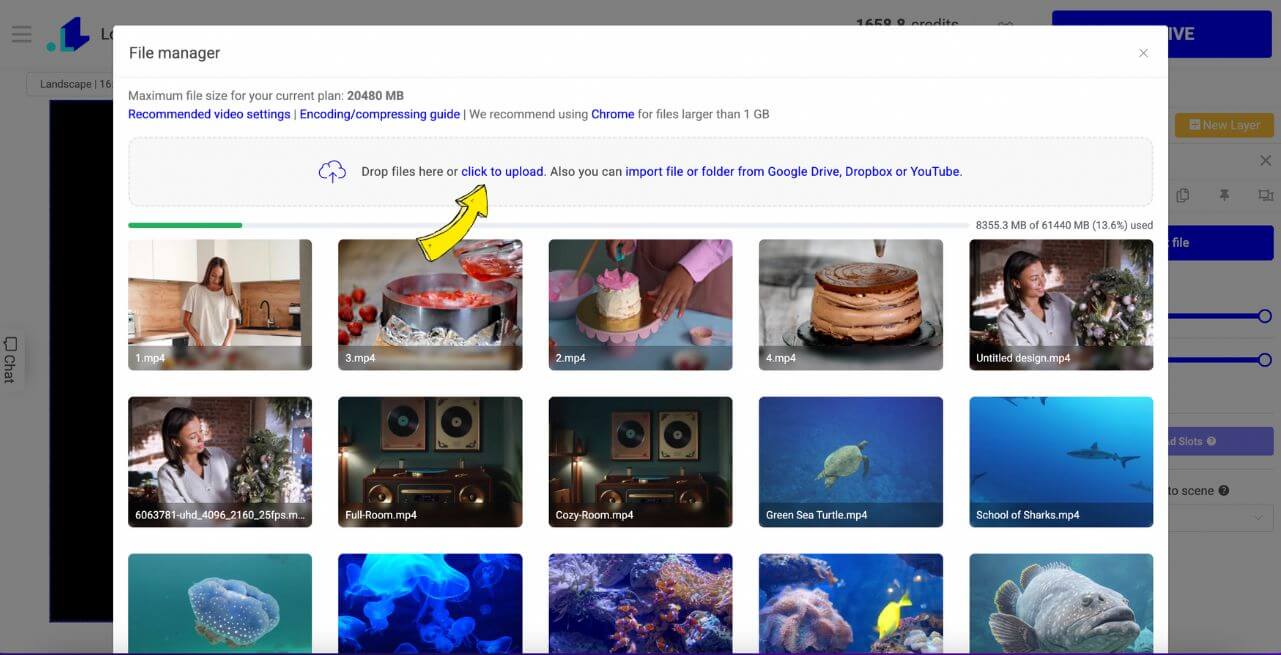
Upload the video you want to loop. Click to upload from your computer, or, on a paid plan, import it from Google Drive, Dropbox or YouTube. If Studio flags the file, click Encode video and we convert it on our servers, free.
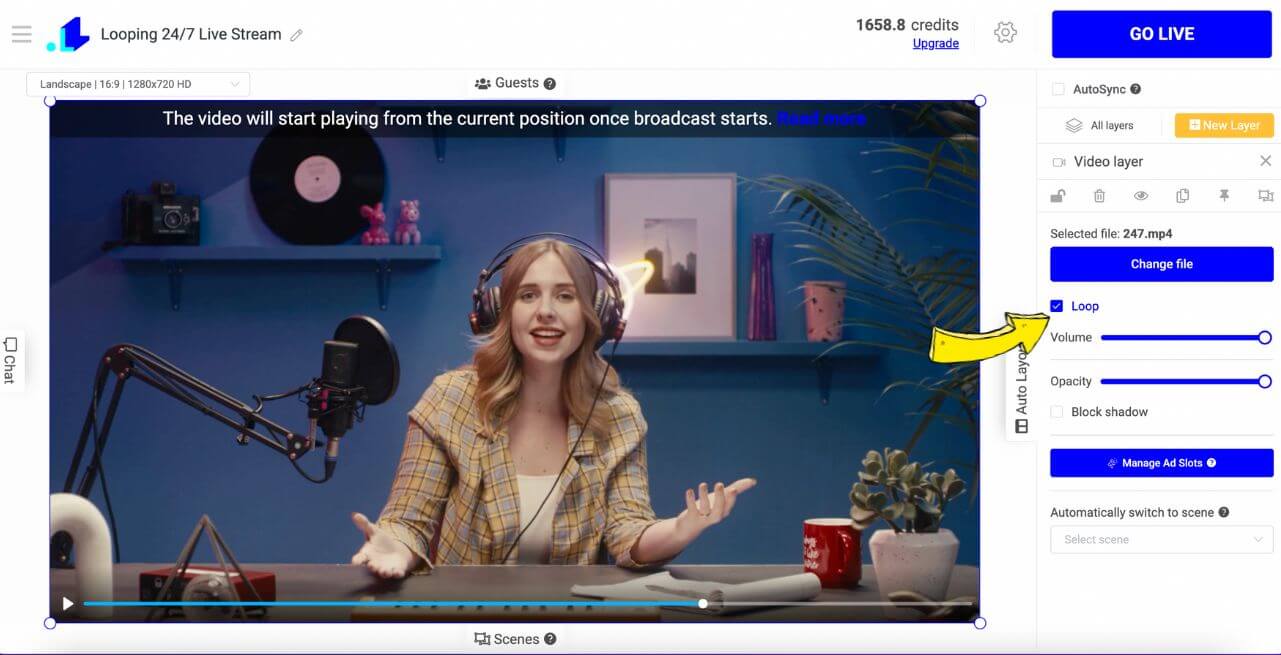
Tick Loop in the video layer settings. Without it, the stream ends when the video does.
Add anything you want on top of the video. Click New Layer to add a logo, text, an image or a countdown, or a poll or a trivia round. None of it is required. A plain looping video works.
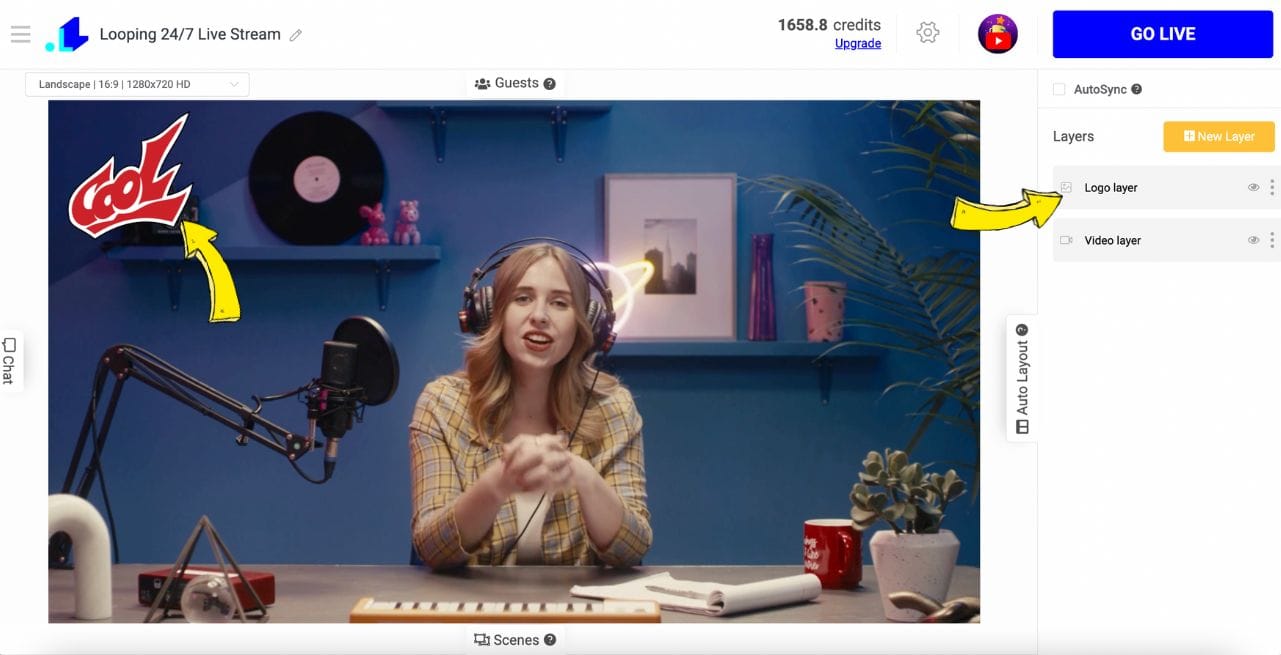
Connect YouTube and go live
Click the gear icon to open Stream Settings. This is where the stream meets your channel.
Click + and sign in to connect your YouTube channel, then fill in the video title and description. Under Live stream duration, tick I'll stop live stream manually. You can instead enter a long duration in hours, as in the screenshot; the stream then stops when that time runs out. Do not click Adjust to video length for a loop, because the stream would end after one pass. To plan ahead, pick a date under Scheduling.
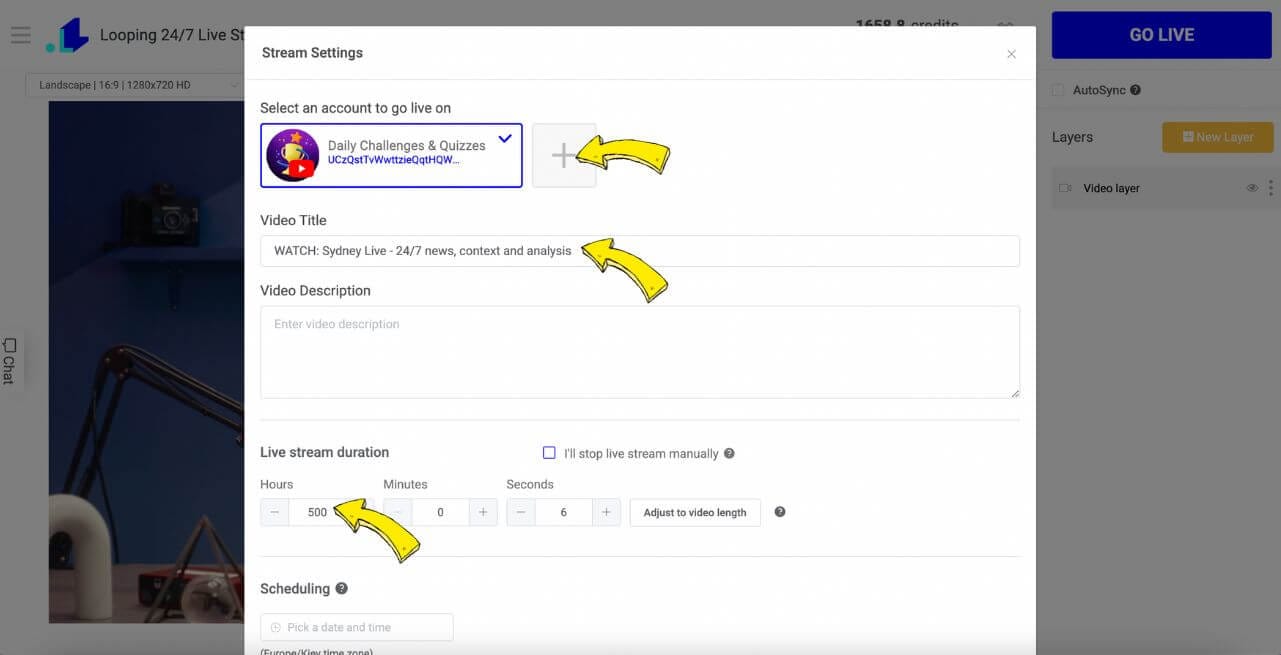
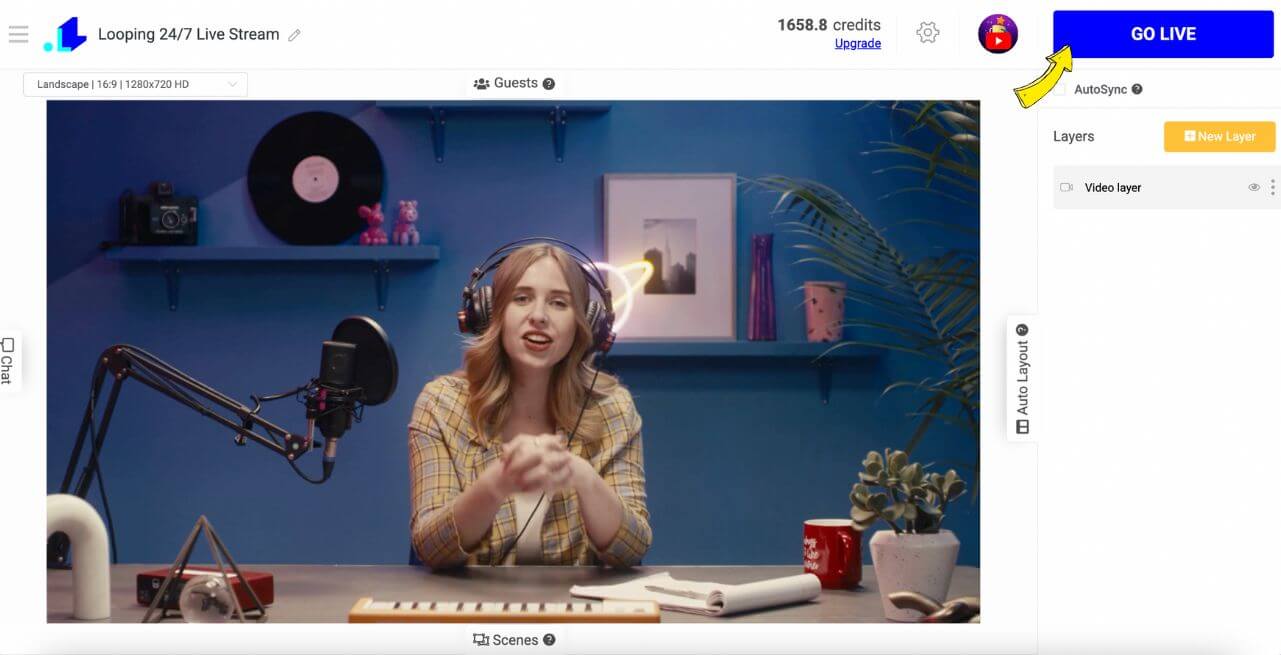
Click Save, then GO LIVE. Your video now loops on YouTube. The stream runs on our servers, so you can close the laptop and the loop keeps playing.
Video tutorial: how to loop a video on YouTube Live
Watch the full walkthrough showing how to set up a looping video stream on YouTube Live, from upload to going live.
How to loop a video playlist on YouTube Live
Want several videos instead of one? Build a playlist.
- In LiveReacting Studio, click NEW PROJECT.
- Click New Layer, then Video > Video Playlist.
- Upload several video files, or pick them from the file manager.
- Drag them into the order you want.
- Tick Play in loop.
The playlist plays in order, then starts again. Tick Shuffle and a new random order is generated each time the playlist loops. That suits 24/7 music channels, ambient streams, content marathons and lofi radio stations.
There is more on playlists in our guide to streaming a video playlist.
A longer playlist repeats less often. It is still no exemption from YouTube's monetization policy, as the next section explains.
How to avoid YouTube's repetitive content flag
YouTube updated its monetization policy in July 2025, renaming "repetitious content" to "inauthentic content." The policy page now has a section named "Generic or Repetitive Content". It covers content that "may feel repetitive to viewers".
A single video looping around the clock can fall under it, which matters on a monetized channel. Ways to add variation:
- Loop a playlist of several videos rather than one file
- Swap the content out regularly, weekly or monthly
- Use scenes to alternate between different layouts
- Add commentary, overlays or context that a bare video does not carry
- Show a live chat display so the stream reflects the people watching it
- Add interactive elements such as polls or trivia between segments
None of these is a guarantee. Owning the content, using a playlist and adding overlays do not guarantee monetization approval. YouTube's reviewers may check the channel as a whole. There is more detail in our guide to YouTube's AI content crackdown.
Troubleshooting
Stream drops or disconnects
If YouTube drops the connection, LiveReacting reconnects. If the server running your stream stops answering, the stream starts again on another server by itself. A corrupted file in a playlist is skipped, not played.
If a stream fails outright:
- Check the dashboard for error messages
- Confirm the YouTube channel connection is still active in Stream Settings
- Start the stream again
The stream ended when the video ended
Check three things:
- Loop (or Play in loop for a playlist) is ticked in the video layer settings
- I'll stop live stream manually is ticked, and Adjust to video length was not used
- Automatic scene switch is off for that layer, because Studio says "Loop isn't available if automatic scene switch is activated"
YouTube says the channel is not eligible for live streaming
Live streaming must be enabled on the channel, and the channel must have no active restrictions. The first time you enable live streaming, YouTube can take up to 24 hours to activate it. Check YouTube Studio first. If live streaming shows as enabled there, remove the channel in Stream Settings and connect it again.
Video quality issues
The source file sets the ceiling. For best results, follow the export spec in step 1:
- Use .mp4 with H.264 video and AAC audio
- Export at 1080p or lower; Studio warns when a video is larger than 1080p and recommends encoding it
- Keep the frame rate at 30 fps (unless your plan has 60 fps) and the bitrate at about 8 Mbps or less
- If Studio flags the file, click Encode video
Stream shows "offline" on YouTube but "live" in LiveReacting
YouTube is usually still processing the stream start. Give it a minute or two. If it persists, stop the stream and start it again.
What 24/7 looping does for your channel
- Watch time accumulates around the clock. The stream is available in every time zone, including the hours you are asleep, which is time a scheduled upload cannot collect.
- Record once, stream for as long as you want. That is why it suits faceless YouTube channels.
- Ads can run on it. Monetized channels can place ads on live streams, and you control ad slot timing.
One claim worth not repeating: you will read that YouTube's algorithm "favours live content" and gives 24/7 streams priority in search. YouTube publishes nothing that says so. Always-on streams collect more hours because they are always on, which is a simpler explanation and the one you can rely on.
LiveReacting compared with OBS for looping video
| Feature | LiveReacting | OBS |
|---|---|---|
| Needs a computer running 24/7 | No, it runs on our servers | Yes |
| If the server or computer fails | The stream starts again on another server by itself | The stream stays down until someone restarts it |
| Video files | Converted on our servers, free, when they need it | You set the encoder yourself |
| Change it while live | Sync with Live, the API, or an AI agent over MCP | By hand, or WebSocket remote control, with the computer on |
| Multistreaming | Built in | Needs a plugin |
| Overlays and branding | Drag and drop in the browser | Built-in image and text sources; other tools where needed |
| Interactive elements | Polls and trivia, built in | Third-party tools |
| Price | $39.99/mo, or $21.99/mo for new customers' first 5 months, then $39.99 | Free, but the computer and power are yours |
OBS is good software. It was built for someone sitting at the machine, though, and that is the mismatch. If it crashes at 3 AM, your stream is down until you wake up.
If you would rather not run either, here is how to launch a 24/7 stream without OBS.
FAQ
Can I loop a video on YouTube Live for free?
The Free plan gives you 3 streams a month at 720p, up to 30 minutes each. That is enough to test the setup. A stream that runs non-stop needs the 24/7 plan: $39.99 a month, or $33 a month billed yearly ($396). New customers pay $21.99 a month for the first 5 months, then $39.99. Billed yearly, the first year is $287.93 ($23.99 a month), then $396 a year. Prices are current as of October 27, 2026.
Does looping a video on YouTube Live break any rules?
Looping itself is allowed for content you own or are licensed to stream. Monetization is a separate question. Under YouTube's monetization policy, one clip repeating with little variation can count as generic or repetitive content, and nothing guarantees approval.
Can I loop a video and stream to several platforms at once?
Yes. Connect YouTube, Facebook, Twitch or any RTMP destination in Stream Settings, and each one receives the same looping stream. One project can also stream to two or more YouTube channels, each connected with its own login.
How long can a looping stream run, and will YouTube keep a replay?
Duration is unlimited on the 24/7 plan. YouTube archives a live stream automatically only when it is shorter than 12 hours, so an endless loop may leave no replay. If you want replays, run blocks shorter than 12 hours with Advanced Scheduling.
Can I change the looping video without stopping the stream?
Yes. Swap videos, reorder the playlist or edit overlays while the stream runs, then click Sync with Live. Tick AutoSync to send each change at once. Your own code can make the same changes through the API, and an AI agent such as Claude Code, Codex or Cursor can make them over MCP. API and MCP come with every paid plan.
Start your loop
Prepare the file, upload it, tick Loop, connect your channel and go live. Then leave it alone.
The 24/7 live stream channel plan is built for this: one continuous stream, unlimited duration, running on our servers instead of your hardware.
For a short overview of the same setup, see this guide to a 24/7 YouTube live stream with no OBS.
Transform Your Live Streams with LiveReacting
Join 10,000+ streamers who are boosting engagement and viewership by adding pre-recorded videos, games, polls, and countdowns to their streams.
Try LiveReacting for free today and take your streams to the next level!