
How to Run Multiple Live Streams on YouTube (Up to 10 at Once)
One YouTube channel can run up to 10 live streams at the same time. Here is how to run several on one channel, a different stream on each channel, or one stream on many.
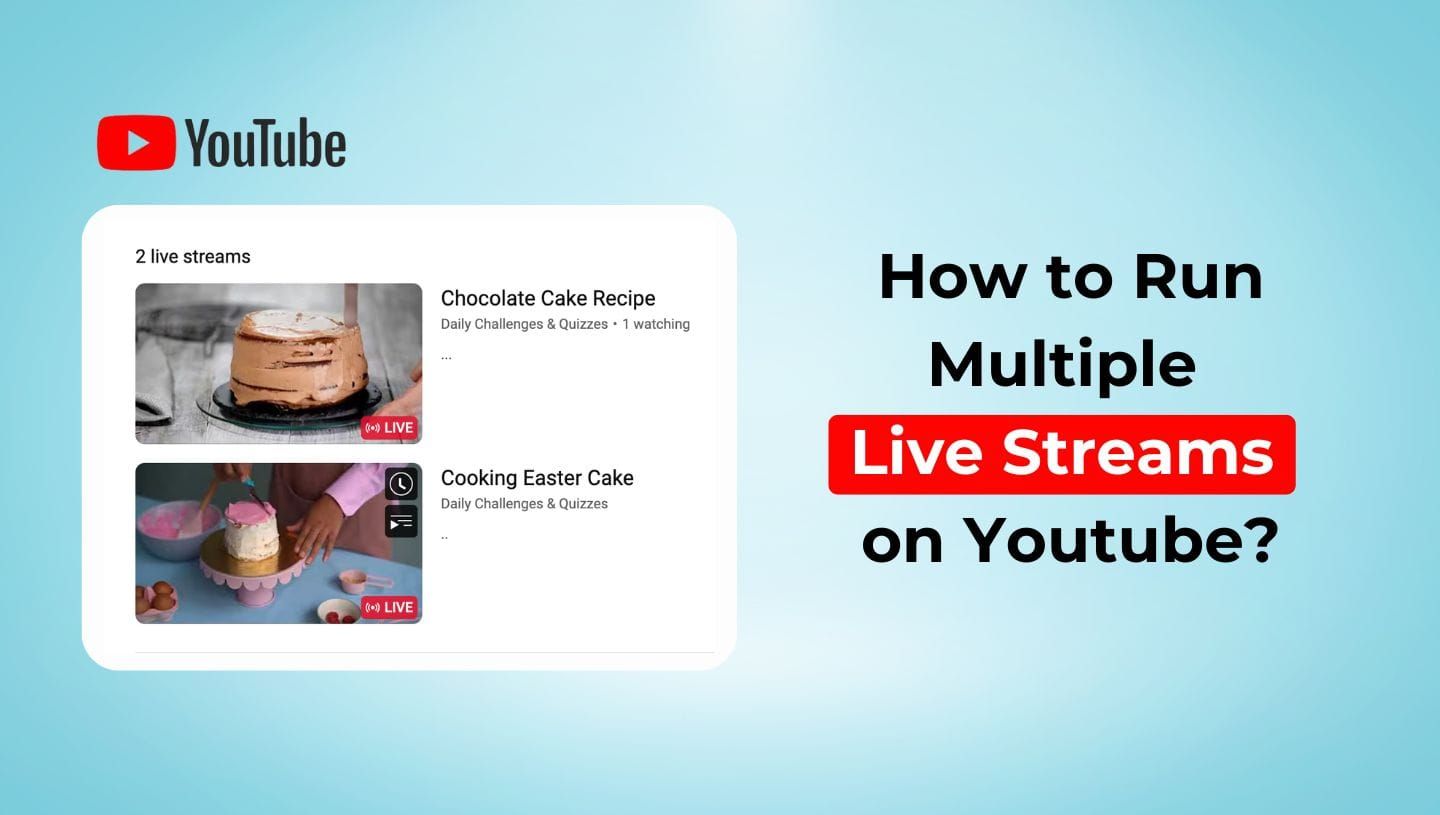
Yes, you can run several live streams on YouTube at the same time. One channel can have up to 10 live streams running at once. YouTube's help page says: "There is a limit of 10 active streams allowed per channel and 3 active streams per stream key. These limits are applied at the same time." When you reach either limit, YouTube does not start another stream.
This guide covers three cases: several streams on one channel, a different stream on each of your channels, and one stream on several channels at once. For streams that run around the clock, see 24/7 live streaming with LiveReacting. Facts in this post are current as of October 27, 2026.
Key takeaways:
- One YouTube channel can run up to 10 live streams at the same time.
- One stream key can carry up to 3 active streams. Give each stream its own key.
- Each of your channels has its own limit of 10.
- A cloud tool runs every stream on its servers, so you do not need a computer for each stream.
How many live streams can one YouTube channel run at once?
YouTube sets two limits, and both apply at the same time.
| Limit | Number | What it means |
|---|---|---|
| Active streams per channel | 10 | The 11th stream on the same channel does not start. |
| Active streams per stream key | 3 | Reusing one key for many streams stops at 3. |
| Several channels | 10 each | Each channel counts its own streams. |
Before you go live on a channel, check these requirements from YouTube Help:
- Live streaming is enabled on the channel. YouTube says enabling it for the first time "may take up to 24 hours". See how to enable live streaming on YouTube.
- The channel is verified.
- The channel has had no live streaming restrictions in the past 90 days.
If you manage several channels, enable live streaming on each one. A channel that is not enabled cannot go live, even if another channel on the same Google account can.
To make a separate key in YouTube Studio, open the Live Control Room. Under "Select stream key", click "Create new stream key".
Three ways to run more than one live stream
| What you want | What you set up | YouTube limit that applies | How LiveReacting does it |
|---|---|---|---|
| Several streams on one channel | One broadcast per stream on the same channel | 10 per channel | One project per stream, all connected to the same channel |
| A different stream on each of your channels | One stream per channel, each with its own content | 10 per channel, on each channel | One project per channel, each with its own playlist, schedule and destinations |
| The same stream on several channels | One stream sent to several destinations | 1 per channel it reaches | One project with several channels as destinations (multistream) |
How to Run Multiple Live Streams on YouTube
To run several streams on one channel, you need a channel with live streaming enabled and a tool that can start more than one stream at a time. In this tutorial we use LiveReacting and start two pre-recorded live streams on the same channel.
On the live streaming plans, from Small to Enterprise, the pricing page lists unlimited streams at the same time. Each stream can run up to that plan's maximum length. A stream that must run for days or weeks needs the 24/7 plan, which is priced per stream that runs at the same time. YouTube's limit of 10 per channel still applies.
You can mix stream types. For example:
- One pre-recorded live stream and three streams from a camera at once.
- Two camera streams and two pre-recorded streams at the same time.
- One stream with a live trivia game and another with a live giveaway.
What you stream, and how many streams, is up to you, within your YouTube and LiveReacting plan limits.
How to set up Stream #1?
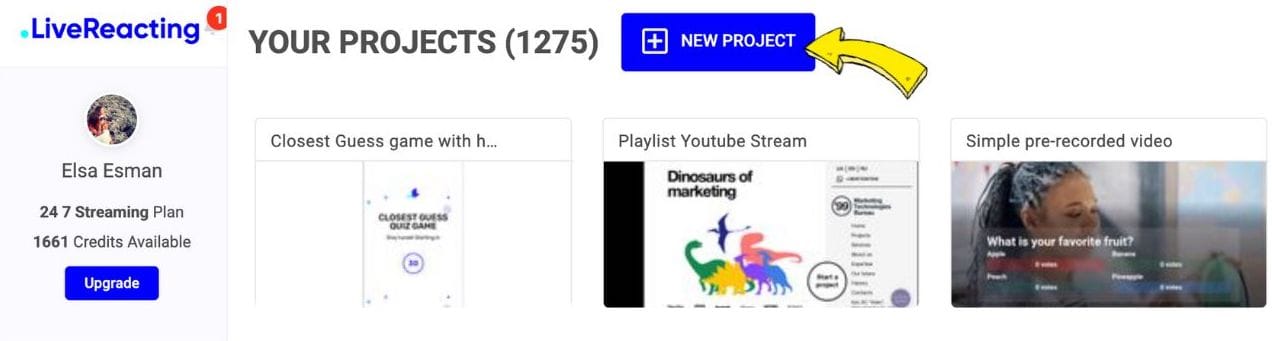
- Log in to LiveReacting and create a new project.
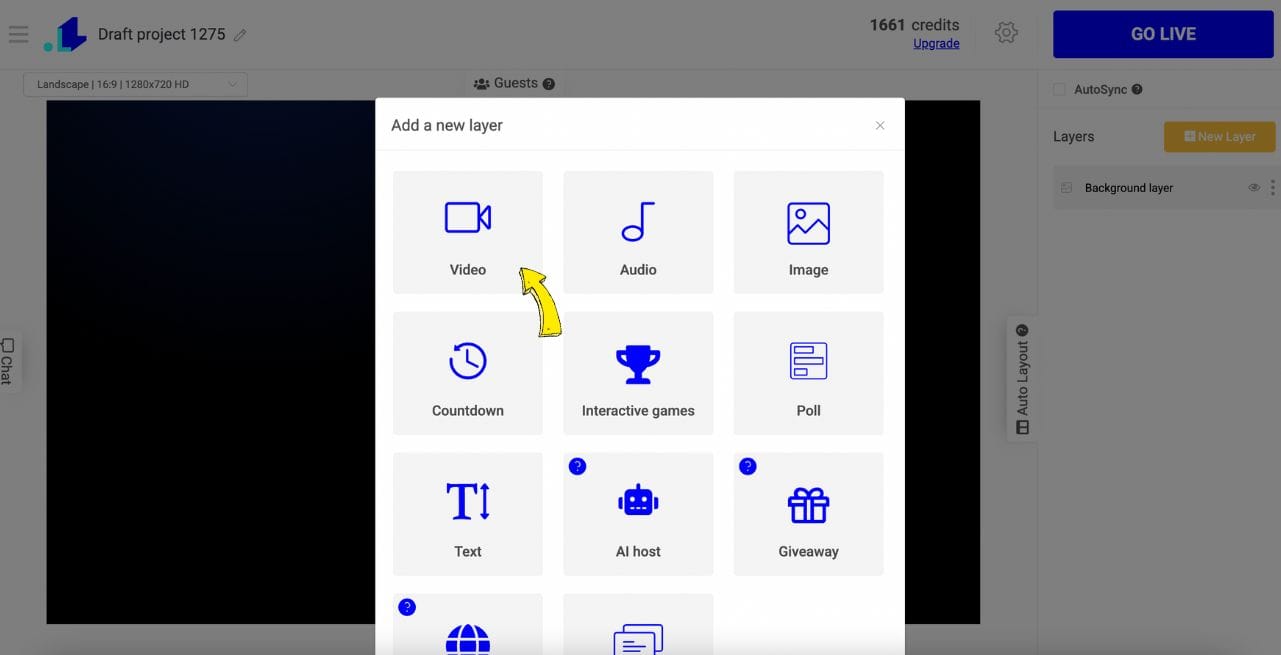
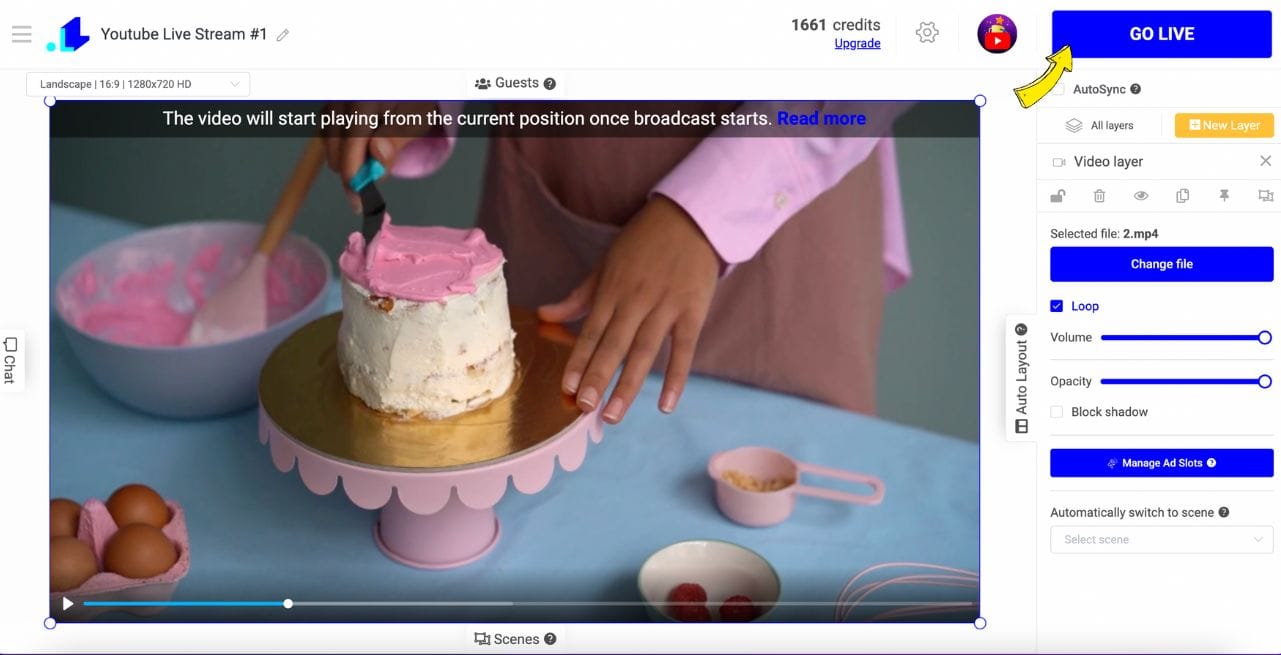
- Add a video layer and upload your file. To stream from a camera, connect your camera instead.
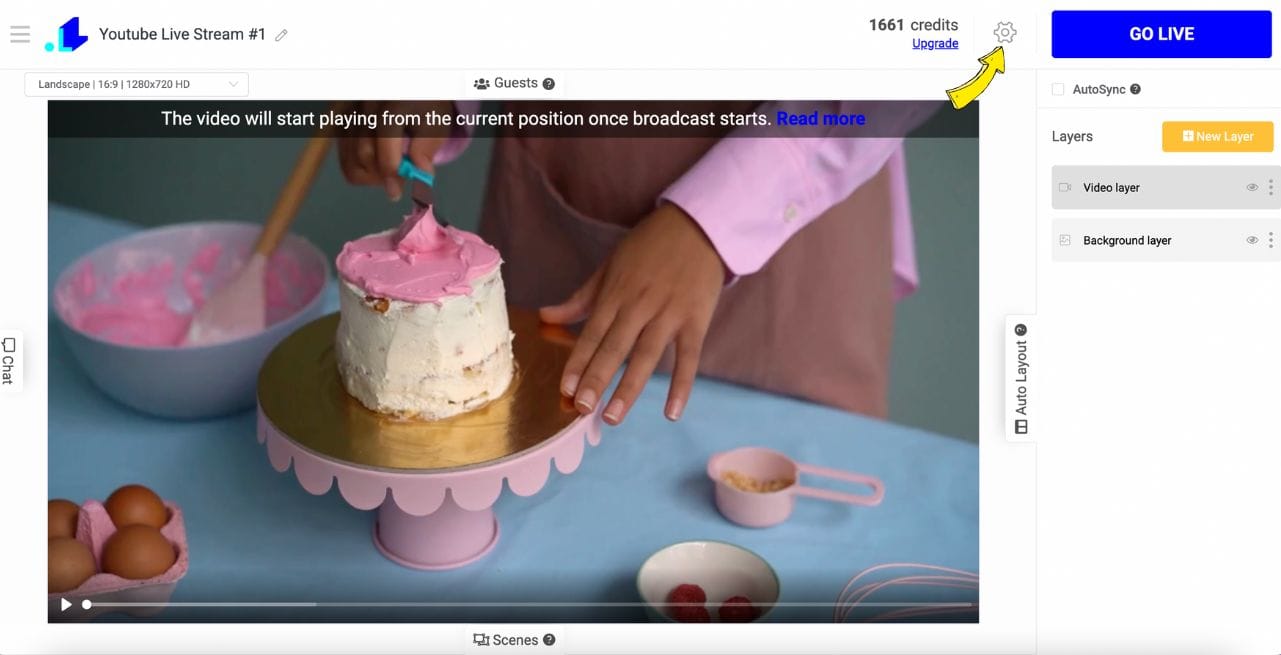
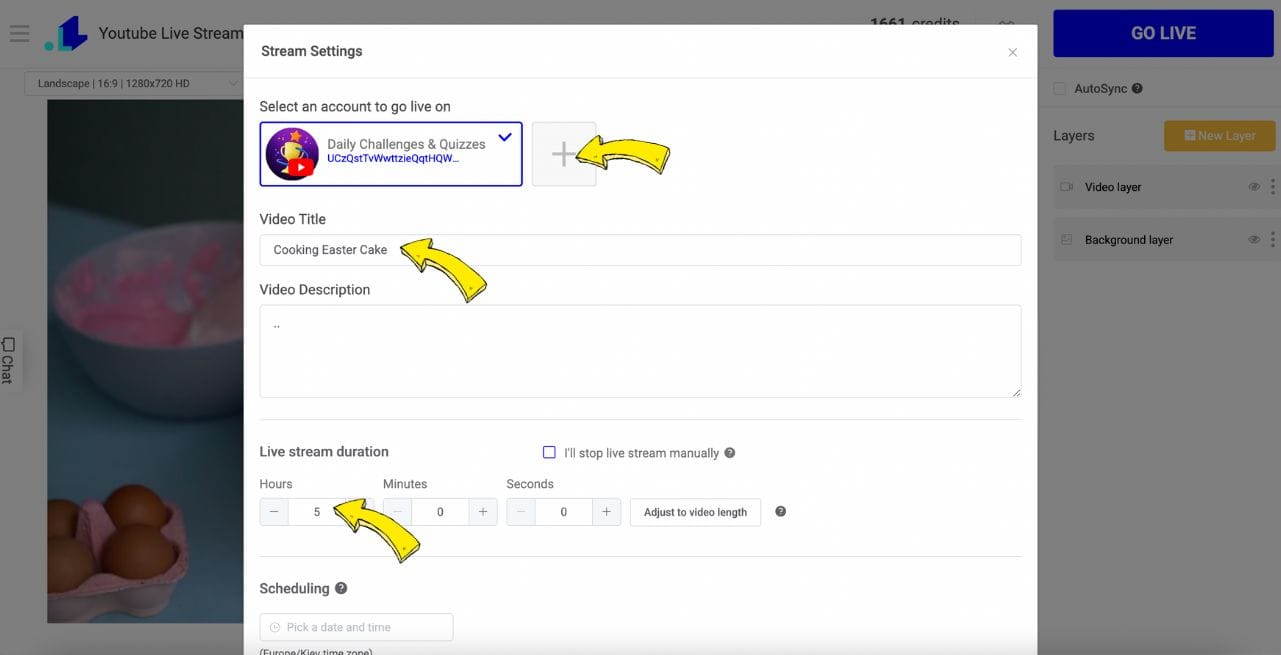
- Click the gear icon (Settings) to connect your YouTube channel and add the stream details.
- Click "+" to connect your YouTube channel. Then add the title, the description, the stream duration if you need one, and the date. If you do not choose a date, you can go live right away.
- Click Go Live. The stream appears on your YouTube channel.
How to set up Stream #2 and more?
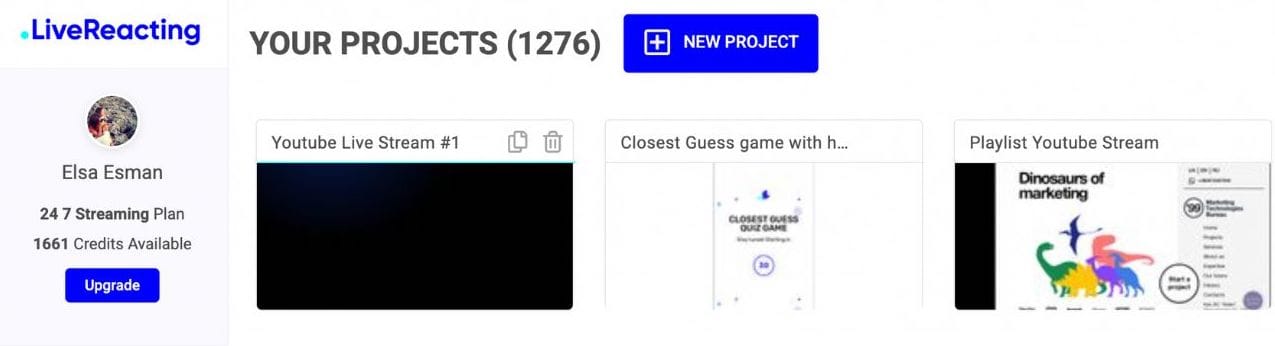
- Go back to the Studio and create a new project.
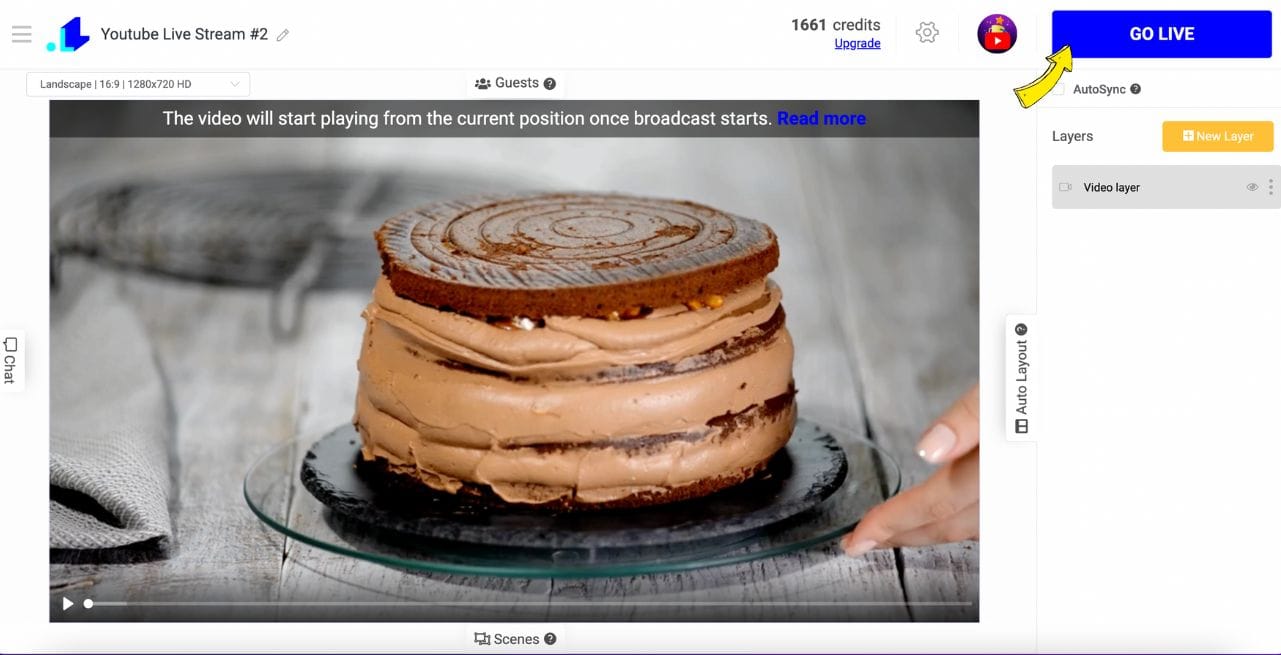
- Add your content, connect the same YouTube channel as in the steps above, and click Go Live.
Repeat these steps for each stream you need.
Preview Your Multiple Youtube Streams:
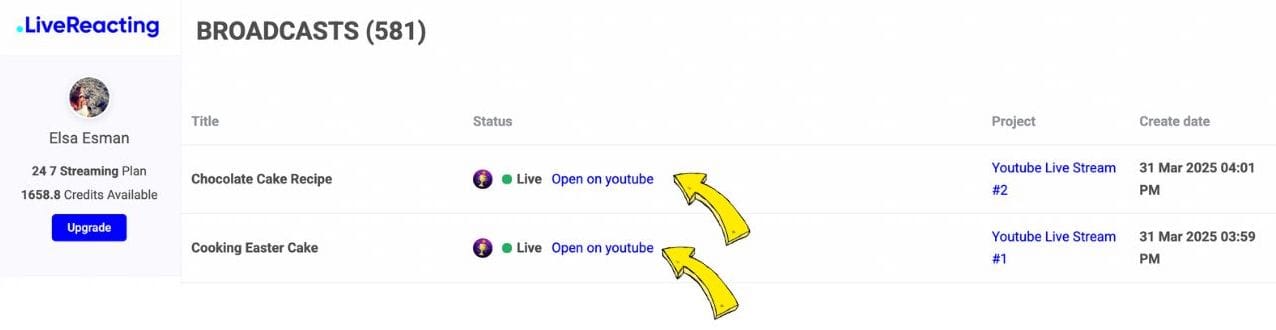
When both streams are live, you can see them in one place under Broadcasts. Click a stream to open its page on YouTube.
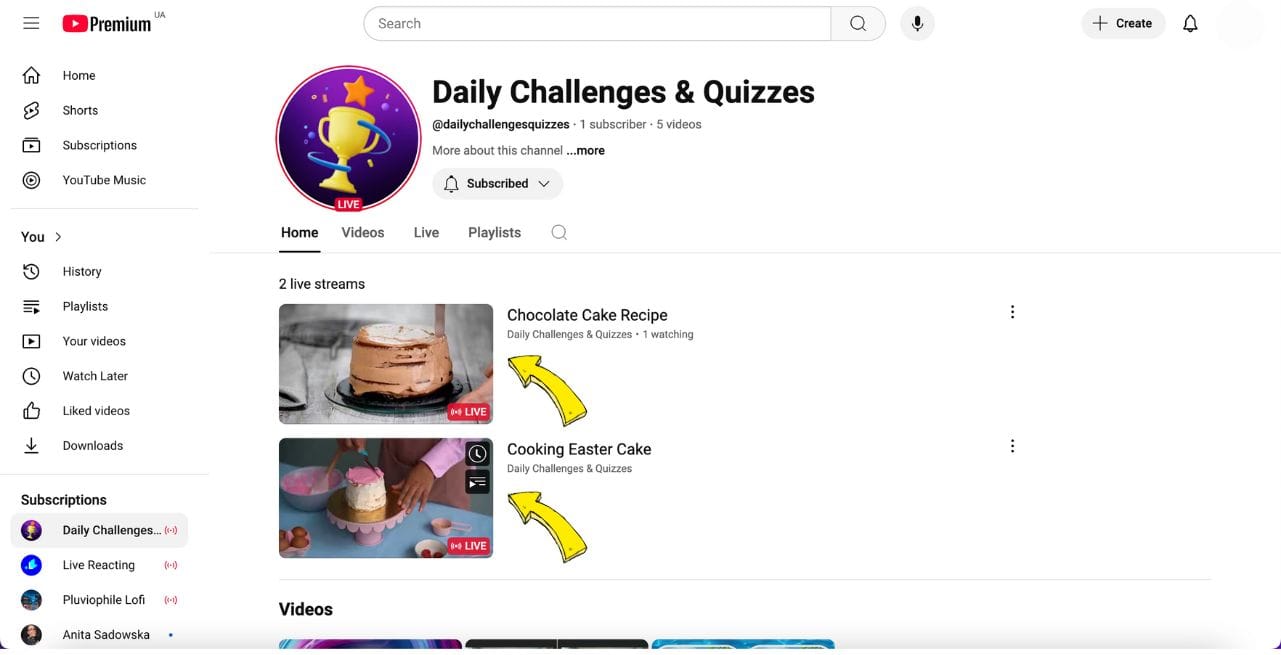
On the channel page, both streams show as live at the same time.
How to run a different live stream on each of your YouTube channels
This is the setup for people who run several channels: a music channel, a sleep channel and a news channel, or channels for clients. Each channel gets its own content and runs on its own.
In LiveReacting, each stream is one project. Each project has its own playlist, its own schedule and its own destinations. You run all of them from one account, and two or more can go to the same YouTube channel.
The basic steps are the same as Upstream and Gyre document:
- Upload your videos, or import them from Google Drive, Dropbox or YouTube.
- Build the playlist for this channel.
- Connect the channel.
- Go live.
- Switch your computer off. The stream runs on our servers.
Repeat these steps in a new project for the next channel. For the full 24/7 setup, see how to run multiple 24/7 live streams with LiveReacting and how to stream a looping video on YouTube Live.
Stream on a client's channel without their login
You do not need owner access to a client's channel. Send an invite link, they sign in to Google on a page carrying your logo and your name, and they grant streaming access only. In LiveReacting, go to Stream Settings, then Connect Accounts, then YouTube Channels, and click "Generate Invite Link". The Help Center guide shows each step.
What keeps many streams running
When you run many channels, you cannot watch each stream. These features apply to every stream:
- Multi-cloud failover: if the server behind a stream stops answering, the stream starts again on another server by itself.
- Servers in several data centers in Europe and the US.
- Video files in two storage services, with automatic switch-over.
- Auto-reconnect: if a platform drops the connection, LiveReacting reconnects.
- A corrupted file is skipped, not played.
With many channels, code or an AI agent can do the routine work. The API and MCP server come with every paid plan, so a script or an agent such as Claude or ChatGPT (through our ChatGPT plugin) can create, schedule and change streams. Upstream also offers an API and MCP server.
What several streams cost
The 24/7 plan is priced per stream that runs at the same time. One stream is $39.99 a month, or $33 a month billed yearly. In the words of our pricing page: "Two streams take 4% off the total, three take 6% off, and from four streams 23% comes off, which is $30.79 a stream."
New customers get $21.99 a month for the first 5 months, then $39.99 a month. Or $23.99 a month for the first year billed yearly ($287.93), then $33 a month ($396 a year). See pricing.
Upstream is cheaper at list price: $30 for one stream, $50 for two, $70 for three, and $20 a stream from four. Upstream also has a free plan with 24 hours of streaming a month.
How to send the same live stream to several YouTube channels
To show one stream on several channels at once, use multistreaming. You set up one project and add each channel or platform as a destination.
- Create a project and add your video or camera.
- Add each destination. One project can stream to two or more different YouTube channels, each connected by login.
- Add other platforms by login or by pasting their stream key.
- Click Go Live. The same stream goes out on every destination at the same time.
Comments from the platforms you connected by login arrive in one chat. A destination connected with a stream key sends no comment data back, so its comments do not reach the chat.
Each channel counts this stream as one of its 10. See multistreaming and how to multistream without OBS.
Who runs several live streams at once
- Multi-channel owners who run a 24/7 stream on each channel, each with its own playlist.
- Agencies that stream on client channels.
- Teachers who run several classes or subjects at the same time.
- Event organizers with parallel sessions, so viewers pick what to watch.
FAQ
Can you have multiple live streams on the same YouTube channel?
Yes. YouTube allows up to 10 active live streams per channel at the same time. Each stream is a separate broadcast with its own title, chat and URL.
Can you have 2 live streams on YouTube at the same time?
Yes. Two streams are well under YouTube's limit of 10 per channel. Give each stream its own stream key, or use a tool that creates a separate broadcast for each stream.
How many live streams can I run on YouTube at once?
Up to 10 per channel, and up to 3 on one stream key. Both limits apply at the same time. With several channels, each channel has its own limit of 10.
Do I need a separate stream key for each stream?
It is the simplest way to stay inside the limit. YouTube allows 3 active streams per stream key. In YouTube Studio, click Create new stream key under Select stream key. LiveReacting creates a separate broadcast for each project, so you do not copy keys when you connect the channel with a login.
Do I need a computer running for each stream?
Not with a cloud tool. With OBS or another local encoder, your computer and your upload speed must carry every stream at once. With LiveReacting, pre-recorded and 24/7 streams run on our servers, so you can switch your computer off.
Conclusion
One YouTube channel can run up to 10 live streams at once, and each of your channels has its own limit. Use one project per stream for different content, and multistreaming for the same content on several channels. To run streams around the clock on one or many channels, start with 24/7 live streaming.
Transform Your Live Streams with LiveReacting
Join 10,000+ streamers who are boosting engagement and viewership by adding pre-recorded videos, games, polls, and countdowns to their streams.
Try LiveReacting for free today and take your streams to the next level!