
OBS Interactive Overlay: Add Trivia, Polls, and Giveaways to Your Stream (2-Minute Setup)
Add an OBS interactive overlay for trivia, polls, and giveaways using LiveReacting's Plugin Mode. Works with vMix, StreamYard, and Ecamm Live.
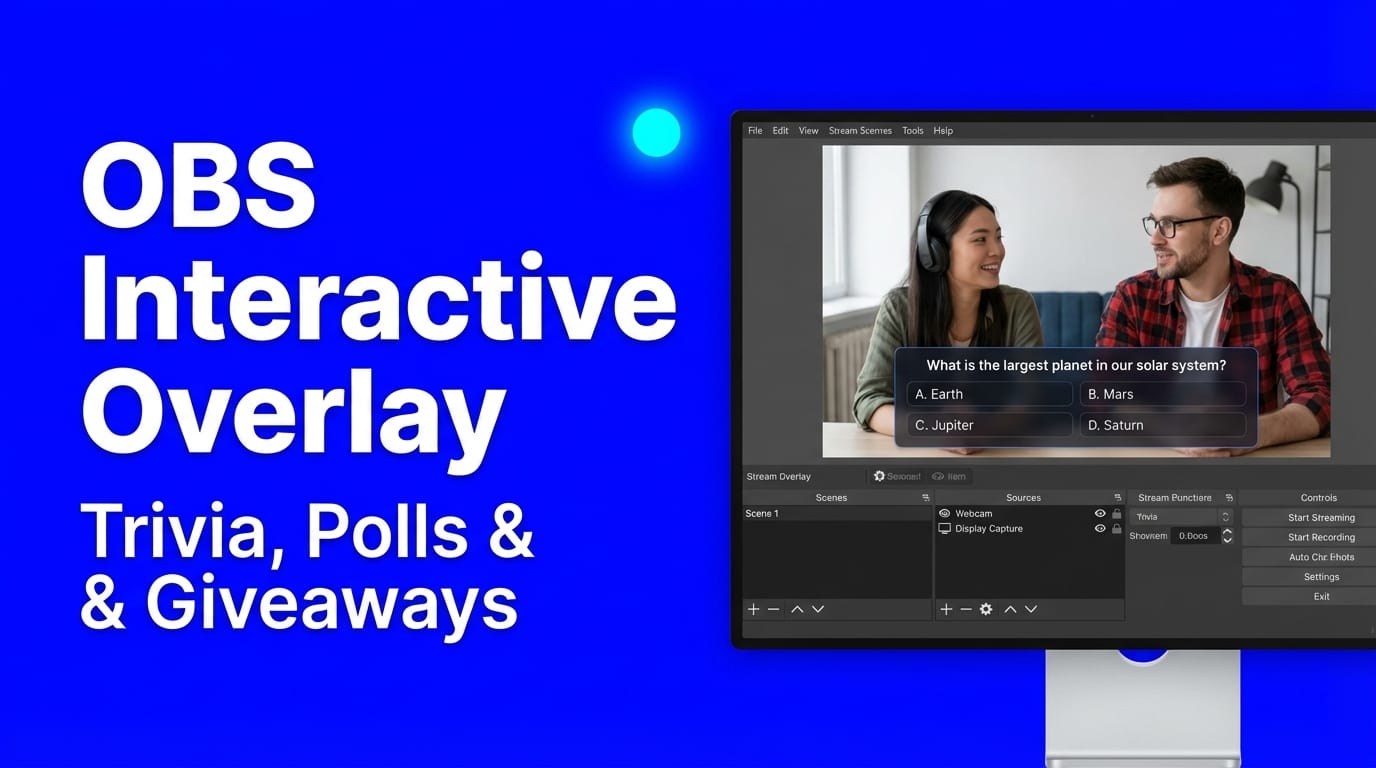
You use OBS. You like OBS. You don't want to switch to a different streaming tool.
You just want to add an OBS interactive overlay (trivia games, live polls, giveaways) to your existing stream without changing your workflow. No new software to learn. No rebuilding your scenes.
LiveReacting's Plugin Mode does exactly that. It generates a browser source URL that you paste into OBS. Your viewers interact by typing in chat, and everything is automated. Plugin Mode starts at $19.99/mo on the Small plan, so the barrier to entry is low.
Here's how to set it up.
How Plugin Mode Works (OBS Trivia Overlay and More)
LiveReacting's Plugin Mode turns any interactive element into an OBS browser source overlay. The process is the same for trivia, polls, giveaways, and every other interactive feature:
- Create your interactive element in LiveReacting Studio (pick a template or build from scratch)
- Open Settings (gear icon) and connect the social channel you're streaming to (YouTube, Facebook, or Twitch)
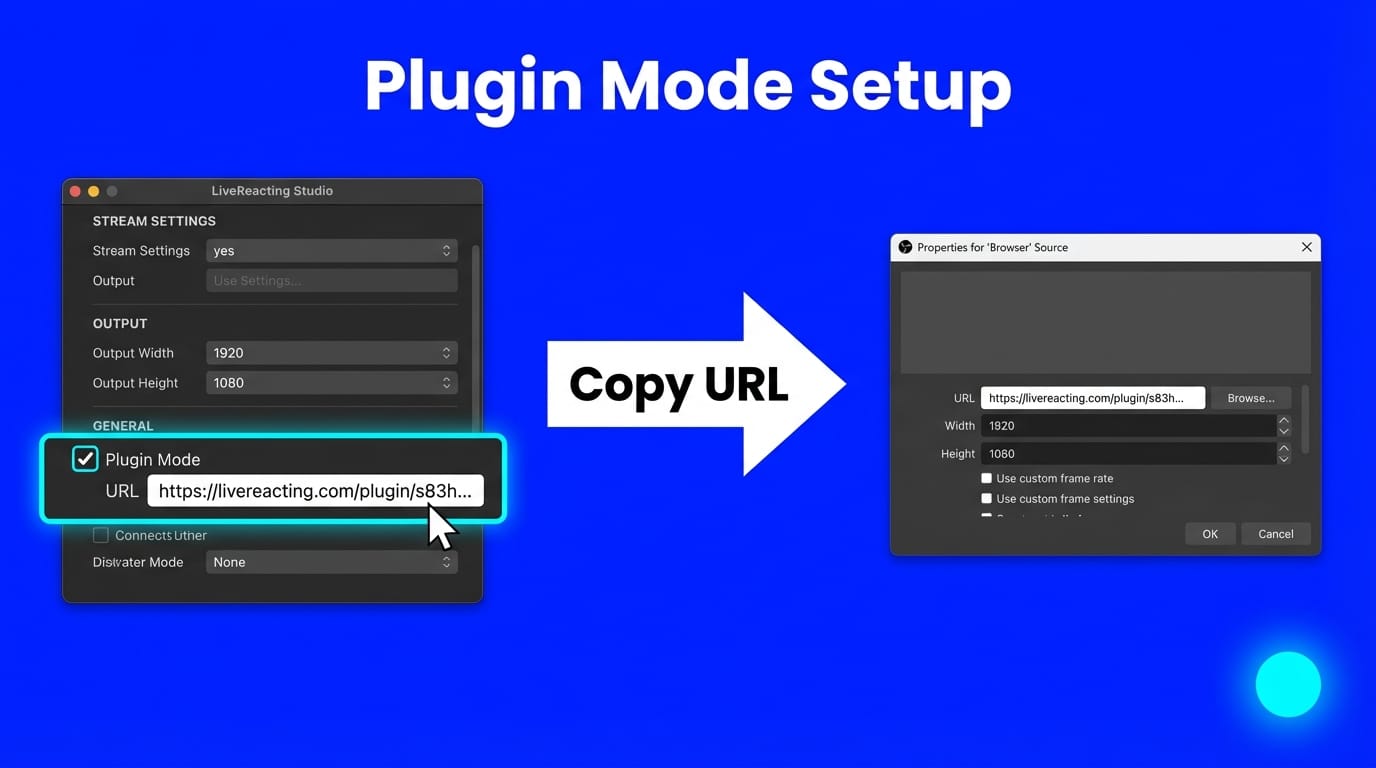
- Check the "Plugin Mode" box and copy the generated URL
- In OBS, add a new Browser Source, paste the URL, set dimensions to 1280 x 720
- Start your stream in OBS first, then go back to LiveReacting Studio and click Start
The overlay is invisible in OBS until you activate it in LiveReacting Studio. When you're ready, click Start and the interactive element appears on your stream. When it ends, it disappears automatically, keeping your stream layout clean between games.
Plugin Mode is an addition to your OBS setup, not a replacement. Your scenes, camera, audio, and overlays stay exactly as they are. You just add one browser source on top.
Before and After: What Interactive Overlays Add to Your Stream
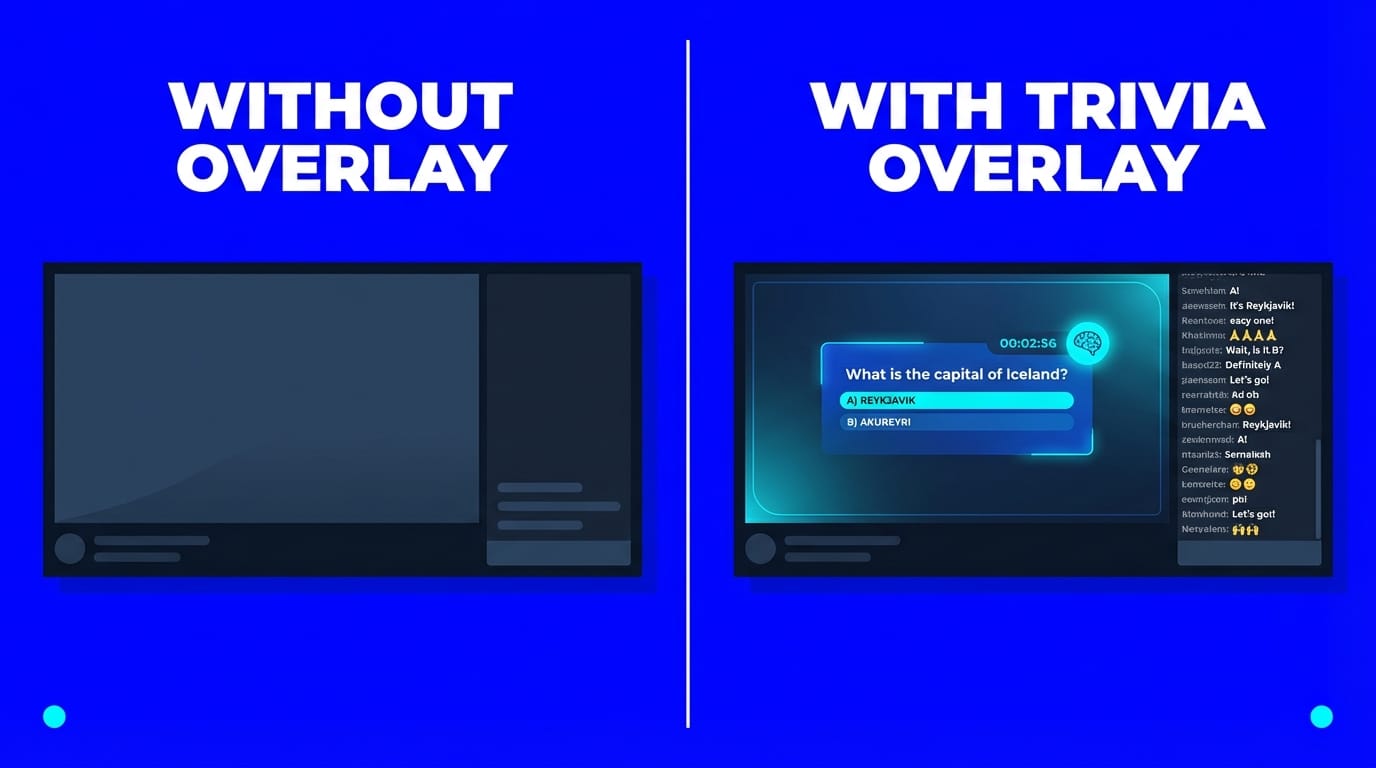
Without interactive overlays: Your stream shows your camera, gameplay, or content. Chat is mostly silent. Viewers watch for a few minutes and leave. The platform algorithm sees low engagement and doesn't promote your stream.
With an OBS trivia overlay or poll: A trivia question, poll, or giveaway appears on screen as a transparent overlay. Viewers type answers in chat. The overlay scores responses, shows results, and updates a leaderboard in real time. Chat activity spikes. Watch time increases. The algorithm picks up on the engagement signals and pushes your stream to more viewers.
The setup takes two minutes. The impact on engagement is immediate.
Adding a Trivia Game Overlay to OBS
Trivia drives more chat activity than any other overlay you can add to a stream. Viewers answer questions by typing in the chat. LiveReacting scores responses automatically, tracks speed (faster answers get more points), and displays a real-time leaderboard.
Setup
- Go to LiveReacting Studio and pick a trivia template (or create your own)
- Customize your questions. You can write them manually or use AI to generate questions on any topic
- Adjust the design: colors, fonts, timer length, sound effects, number of rounds
- In Settings, connect your streaming platform and enable Plugin Mode
- Copy the URL and add it as a Browser Source in OBS (1280 x 720)
For a detailed walkthrough, see the Trivia OBS Plugin tutorial.
How It Plays Out
The game runs in four phases:
- Countdown builds anticipation before each question
- Question appears on screen. Viewers type their answer (a number or word) in chat
- Scoring reveals the correct answer and awards points. Faster correct answers score higher
- Leaderboard shows the standings after each round
A typical trivia round generates 50-200 chat messages. Over a 10-round game, that's 500-2,000 comments on your stream. YouTube and Facebook algorithms interpret this as high engagement and promote your stream to more viewers.
Here's an astronomy live stream where they added a trivia game to keep their audience engaged:
Real Results
- IMAX: 350x more comments during a Bohemian Rhapsody trivia stream
- Air Asia: 60x more comments + 100K views with trivia
- InfinitePay: 900 concurrent players, 3x engagement
Adding Live Polls to Your OBS Stream
Polls let viewers vote on a question by commenting or reacting. Results update on screen in real time. Good for audience Q&A, topic voting, product launches, or just keeping viewers engaged between content segments.
Setup
Same process as trivia:
- Pick a poll template in LiveReacting Studio
- Write your question and answer options
- Choose the voting method: comment-based (viewers type a number) or reaction-based (Facebook reactions)
- Enable Plugin Mode, copy the URL, add as Browser Source in OBS
For a detailed walkthrough, see the Live Poll OBS Plugin tutorial.
Poll Types
| Type | How Viewers Vote | Best For |
|---|---|---|
| Comment Poll | Type a number (1, 2, 3...) in chat | YouTube, Facebook, Twitch |
| Image Poll | Type a number matching an image option | Product votes, visual choices |
| Reactions Poll | Use Facebook reactions (Like, Love, Wow...) | Facebook only |
Polls are lightweight and fast to set up. Use them between trivia rounds, before a segment starts, or as an icebreaker. Check out 100 poll questions for inspiration.
Here's a live poll in action during a stream:
Adding a Giveaway Overlay to OBS
Giveaways collect entries automatically from chat. Viewers type a keyword (like "enter" or "giveaway") in the comments. LiveReacting collects all entries and picks a random winner on screen.
Setup
- Pick a giveaway template in LiveReacting Studio
- Set the entry keyword, duration, and number of winners
- Enable Plugin Mode, copy the URL, add as Browser Source in OBS
- Start the giveaway from LiveReacting Studio when you're ready
For a detailed walkthrough, see the Giveaway OBS Plugin tutorial.
The giveaway overlay shows entries flying in, a countdown timer, and the winner announcement with confetti. All automated.
Here's a knitting live stream where the seller added a giveaway to engage her audience:
Tips
- Set a "must be watching" rule to keep viewers on your stream
- Run giveaways at the end of a trivia game to reward the winner
- Use giveaways to grow followers: require viewers to follow or subscribe before entering
- If you're streaming on YouTube, giveaways pair well with Super Chat goals
More Interactive Overlays for Live Streams
Trivia, polls, and giveaways are the most popular, but Plugin Mode also works with:
- Word Search: A letter grid appears on screen. Viewers find hidden words and type them in chat. Available for Facebook and YouTube. (OBS setup tutorial)
- Wordict: A Wordle-style game where viewers guess words by commenting. Daily word game format that keeps viewers coming back. (OBS setup tutorial)
- Closest Guess: Ask a number-based question ("How many goals did Messi score in 2025?") and viewers type their guess. Closest answer wins, scored by proximity and speed. (OBS setup tutorial)
- Last Comment Wins: Simple game where the last person to comment before the timer ends wins. Generates massive chat activity.
All of these work as OBS browser source overlays through Plugin Mode. For more ideas, see 100 interactive live streaming ideas.
Works with vMix, StreamYard, and Ecamm Live Too
Plugin Mode isn't OBS-only. The same URL works in any streaming software that supports browser sources or web overlays:
vMix:
- Create a new browser input in vMix
- Paste the LiveReacting URL, set dimensions to 1280 x 720
- Start your stream in vMix, then activate in LiveReacting Studio
Ecamm Live (Mac):
- Click the planet icon in Ecamm's left sidebar
- Paste the URL, set dimensions to 1280 x 720, click "Add Widget Overlay"
- Start your stream in Ecamm, then activate in LiveReacting Studio
For a full Ecamm walkthrough, see the Ecamm trivia game setup guide.
StreamYard:
- Open the LiveReacting URL in a Chrome tab
- In StreamYard, click "Share Screen" and choose the LiveReacting Chrome tab
- Adjust the tab to 16:9 proportions so the overlay fills the screen
For step-by-step StreamYard instructions, see the StreamYard trivia game setup guide.
Also supported: Wirecast, XSplit, Restream, BeLive. Any software that accepts a browser source or screen share.
How Interactive Overlays Affect Stream Performance
Most OBS streams have zero audience interaction. Viewers watch passively, chat is quiet, and the algorithm doesn't promote the stream.
Adding one interactive element changes the numbers:
| Metric | Passive OBS Stream | OBS + Interactive Overlay |
|---|---|---|
| Chat messages per hour | 0-10 | 200-500+ |
| Average watch time | 2-5 minutes | 12-15 minutes |
| Algorithm ranking | Low (no engagement signals) | High (active chat + long watch time) |
Viewers don't need to install anything, visit a separate website, or use a Twitch extension. They just type in the normal chat. LiveReacting reads the comments, scores the answers, and displays the results through the chat your viewers already use.
For more on why engagement matters, see how interactive livestreams build loyal fanbases.
Pricing for Plugin Mode
Plugin Mode is available on all paid LiveReacting plans, starting at just $19.99/mo:
| Plan | Price | Stream Limit | Game Participants | Plugin Mode |
|---|---|---|---|---|
| Free | $0 | 30 min, 3 streams/mo | 25 | No |
| Small | $19.99/mo | 1 hour, unlimited | 150 | Yes |
| Medium | $39.99/mo | 3 hours, unlimited | 500 | Yes |
| Large | $99.99/mo | 8 hours, unlimited | 1,000 | Yes |
The Small plan at $19.99/mo covers most streamers. You get unlimited streams, Plugin Mode, and up to 150 game participants per session. If you run large-scale trivia with 500+ players, go with Medium. Full pricing details.
All paid plans also include yearly billing discounts (save ~20%). The Small plan drops to $16/mo when billed yearly.
Troubleshooting Common Issues
Overlay not showing in OBS
- Confirm you clicked "Start" in LiveReacting Studio after starting your OBS stream. The overlay stays invisible until activated.
- Check that the Browser Source dimensions are set to 1280 x 720.
- Make sure the Browser Source is positioned above your other sources in the OBS Sources panel (higher = renders on top).
White bars or background around the overlay
- In OBS, right-click the Browser Source and select Properties. Make sure "Custom CSS" is empty or contains only the default OBS browser source CSS.
- Ensure the Browser Source width and height match the resolution you set in LiveReacting (default: 1280 x 720).
Overlay not reading chat comments
- Go to LiveReacting Settings and verify your streaming platform is connected (YouTube, Facebook, or Twitch).
- Make sure your stream is actually live on the platform before starting the interactive element in LiveReacting.
- For YouTube, confirm you are streaming to the correct channel and that live streaming is enabled on your account.
Lag between chat and overlay response
- This is usually platform delay, not a LiveReacting issue. Facebook Live has 7-15 seconds of delay. YouTube Live has 3-10 seconds. LiveReacting accounts for this when scoring trivia answers, so viewers are not penalized.
- For the lowest delay on YouTube, set your stream latency to "Ultra low latency" in YouTube Studio.
Browser Source shows a blank page
- Copy the Plugin Mode URL again from LiveReacting Studio and re-paste it into OBS. The URL may have expired if you generated it in a previous session.
- Try clearing the Browser Source cache: right-click the source in OBS, select Properties, then click "Refresh cache of current page."
FAQ
Do I need to switch from OBS to use LiveReacting?
No. Plugin Mode works alongside OBS. You keep your entire OBS setup (scenes, sources, camera, audio), and LiveReacting adds an interactive overlay on top. Think of it as adding a new source, not replacing your workflow.
Does it work with YouTube, Facebook, and Twitch?
Yes. Connect your streaming platform in LiveReacting Settings. The interactive overlay reads comments from whichever platform you're streaming to. If you're multistreaming, LiveReacting can read comments from multiple platforms simultaneously.
Is there a delay between chat and the overlay?
Facebook Live has a 7-15 second delay. YouTube Live has a 3-10 second delay. LiveReacting accounts for these platform delays when scoring answers, so no one is penalized for streaming latency.
Can I customize the look of the overlay?
Yes. Colors, fonts, backgrounds, timer duration, sound effects, number of rounds, and question content are all customizable in LiveReacting Studio before you generate the Plugin Mode URL.
What happens when the game ends?
The overlay disappears from your stream automatically. Your OBS layout returns to normal. You can start a new game anytime by clicking Start again in LiveReacting Studio.
Can I use the AI Host with Plugin Mode?
The AI Host is available on Medium plans and above. It reads trivia questions aloud, provides commentary, and announces winners automatically when streaming directly from LiveReacting.
For Plugin Mode (OBS browser source), the visual overlay works but the AI Host audio would need to be mixed separately.
What's the difference between Plugin Mode and streaming directly from LiveReacting?
Streaming directly from LiveReacting gives you access to all features (AI Host audio, cloud encoding, scheduling). Plugin Mode is for streamers who want to keep OBS as their primary tool and add LiveReacting's interactive overlays as a browser source. Both approaches use the same interactive engine.
Start Adding Interactive Overlays to OBS
Your OBS setup stays the same. You just add one browser source. Two minutes to set up, 50-200 comments per trivia round, starting at $19.99/mo. Try LiveReacting free with 3 streams per month, then upgrade to a paid plan for Plugin Mode access.
Transform Your Live Streams with LiveReacting
Join 10,000+ streamers who are boosting engagement and viewership by adding pre-recorded videos, games, polls, and countdowns to their streams.
Try LiveReacting for free today and take your streams to the next level!